The Dashboard is your main workspace within the platform. It provides a centralized view of your quotes,
Requests for Proposals (RFPs), and recent activity so you can quickly understand what requires attention and
take action efficiently.
1. Navigation & Core Controls
- Start Quote/RFP: Select to create a new quote manually or use SmartExtractor™ to automate data organization via file upload.

- ‘My DataHub’ Toggle: Filters the dashboard to display only the quotes assigned to the logged-in user.

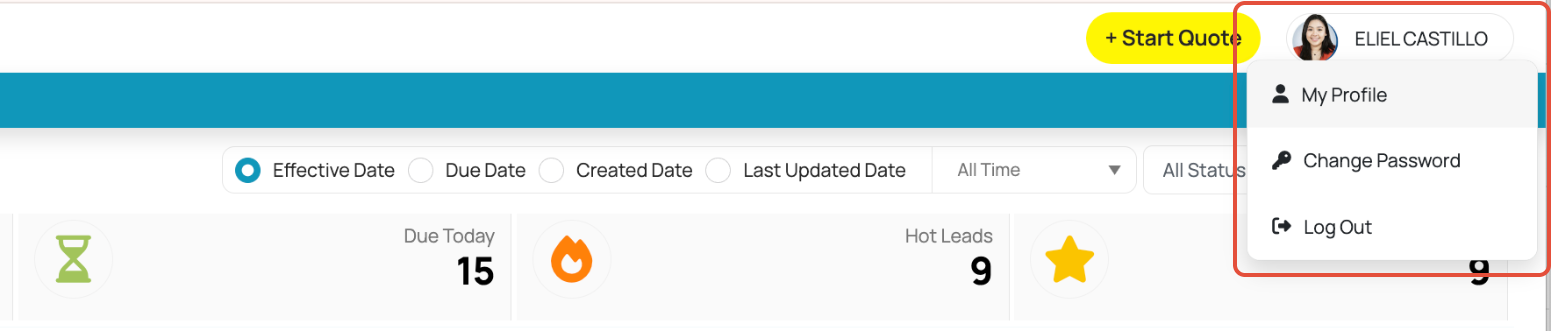
- Profile: Manage personal preferences for alerts and notification settings.
- Manage (Administration): Access critical configuration modules via the "Manage" dropdown:
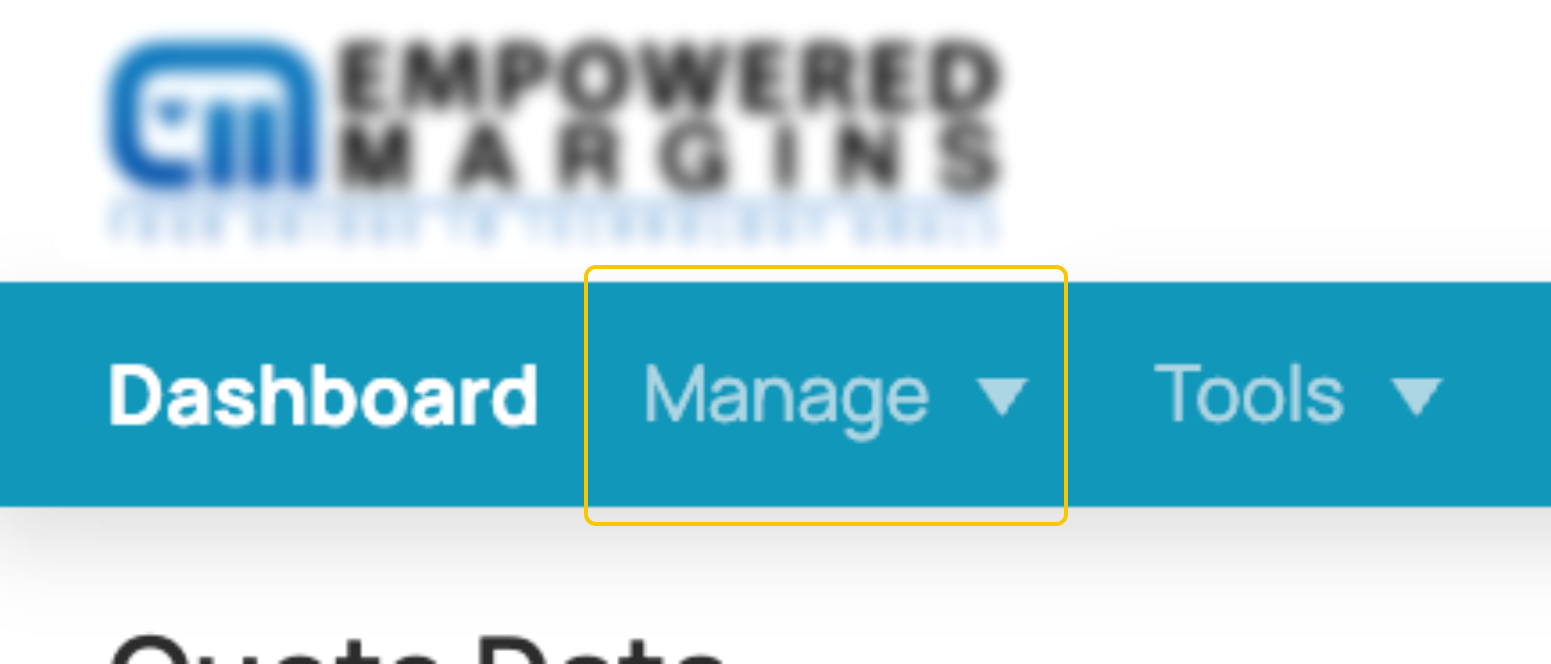
- Basic Setup: Manage Document Categories, Partners, and Access Management (Groups, Roles, and Users).
- Workbench Setup: Configure the system logic, including Load Factor Configurations, Rule Engines (Risk Tuner/
- Workflow Engine), and Look-up Tables.
- Plan Setup: Define and manage the specific plan structures available within the platform.
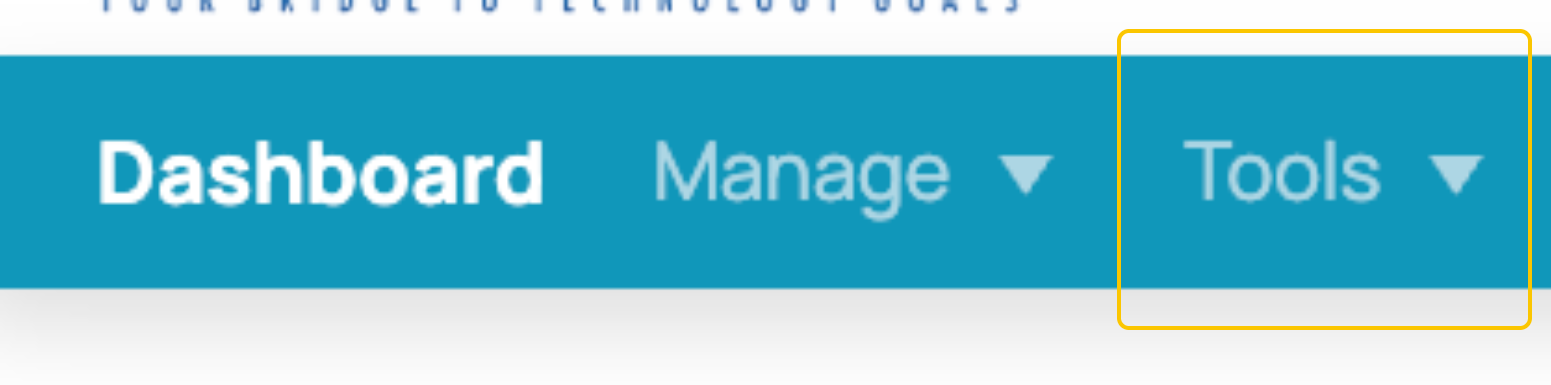
- Tools Menu
- Smart Audit: Use this tool to perform automated audits and historical data reviews to ensure compliance and accuracy.
2. Metrics & Quote Counters
- All Quotes Total volume of quotes currently in the system.
- In Progress Active cases requiring ongoing workflow actions.
- Due Today Highlights items requiring immediate attention.

3. Data Handling & Reporting
- Search & Filters: Search by Group Name or Case ID. Apply filters (Effective Date, Status, User) to narrow focus.
- Exporting to Excel: For best results, apply necessary filters and switch to List View before clicking export. This ensures data is structured properly for offline review or reporting.
4. Recent Activities
The Recent Activities section provides a real-time activity log for visibility and transparency across teams. It serves as a historical record for reference and auditing purposes.
- What: View specific changes made to quotes or RFPs.
- When: Time-stamped record of every update.
- Who: Identification of the user who performed the action.

Was this article helpful?
That’s Great!
Thank you for your feedback
Sorry! We couldn't be helpful
Thank you for your feedback
Feedback sent
We appreciate your effort and will try to fix the article