The Comment and Activity Log features in DataHub are essential for maintaining visibility into every action taken within a group or RFP. Whether logging key updates or simply leaving notes for team members, both these tools ensure a reliable and transparent audit trail.
Why Is It Important?
Collaboration: Comments help teams communicate inline, directly within the context of a group or project.
Accountability: Activity logs timestamp every interaction, making it easy to trace decisions and progress.
Efficiency: No more guesswork—teams can pick up where others left off with full context.
Step-by-Step Guide:
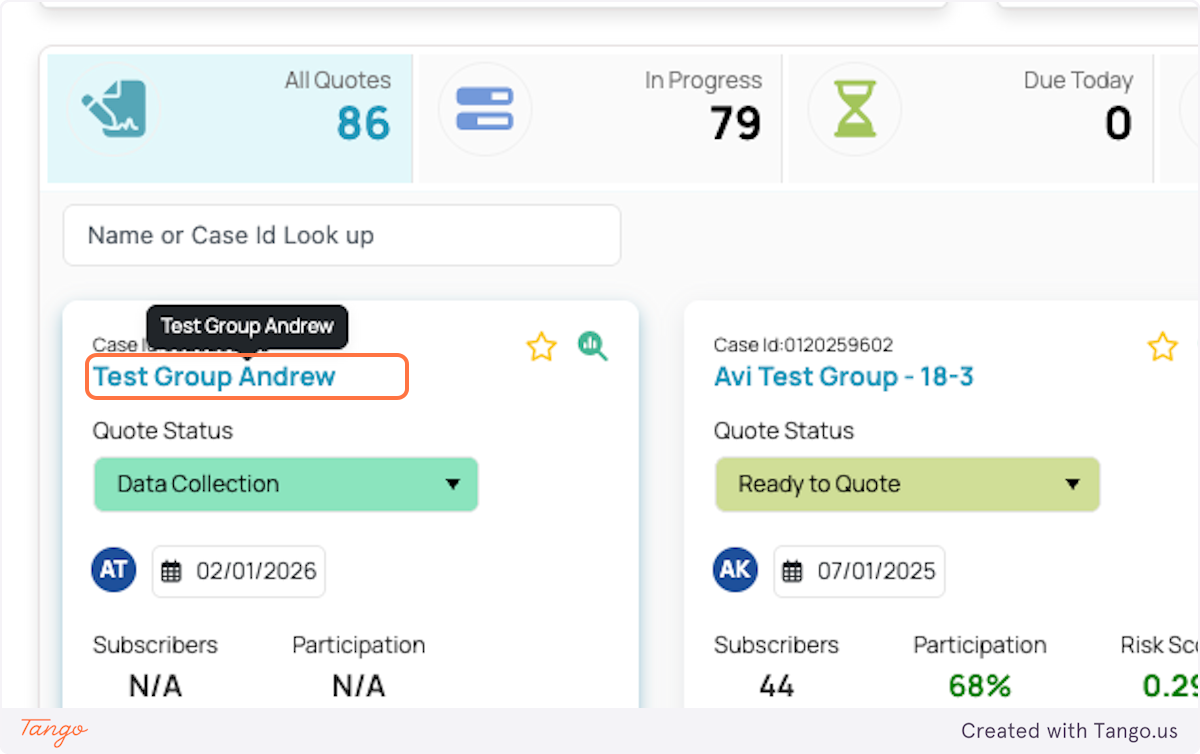
1. From the DataHub dashboard, click on the RFP that you are currently working on. For this guide we are using “Test Group Andrew”
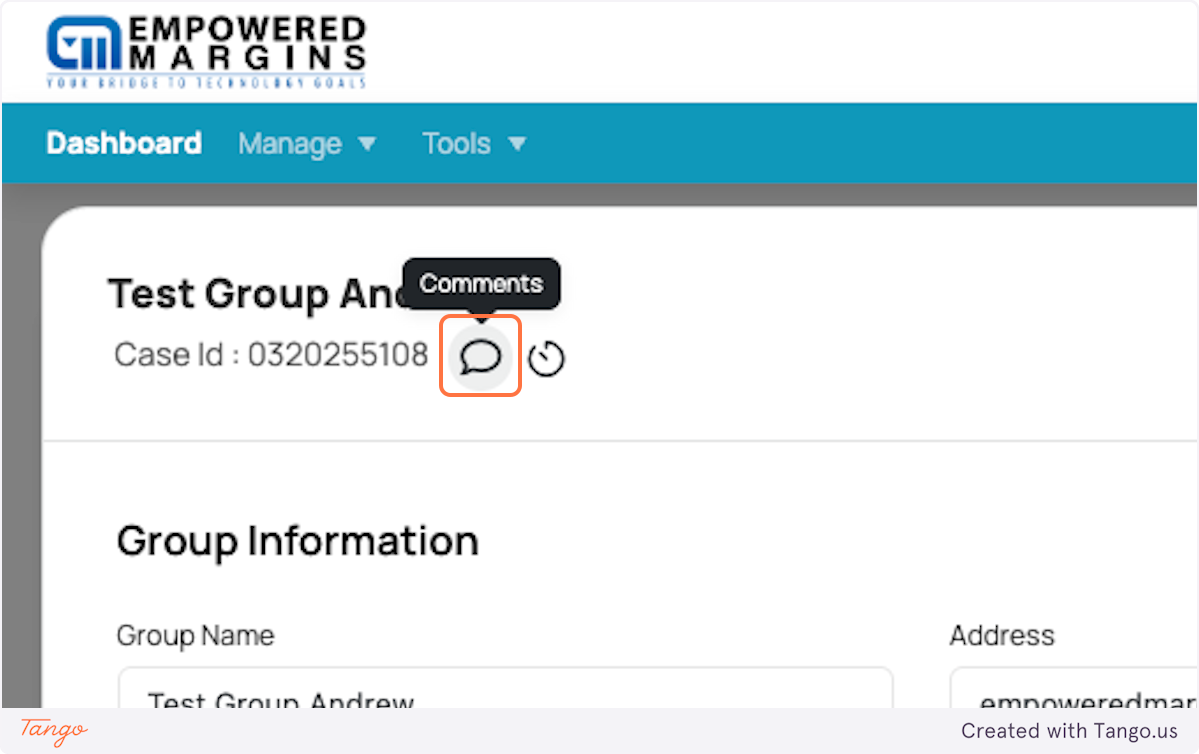
2. Once inside the Group Information tab, click on the Comment logo beside the Case ID number to bring up the comment panel on the right side of your screen.
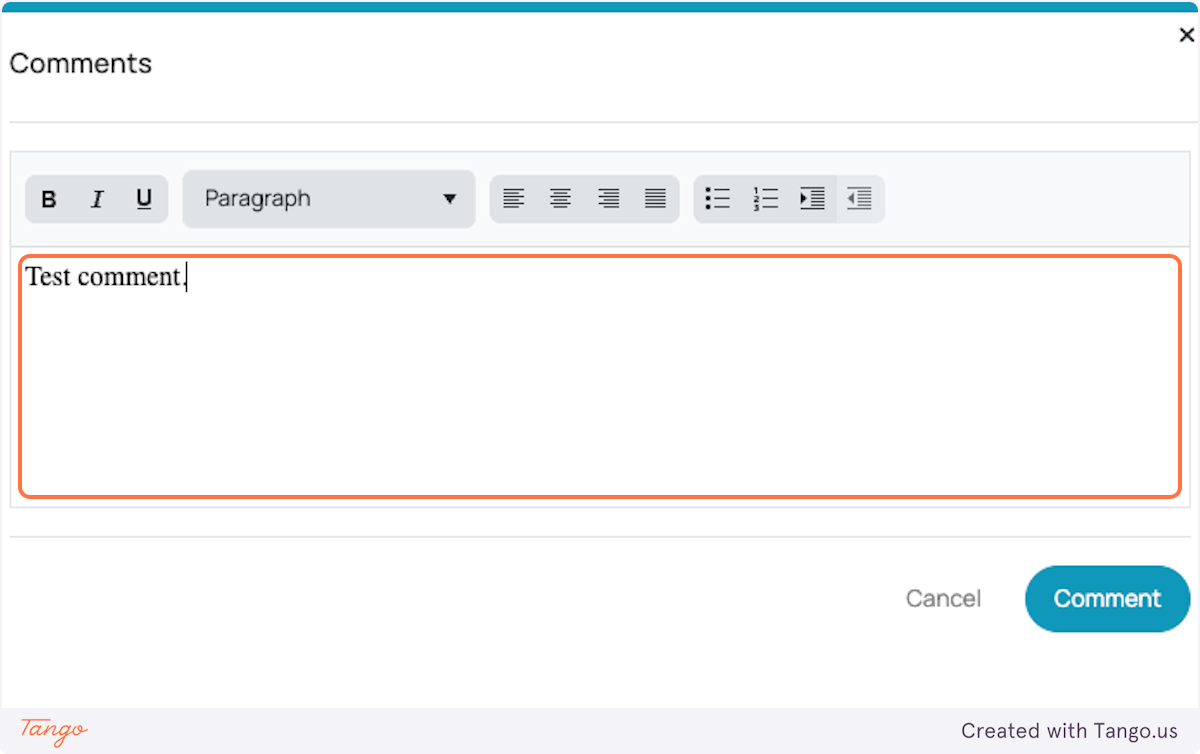
3. In the comment field, type your message or note. This could be any note where you can document internal updates or flag issues, or leave notes for other team members. In this guide, we will simply write “Test comment”.
4. Once you’ve written your note, click the Comment button to post it. Your comment is now added!
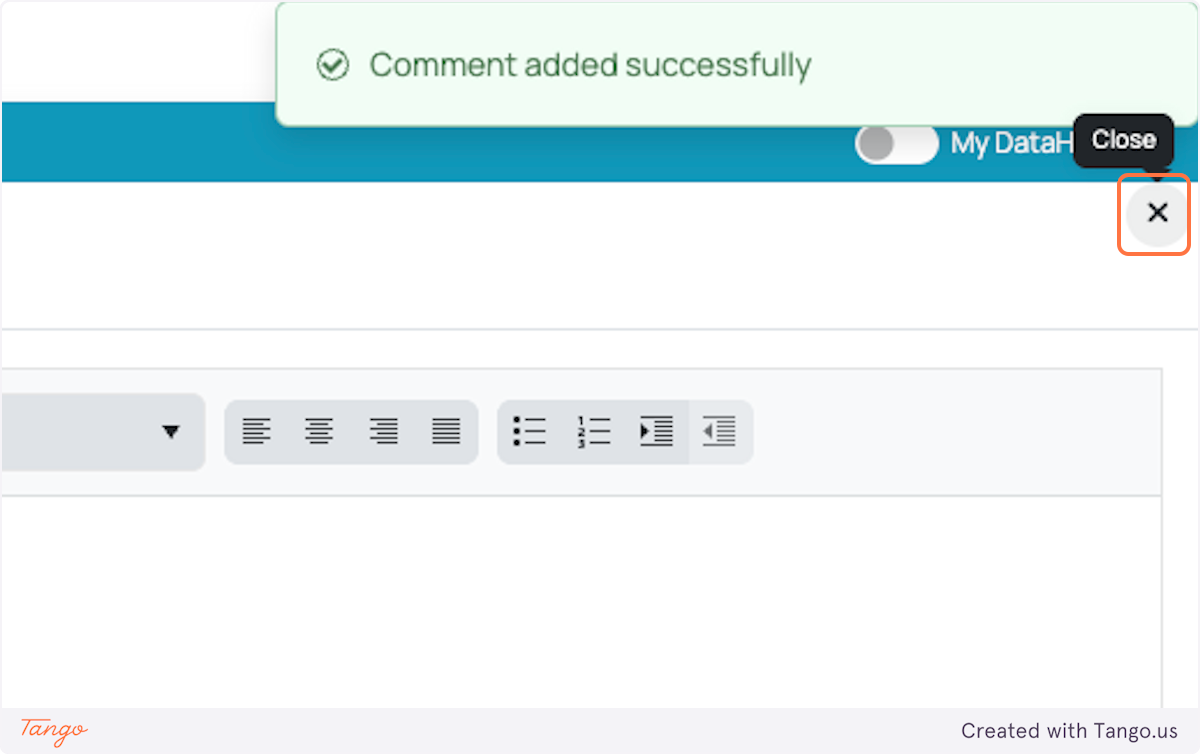
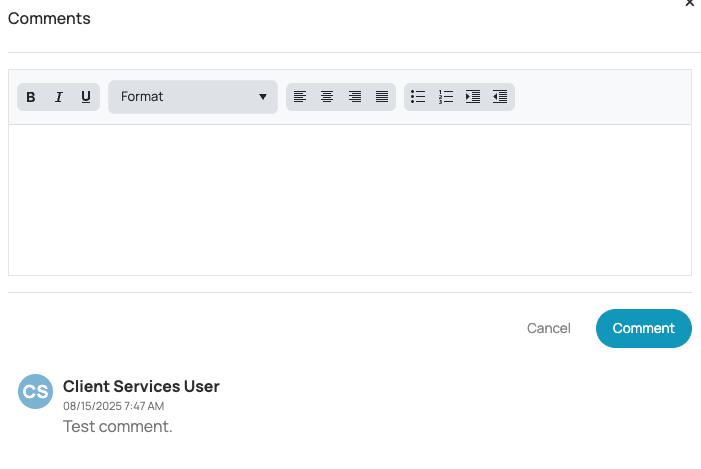
The comment will immediately be visible to anyone who accesses this RFP.
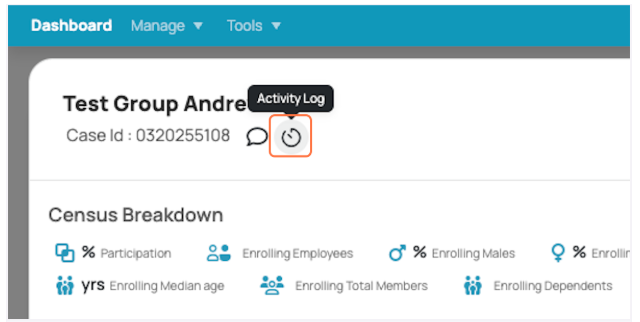
5. To confirm that your comment was recorded properly, open the Activity Log tab. This log tracks every interaction within the RFP - not just comments, but also system-triggered changes and manual edits.
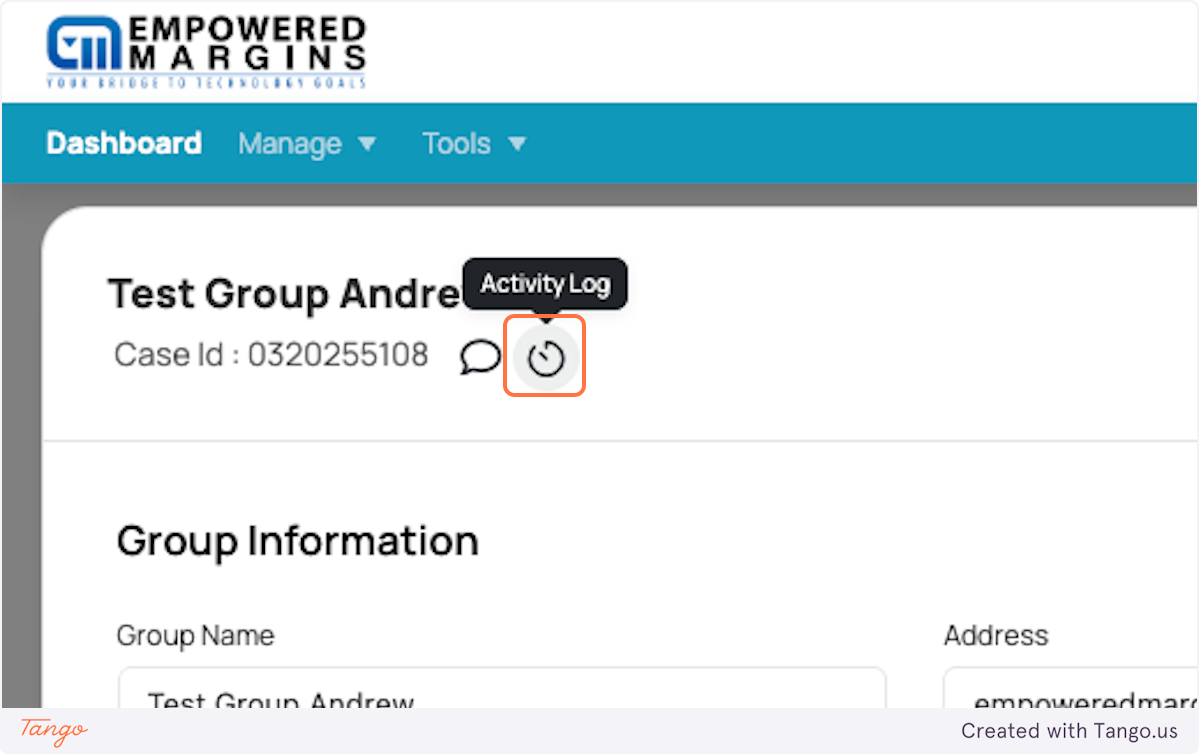
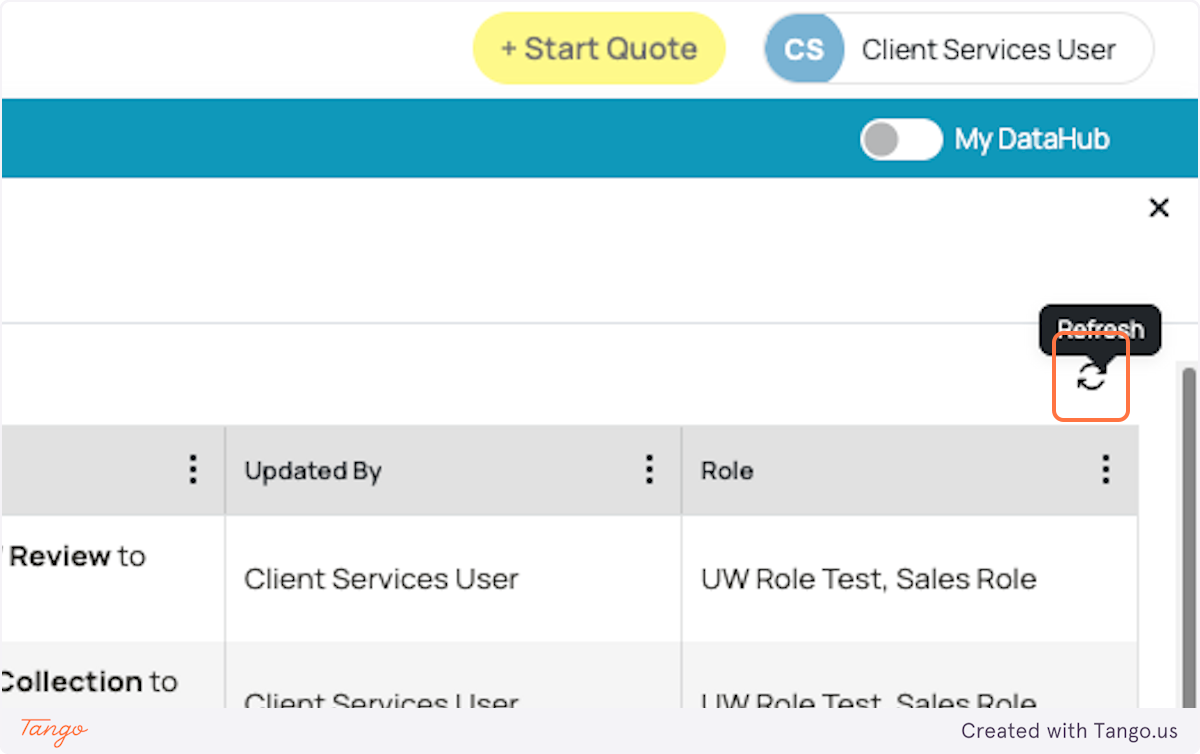
6. Click Refresh to make sure you’re seeing the latest activity.

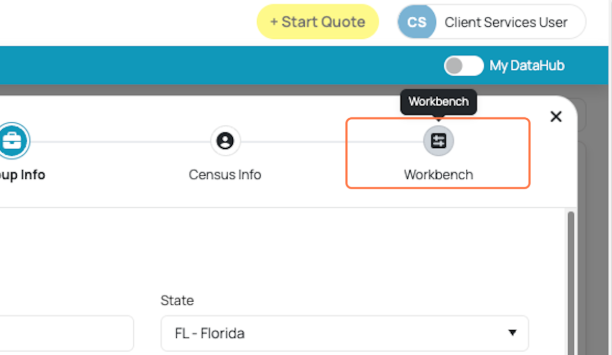
7. This Activity Log is also helpful to track progress changes to - like what status this RFP is currently in. On the same screen, click on Workbench.
8. As you drag your mouse over this section, you will see the different status your RFP can be in. Let’s click on Ready to Quote status.
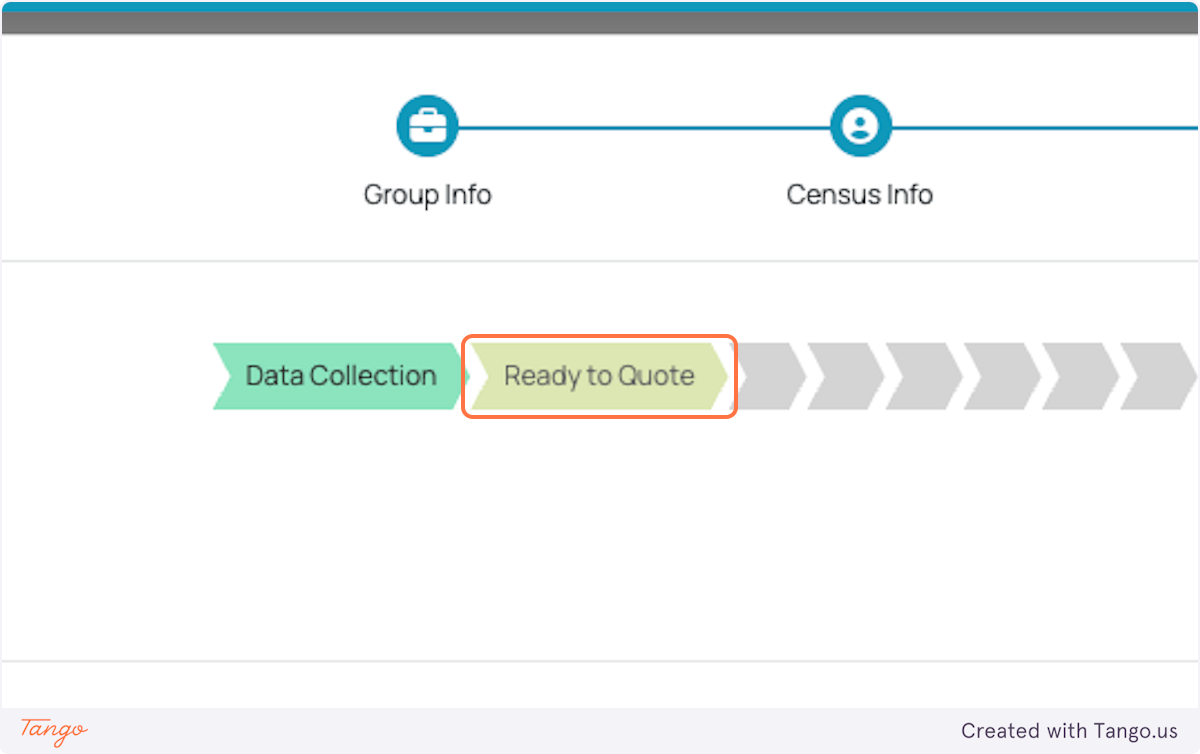
9. Go back to the Activity Log to view recent RFP updates. Then, refresh.
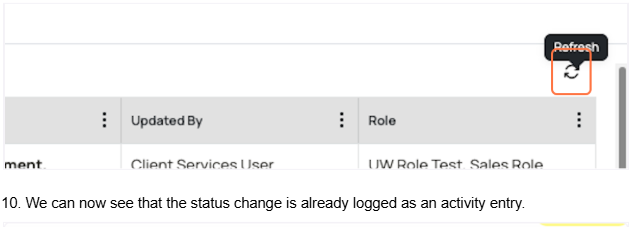
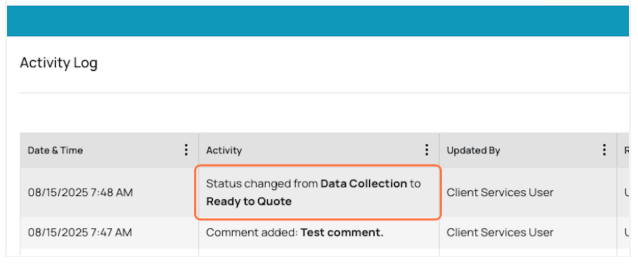
10. We can now see that the status change is already logged as an activity entry.
Was this article helpful?
That’s Great!
Thank you for your feedback
Sorry! We couldn't be helpful
Thank you for your feedback
Feedback sent
We appreciate your effort and will try to fix the article