The Rework Cycle feature is designed to help track and manage the efforts involved in closing a Request for Proposal (RFP). It is particularly useful for users such as underwriters and sales teams to monitor the status of RFPs as they go through different stages and sometimes require revisiting previous steps.
Key Features of the Rework Cycle
Tracking Rework Efforts:
The Rework Cycle helps track the efforts of users (e.g., underwriters, sales representatives) in revisiting or reworking an RFP. It ensures all necessary steps are documented in the process.
Status Changes:
If an RFP needs to be revisited due to incomplete data or missing information, it can be moved back to a previous status (e.g., from "ready to code" back to "data collection"). This feature ensures that the process can be corrected at any point if required.
Rework Cycle Counter:
Each time the status of an RFP is moved back to a previous stage, the Rework Cycle counter increments by 1. This allows users to track how many times the RFP has been sent back for rework (e.g., Rework Cycle 1, Rework Cycle 2).
Comment Requirement:
Users must add comments explaining why the RFP has been moved back to a previous status. This helps maintain clarity and provides context for other team members.
How to Use the Rework Cycle
Access the Rework Cycle:
You will see the Rework Cycle icon when managing an RFP in the system (shown as a gear icon with the number indicating the cycle).
Initiating Rework:
Click on the Rework button to open the rework cycle dialog.
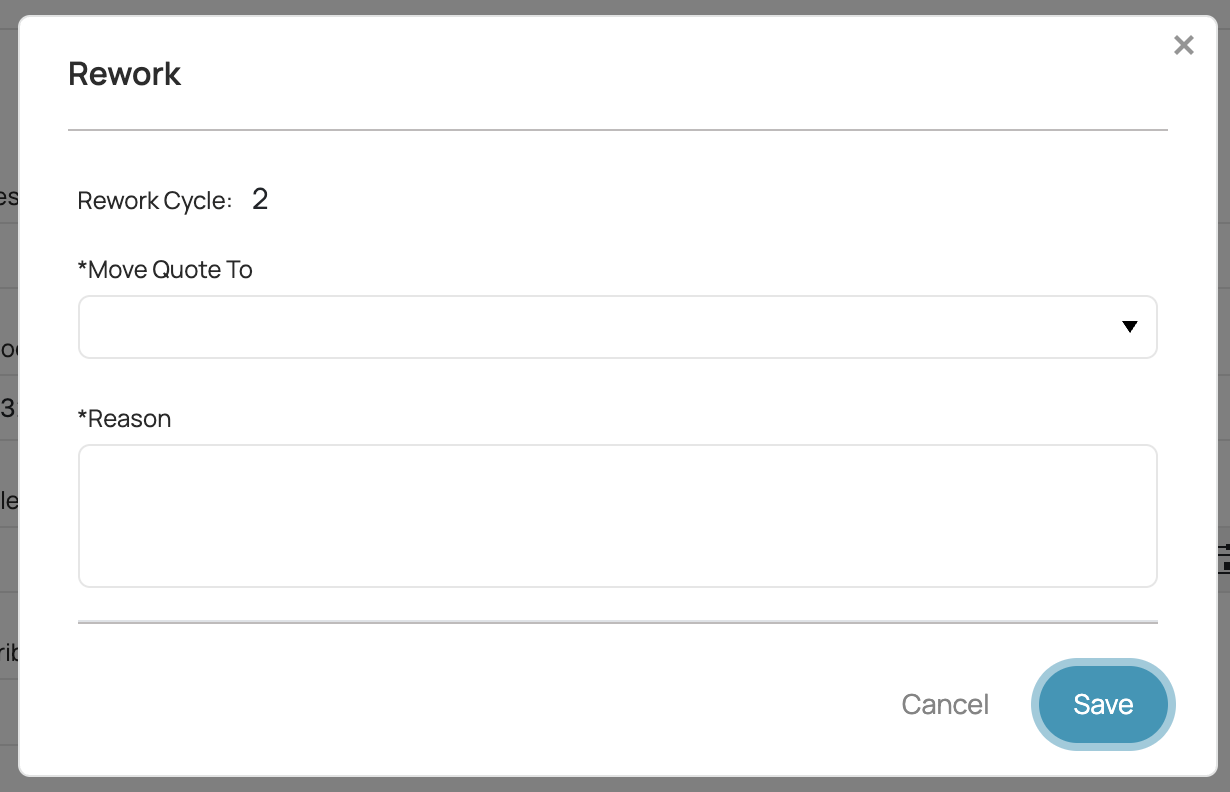
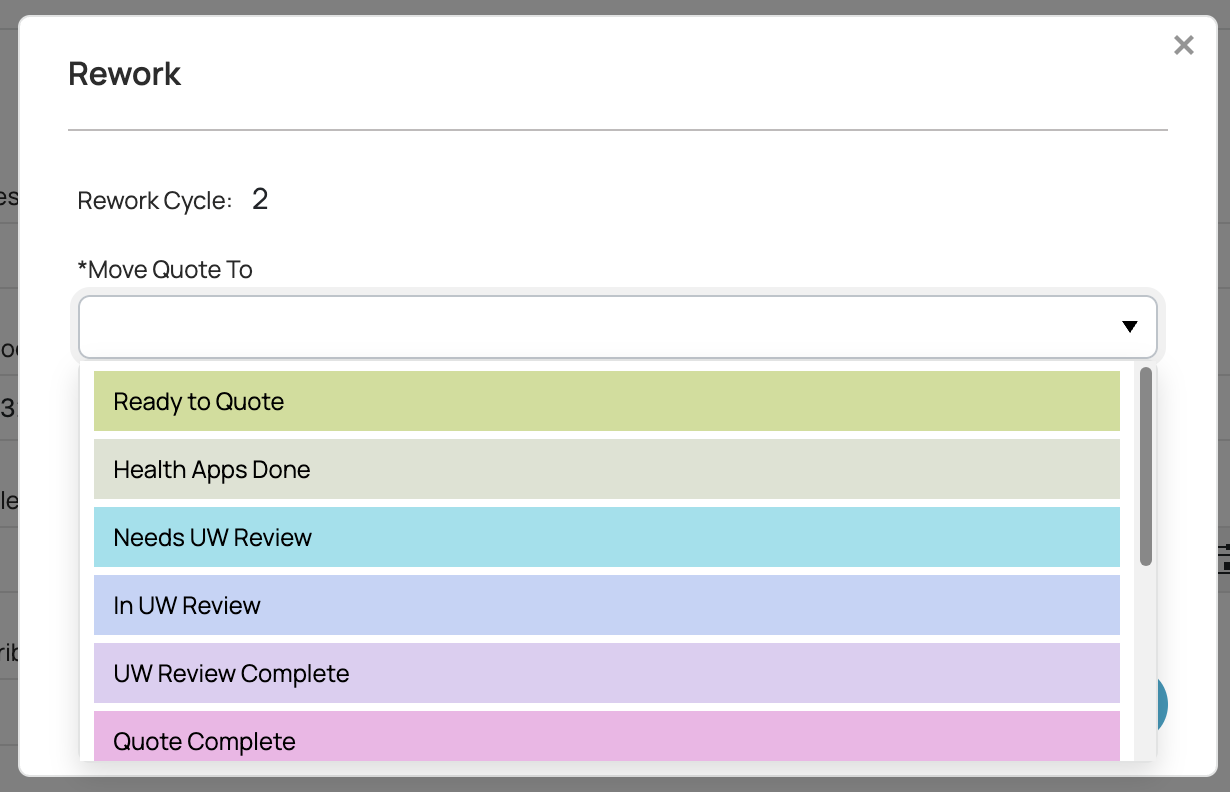
Selecting the Status to Move the RFP To:
In the "Move Quote To" dropdown, select the previous status to which the RFP should be moved. This could be a step earlier in the workflow, such as moving back to "data collection" or another relevant stage
Adding a Comment:
- Reason: You must enter a reason in the provided text box. This comment will explain why the status is being moved back. For example, “Pending documents” or “Missing client details.”
5. Save the Changes:Once you’ve selected the appropriate status and added a comment, click Save to confirm the rework action.
How the Rework Cycle Works
Rework Cycle Counter:
After saving, the Rework Cycle counter will increment (e.g., Rework Cycle 1 becomes Rework Cycle 2 the next time the status is moved back).
This helps track how many times an RFP has been revisited, ensuring all steps are followed carefully.
Tracking Changes:
Every time the status is changed to a previous step, a log is generated. The system automatically tracks the changes, showing the reason provided by the user for each rework action.
Best Practices for Using the Rework Cycle
Document Every Change:
Ensure that every status change includes a clear comment. This provides clarity for other team members on why the RFP is being revisited and helps avoid confusion.
Use the Counter for Monitoring:
Keep track of the number of rework cycles for each RFP. A high rework count may indicate areas where the process can be improved or where additional information is often needed from the client.
Coordinate with Team Members:
After making changes to an RFP’s status, communicate with team members to ensure everyone is aware of the updates and that the process proceeds smoothly without unnecessary delays.
Was this article helpful?
That’s Great!
Thank you for your feedback
Sorry! We couldn't be helpful
Thank you for your feedback
Feedback sent
We appreciate your effort and will try to fix the article