What is a Smart Extractor?
The Smart Extractor is an AI-driven tool that simplifies data entry. Unlike traditional tools that require strict adherence to a specific template, the Smart Extractor intelligently recognizes and maps data points from your files even if the formatting varies. This eliminates the need for manual data cleanup before uploading.
Here is the Step by Step guide for using Smart Extractor:
1. Initiate the process. From your dashboard, locate the yellow "Start Quote" button in the upper-right corner. Clicking this will open the group creation interface.
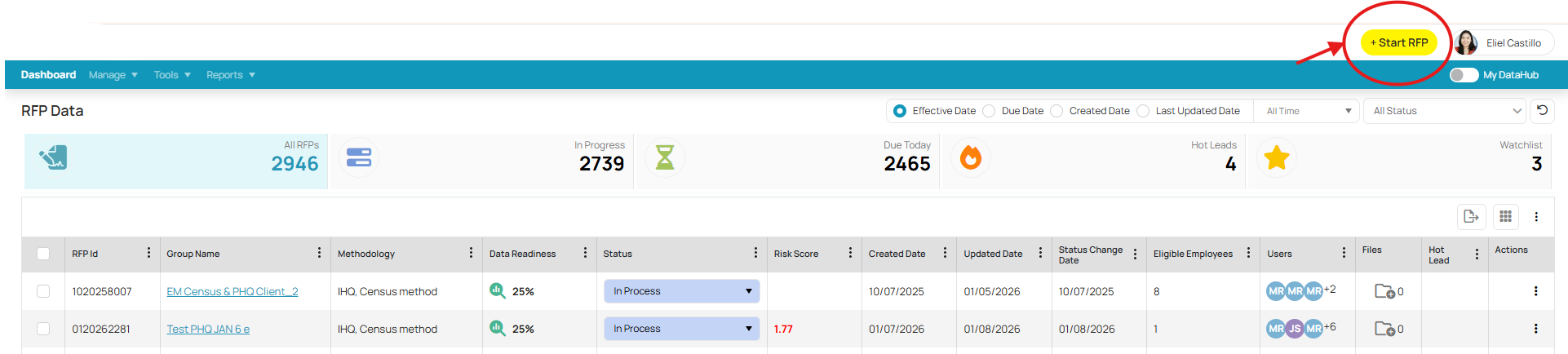
2. Complete the following required fields:
- Line of Business
- RFP Type
- Methodology
- RFP Information
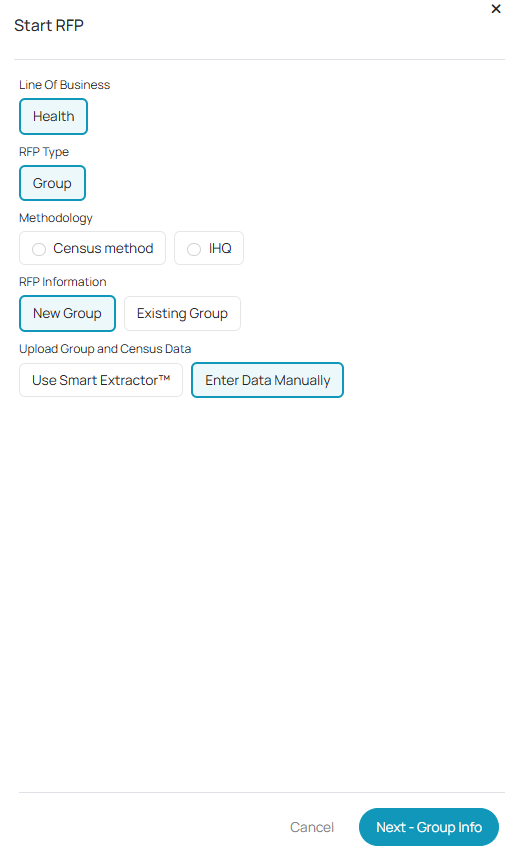
3. Choose Your Upload Method
In the options, you may choose how you want to provide census data. You have two primary options:
Smart Extractor
Manual Entry
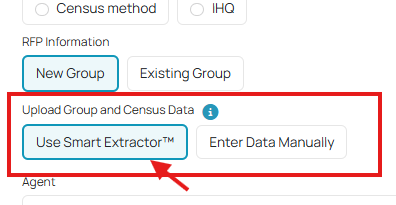
In this case, we choose Smart Extractor.
4. Smart Extractor
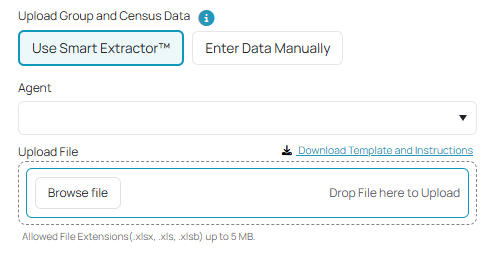
Once you have selected the Smart Extractor as your upload method, follow these steps to map your data:
- Assign an Agent: Select the appropriate Agent for the group from the dropdown menu.
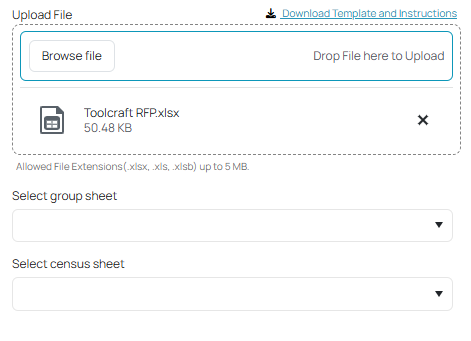
- Upload Your File: Click "Browse Files" to select and upload the document containing your Census and Group Information.
c. Define Data Locations: If your workbook contains multiple tabs, the system will prompt you to:
Identify the Group Sheet (containing employer details).
Identify the Census Sheet (containing member/employee details).
4. Complete Employer Information
Click "Next – Employer Info" to proceed to the Group Info section.
Smart Extractor will automatically populate the information from the workbook to the Group Info fields. But if there are still required fields (highlighted in red), the user must fill it out.
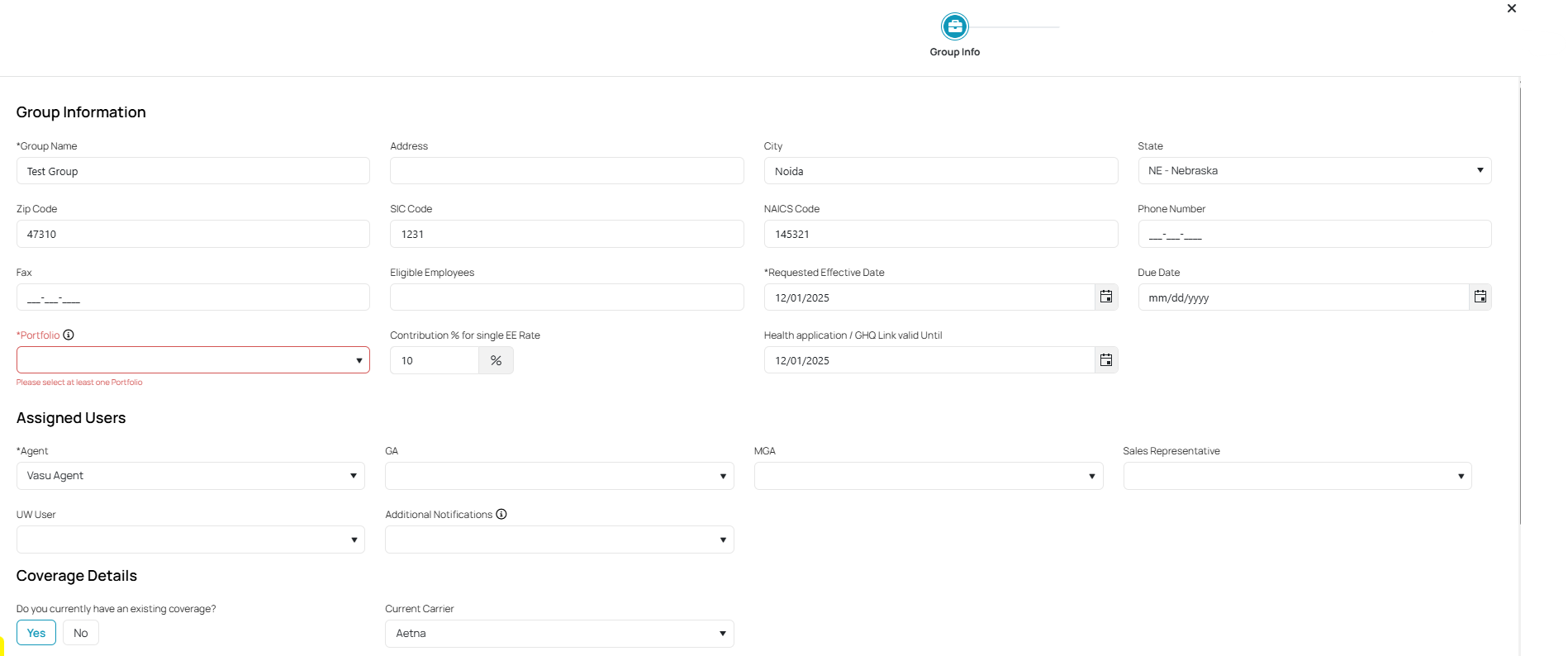
Once complete, click "Next: Census Info" at the bottom right of the screen.

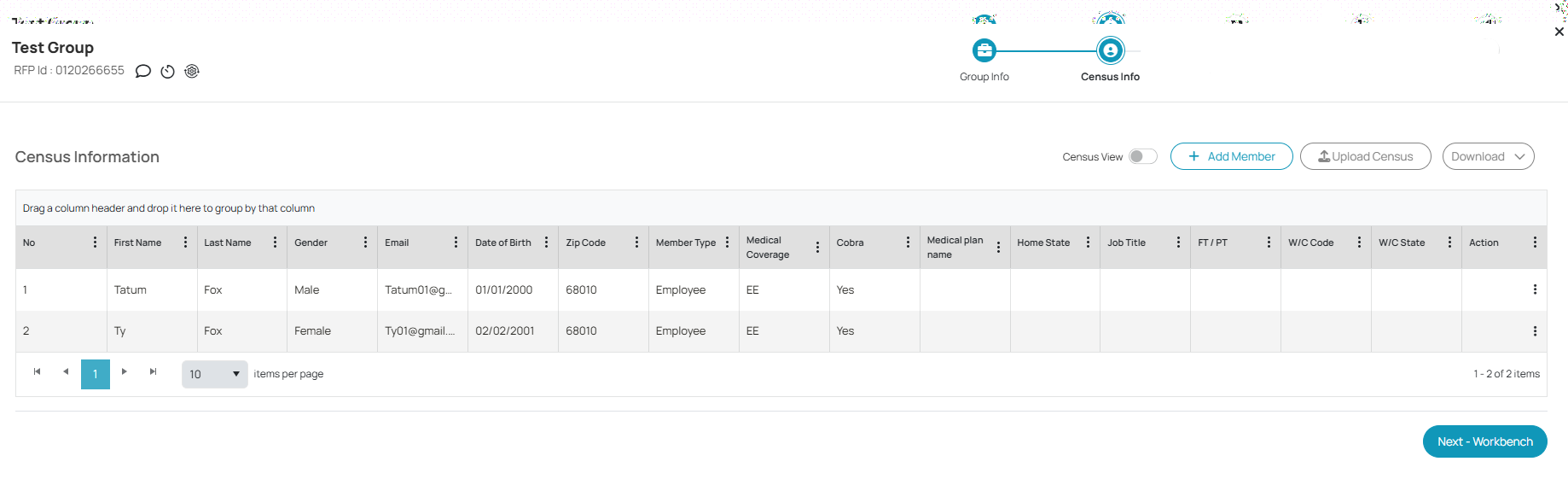
5. After the Smart Extractor finishes processing, you will be directed to the Census Information tab. This screen serves as the landing page where Smart Extractor has automatically mapped and populated the data from your uploaded workbook.
Once you are satisfied with how the Smart Extractor has translated your workbook data, click
o move forward.
Was this article helpful?
That’s Great!
Thank you for your feedback
Sorry! We couldn't be helpful
Thank you for your feedback
Feedback sent
We appreciate your effort and will try to fix the article