The Dashboard is your main workspace within the platform. It provides a centralized view of your quotes, Requests for Proposals (RFPs), and recent activity so you can quickly understand what requires attention and take action efficiently.
Designed to support daily workflow, the dashboard helps users stay organized, monitor progress, and manage priorities without navigating through multiple pages.
Select Start Quote to create a new quote. You may enter information manually, or upload data and use SmartExtractor™, to gather and organize data.

The ‘My DataHub’ view is a toggle feature that, when enabled, displays only the quotes assigned to the logged-in user.

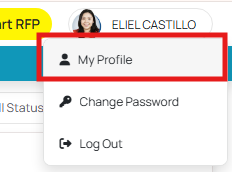
The Profile section allows you to manage a user's personal preferences on alerts and notification settings.

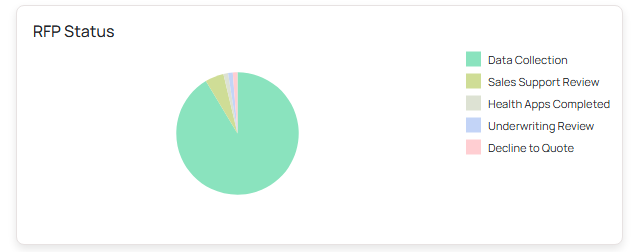
The Quote Data area presents visual summaries to help you quickly interpret your pipeline.
These charts may display trends such as:
Member demographics
Previous carrier distribution
Current quote statuses

Filters allow you to control which quotes appear on your dashboard.
Common filter options include:
Effective Date
Due Date
Created Date
Last Updated Date
Status
User
Applying filters helps narrow your focus and improves efficiency when managing multiple cases.

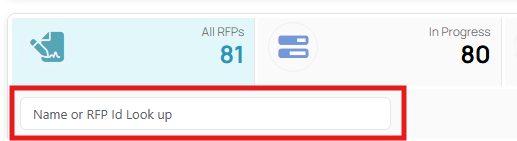
Use the search bar to locate a specific group or case quickly.
You can search by:
Group name
Case ID
Quote Counters
The dashboard displays key metrics that provide an instant snapshot of your workload.
All Quotes
Shows the total number of quotes currently in the system.
In Progress
Indicates quotes that are actively being worked on.
Due Today
Highlights items requiring immediate attention.
Hot Leads
Represents high-priority opportunities that may benefit from timely follow-up.
Watchlist
Contains cases you have flagged for closer monitoring.
Reviewing these counters regularly can help you stay ahead of deadlines and commitments.
The three-dot menu provides sorting capabilities so you can organize quotes in a way that best supports your workflow.
Sorting options may include:
Recently updated
Due date
Status
Alphabetical order

Tile and List View
You can toggle between two display formats depending on your preference.
Tile View
Ideal for visual scanning and quick updates.
List View
Offers a more compact layout, making it easier to review larger volumes of quotes.

The Recent Activities section provides a clear, real-time view of the latest updates within the system. It displays important actions related to quotes and RFPs, helping users stay informed about ongoing changes.
This section serves as an activity log and supports visibility, transparency, and accountability across teams.
Users can view:
What changes were made
When the changes occurred
Who performed the action
Recent Activities functions as a historical record for reference and auditing purposes, ensuring that updates can be reviewed whenever needed.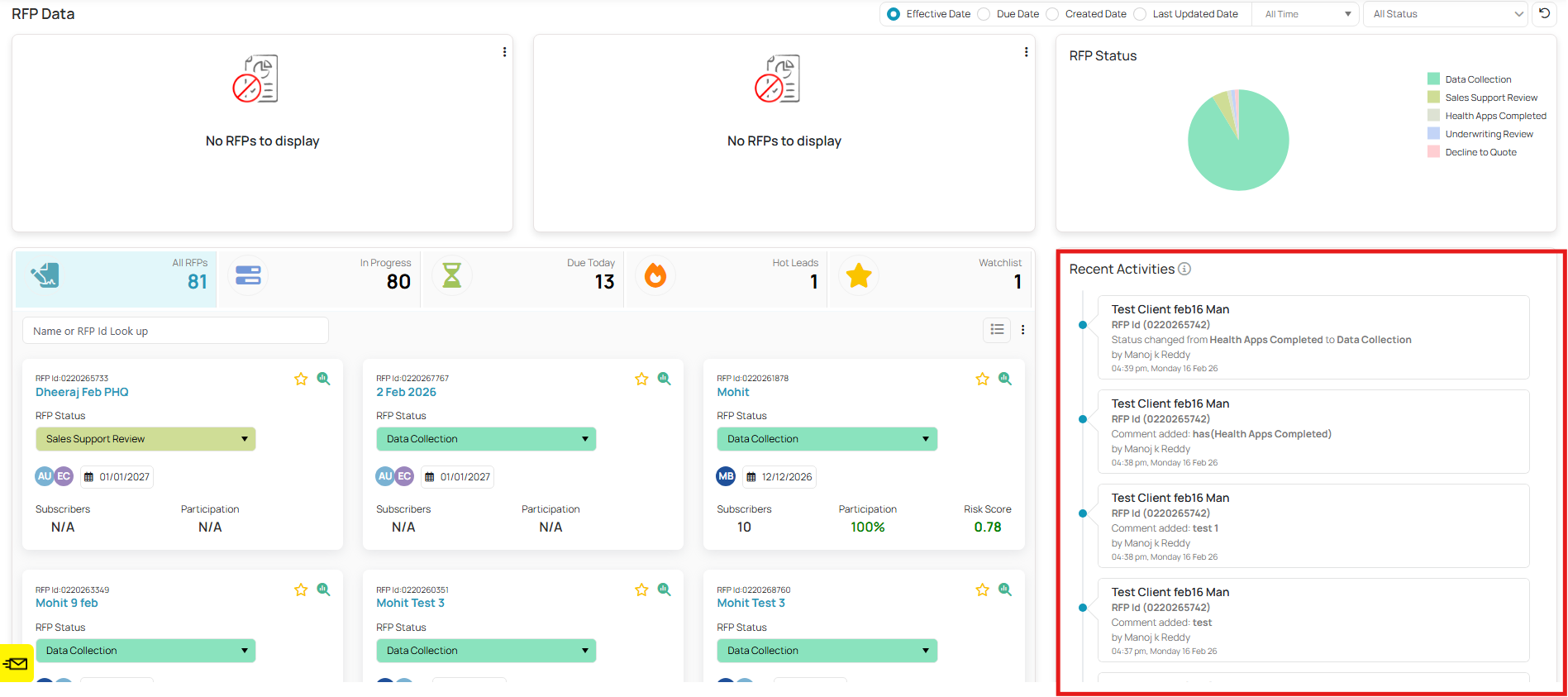
The dashboard allows you to export data to Excel for offline review or reporting. Before exporting, apply the appropriate filters to ensure the file includes only the information you need. For best results, switch to List View prior to exporting so the data is structured properly in the downloaded file.
Was this article helpful?
That’s Great!
Thank you for your feedback
Sorry! We couldn't be helpful
Thank you for your feedback
Feedback sent
We appreciate your effort and will try to fix the article