The List View allows you to personalize your dashboard by selecting exactly which columns you want to see. This helps you focus on the information most relevant to your workflow.
With Views, you can:
- Show or hide specific columns
- Save your customized layout
- Create multiple saved views
- Rename existing views
- Delete views you no longer need
Accessing the View Settings
1. Navigate to the List View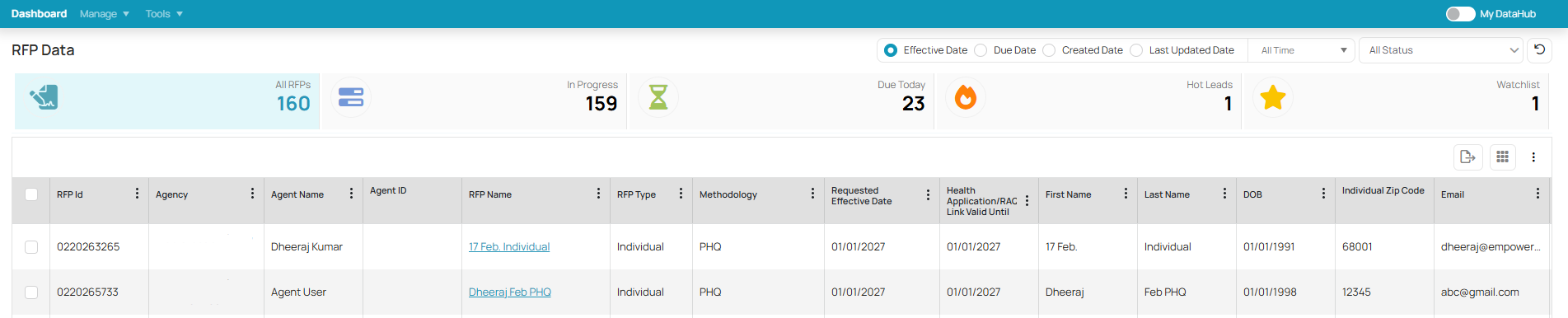
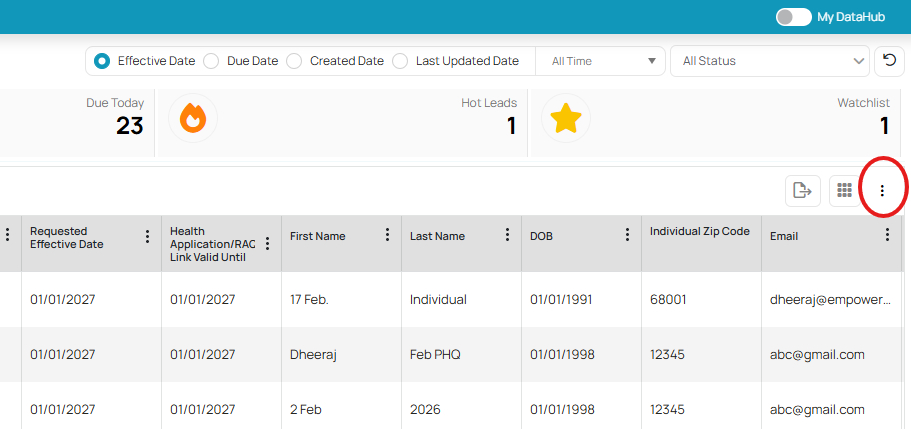
2. Click the three vertically aligned dots on the upper right side of the screen
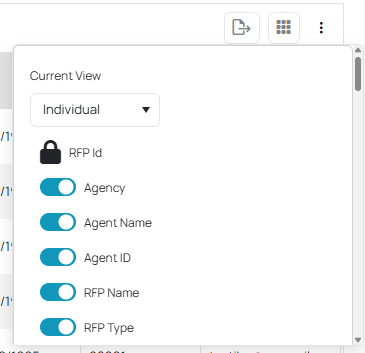
3. The Current View panel will open
Customizing Columns
Inside the View panel, you will see:
A list of available columns
Toggle switches next to each column name
To Show or Hide a Column:
Toggle ON to display the column in your List View.
Toggle OFF to hide the column from your List View.
As you toggle selections, your List View will update accordingly.
Renaming and Saving Your View
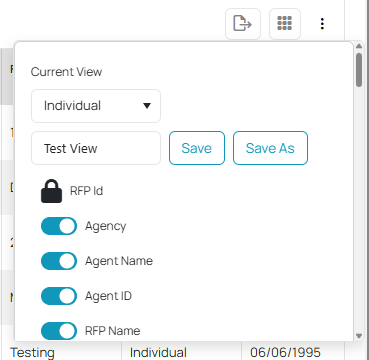
Once you have selected the columns you want, rename the view depending on your reference:
Option 1: Save
Click Save to update the existing view with your new column selections.
Option 2: Save As (Recommended for New Views)
Click inside the view name field.
Enter a new name for your customized view.
Click Save As.
This creates a new saved view without overwriting the original.
Example:
Default View: Census
Custom View: My Underwriting Columns
Deleting a View
If you no longer need a saved view:
Open the Current View panel.
Select the view you want to remove.
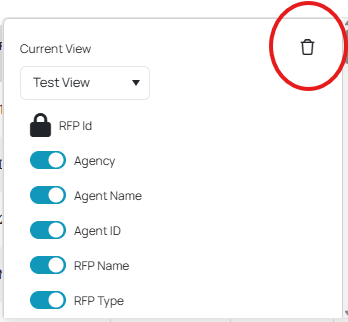
Click the trash (garbage) icon in the top right corner of the panel.
Confirm the deletion.
⚠️ Deleting a view permanently removes that saved layout. This action cannot be undone.
This flexibility ensures your view displays the way you prefer.
Was this article helpful?
That’s Great!
Thank you for your feedback
Sorry! We couldn't be helpful
Thank you for your feedback
Feedback sent
We appreciate your effort and will try to fix the article