The Smart Audit tool is designed to help users compare the initial census data provided by a client to the updated census data at the time of enrollment. This comparison ensures that any discrepancies, such as new employees, missing employees, or mismatched data, are identified. The goal of Smart Audit is to ensure accurate risk scores and premium calculations by enabling users to detect any changes in the census data and take corrective action when needed.
Benefits of Using Smart Audit
Data Accuracy: It helps ensure that all the data is consistent and accurate by identifying any discrepancies between initial and updated census data.
Time-Saving: By automatically comparing data, it reduces the need for manual reviews and intervention, saving time for employees and reducing the risk of human error.
Error Detection: The tool automatically highlights new, missing, and mismatched records, so you can quickly detect and correct errors in the data.
Improved Risk Score & Premium Calculation: Accurate census data leads to more accurate risk scoring and premium calculation, ensuring the client receives the correct financial estimate.
How to Use the Smart Audit Tool
Follow these steps to effectively use the Smart Audit tool:
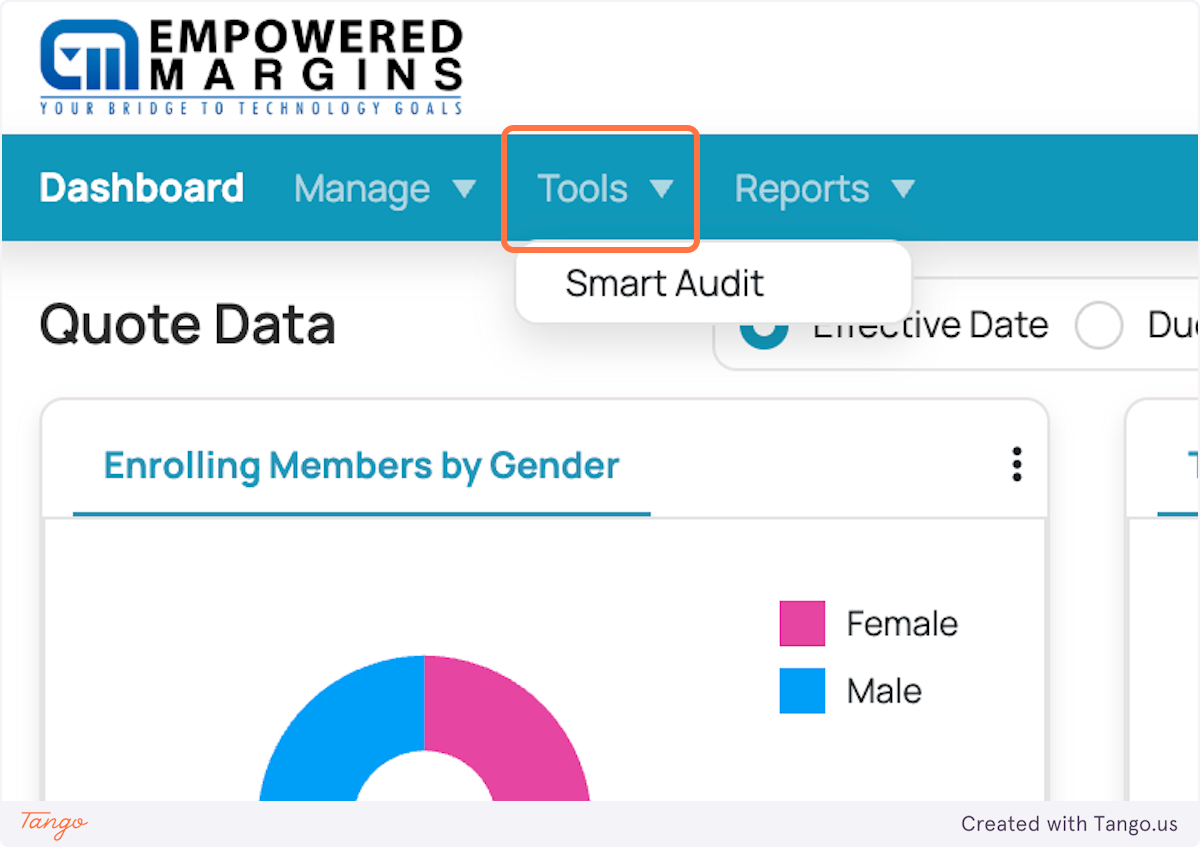
Step 1: Access the Tool
Log in to your DataHub account.
Navigate to the Smart Audit section of the platform.
Step 2: Select the Client
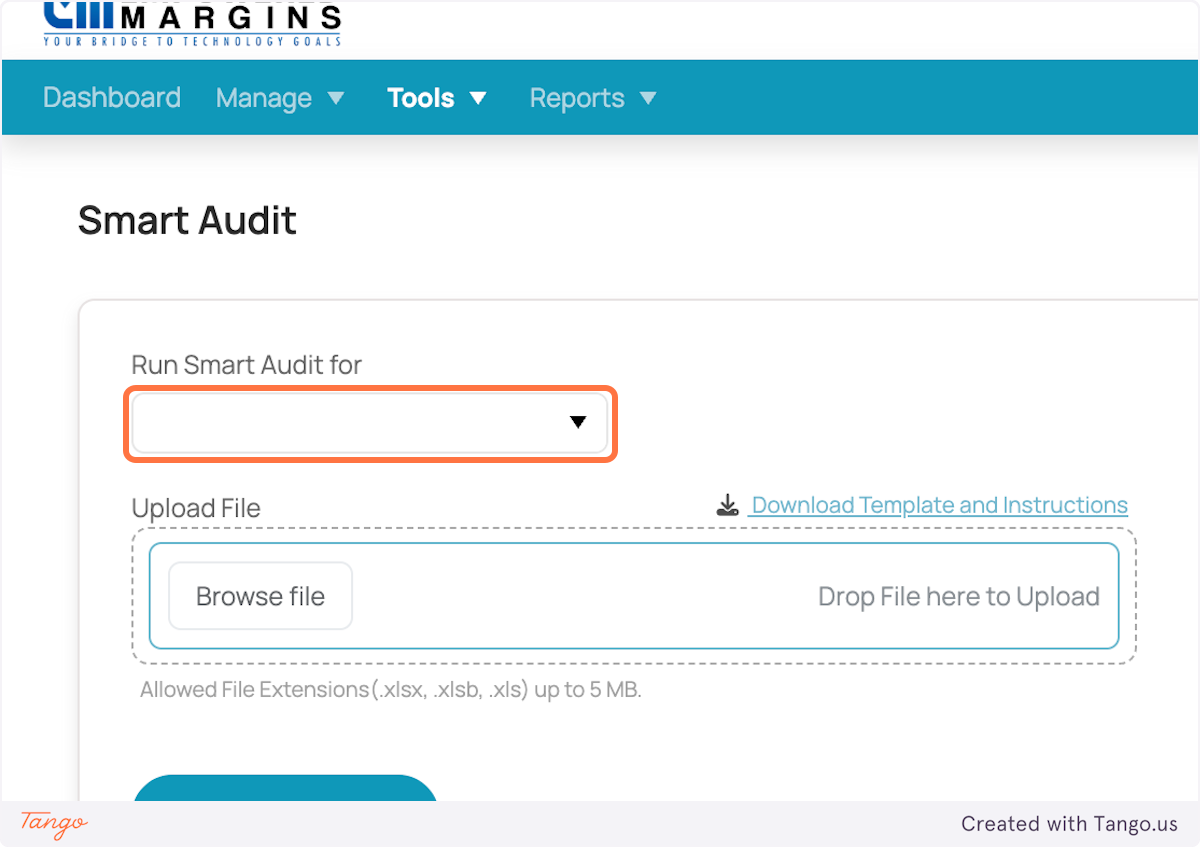
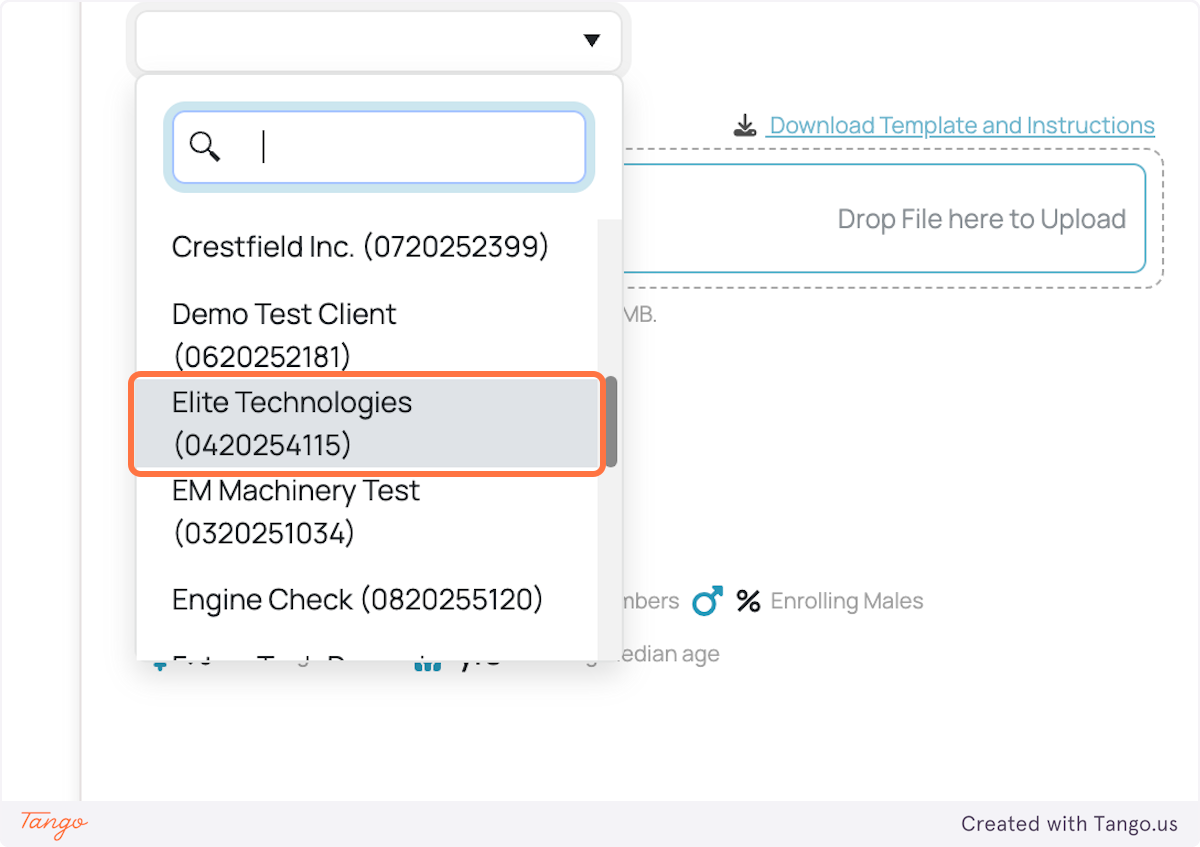
Choose the client whose census data you want to audit.
You will be presented with the initial census data and the updated data for comparison.
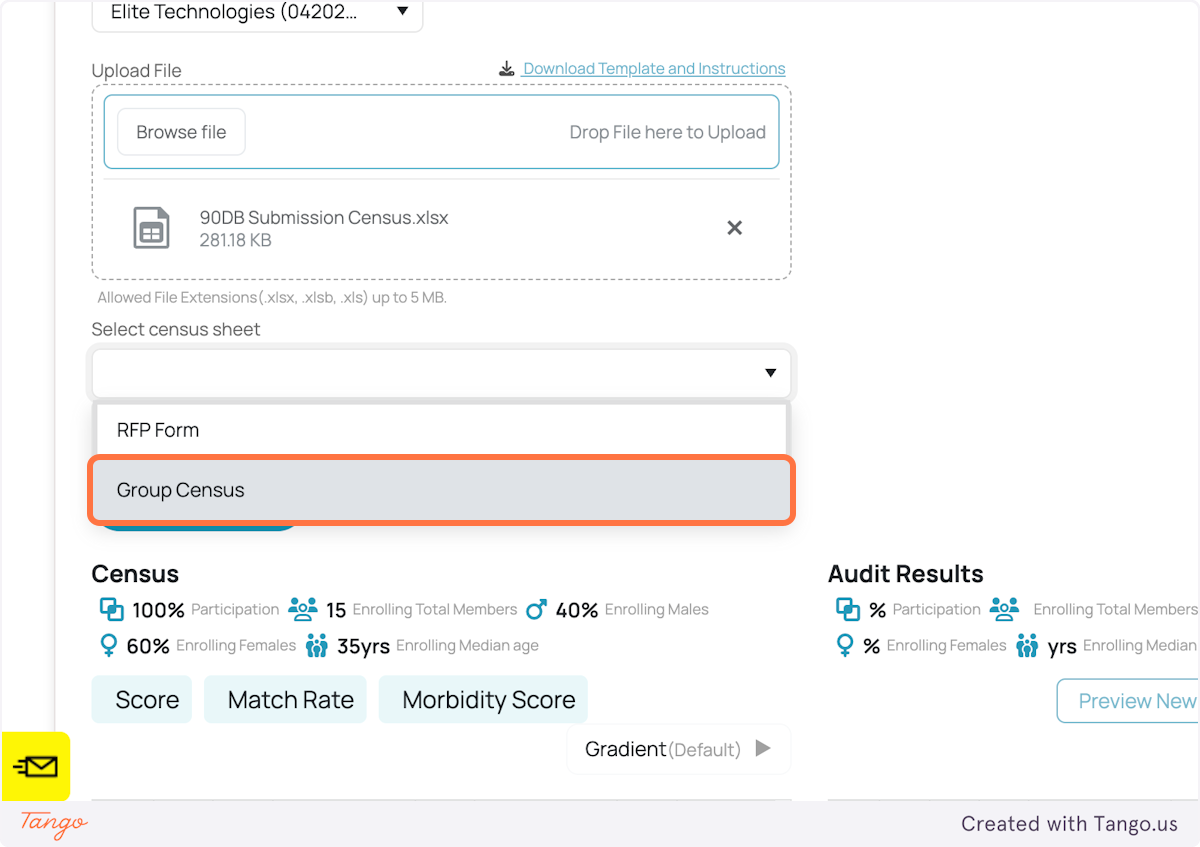
Step 3: Upload the Census Data
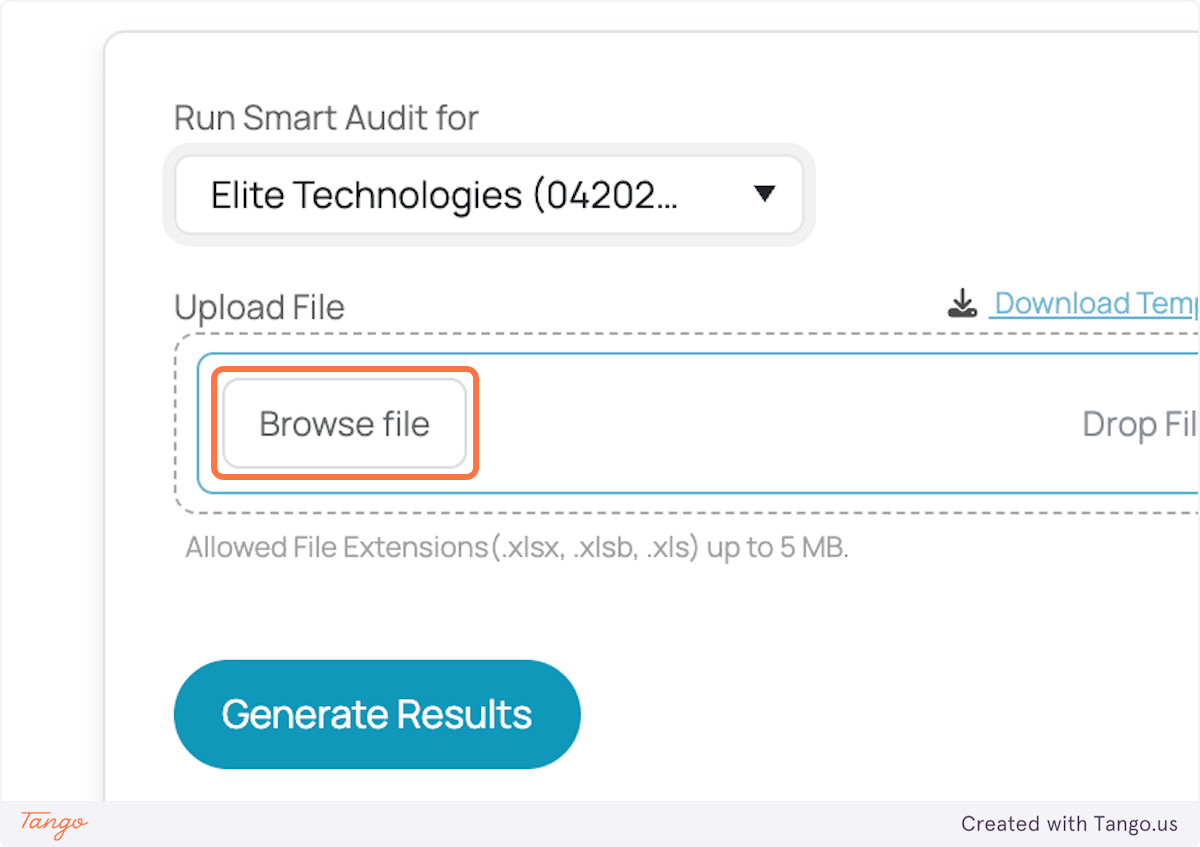
Upload updated the census data. Ensure that the files contain accurate and relevant information for comparison.
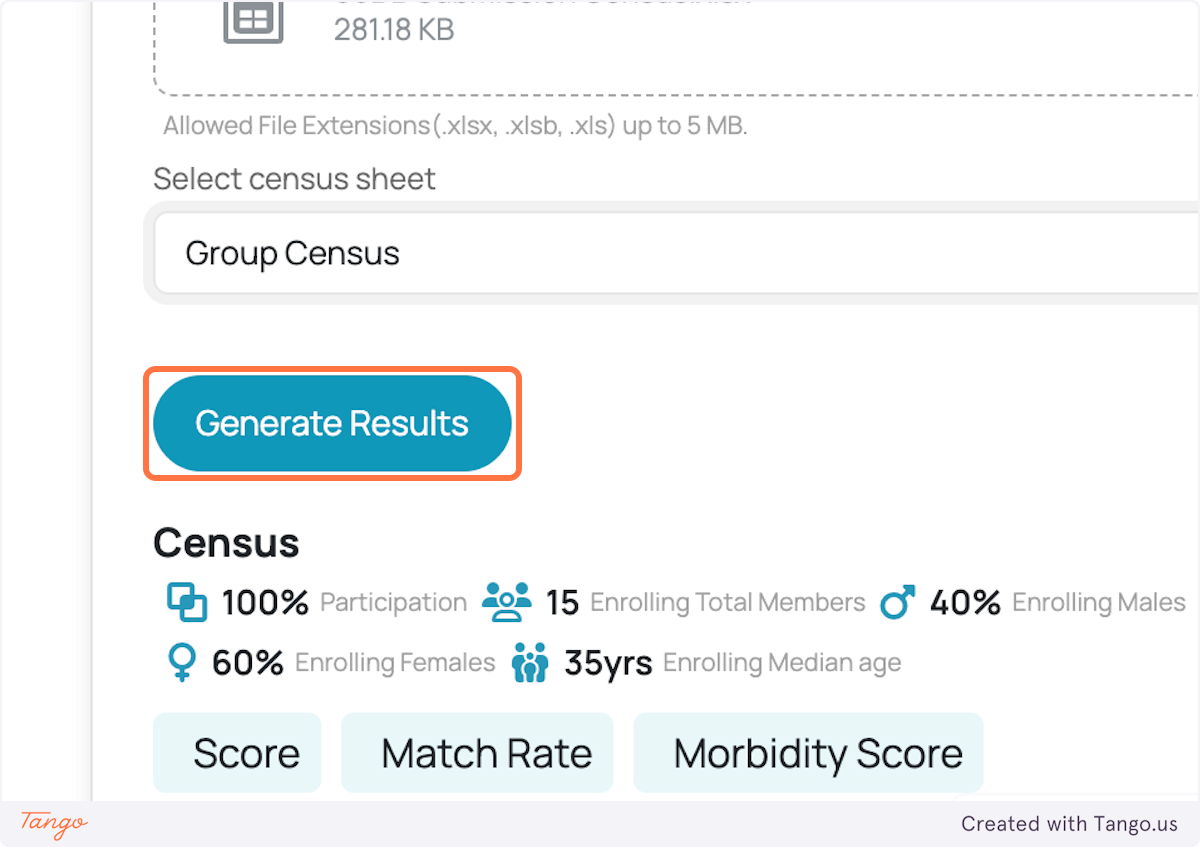
Step 4: Review the Comparison Results
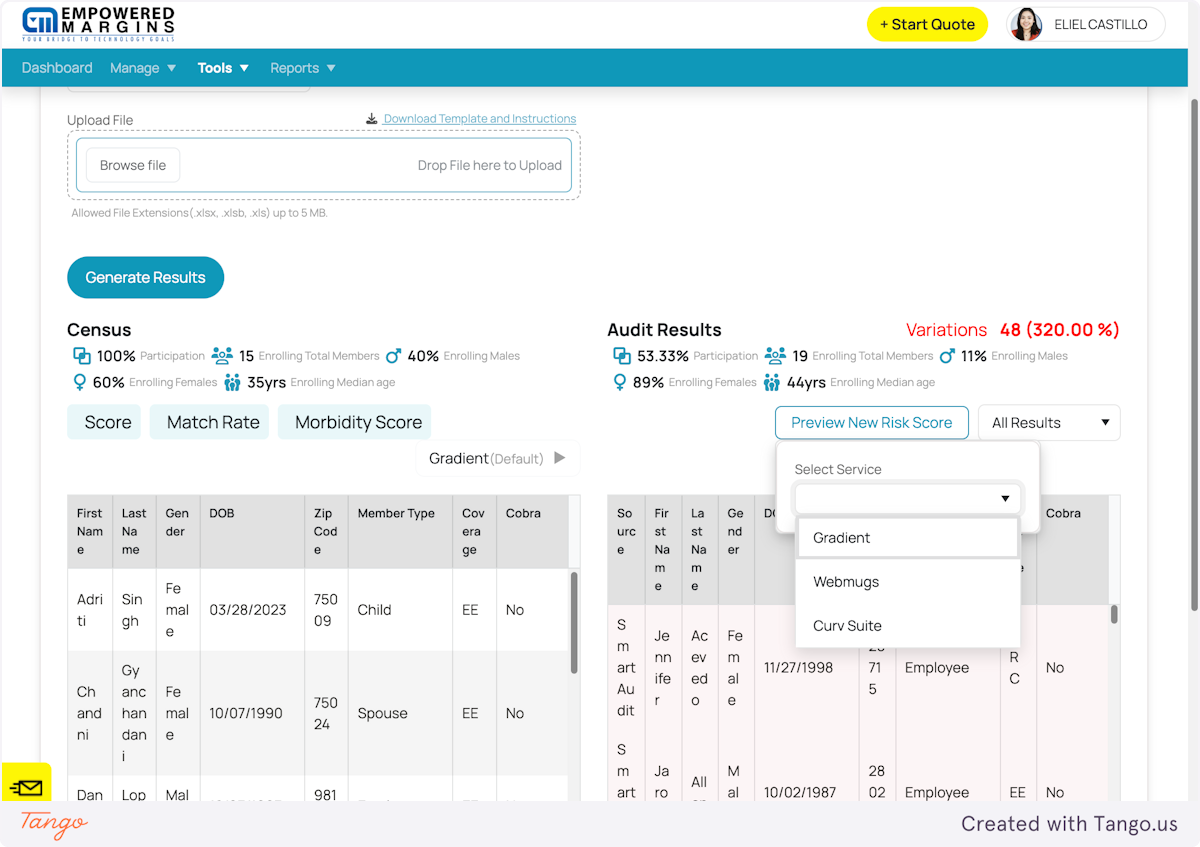
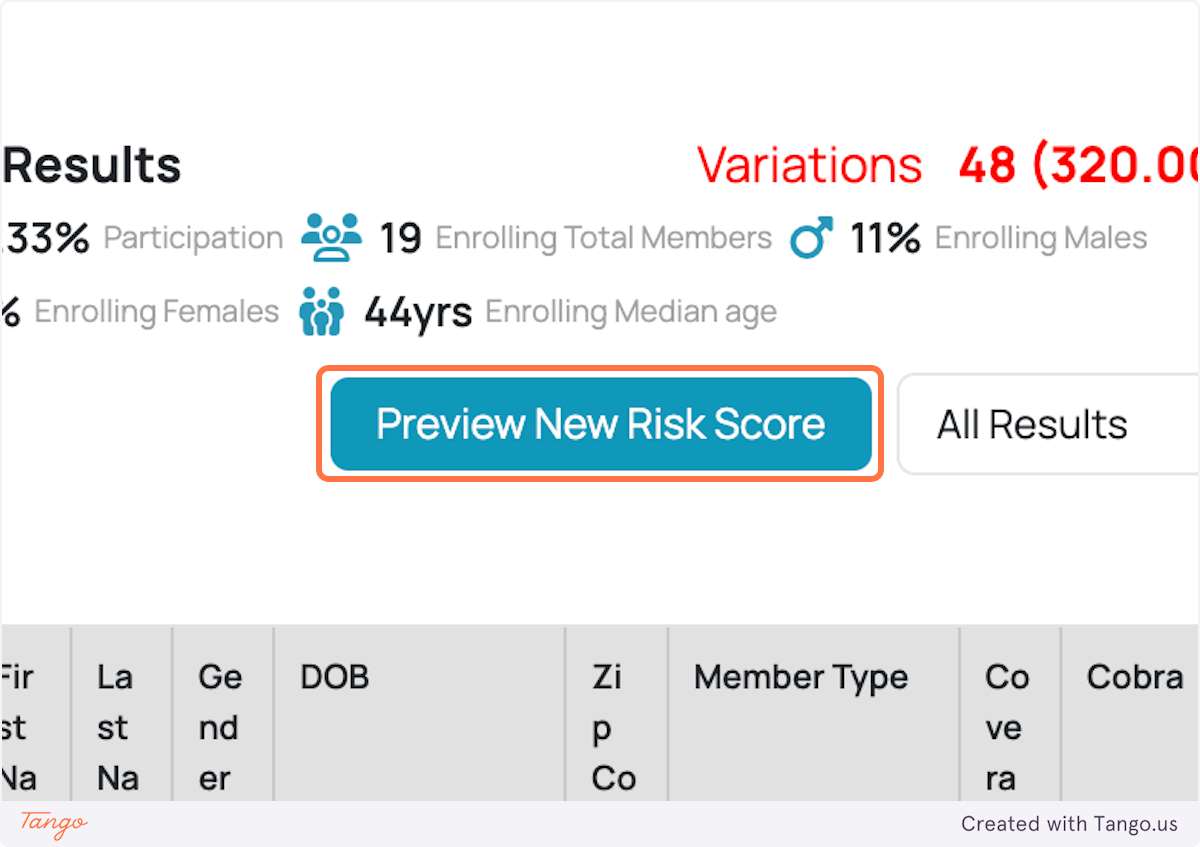
Once the data is uploaded, the Smart Audit tool will automatically compare the initial data to the updated data.
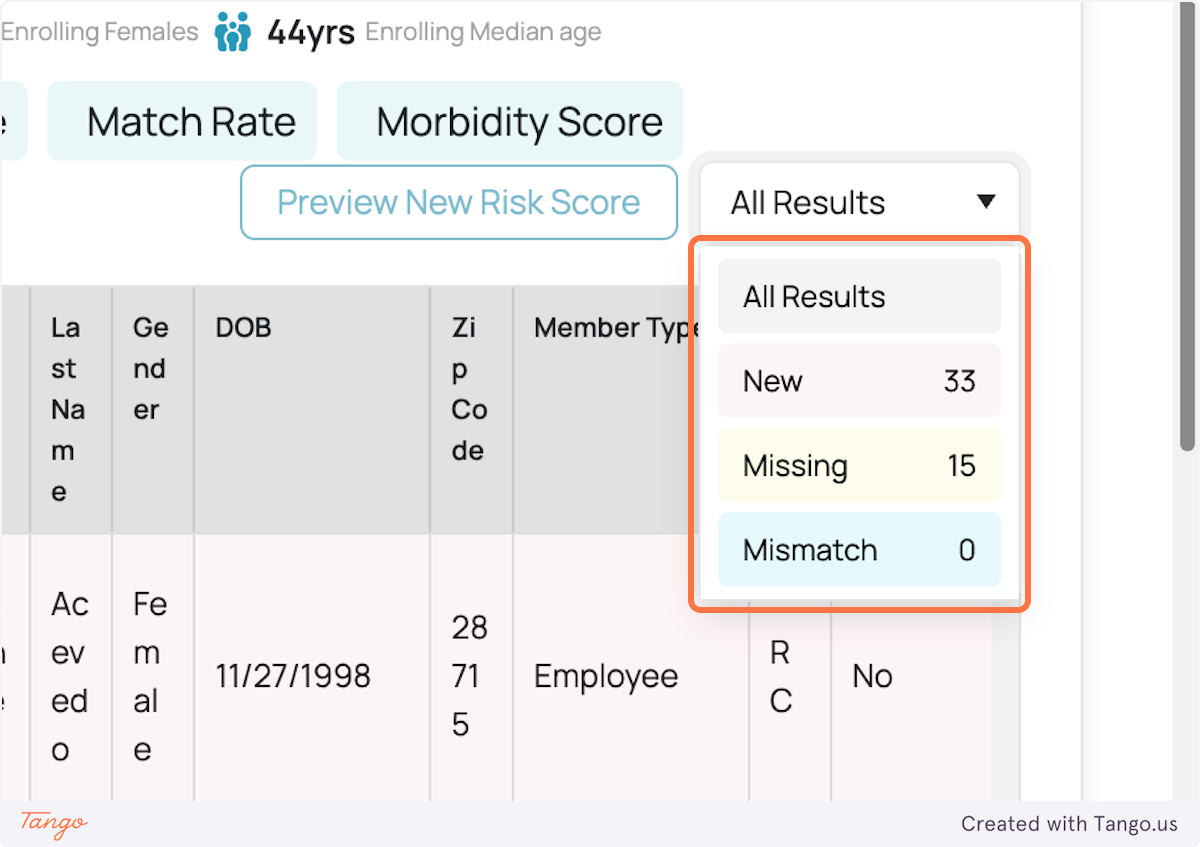
The tool will highlight any discrepancies, such as new employees, missing employees, mismatched records.
New Employees: Employees that are present in the updated data but not in the initial data.
Missing Employees: Employees that are in the initial data but are missing from the updated data.
Mismatched Records: Instances where there are discrepancies in the information for an employee (such as incorrect personal information, roles, etc.).
Step 6: Save and Finalize the Data
After reviewing and editing the discrepancies, save the updated census data.
Ensure that the changes reflect accurately, so you can use the corrected data for further processing, such as risk scoring and premium calculation.
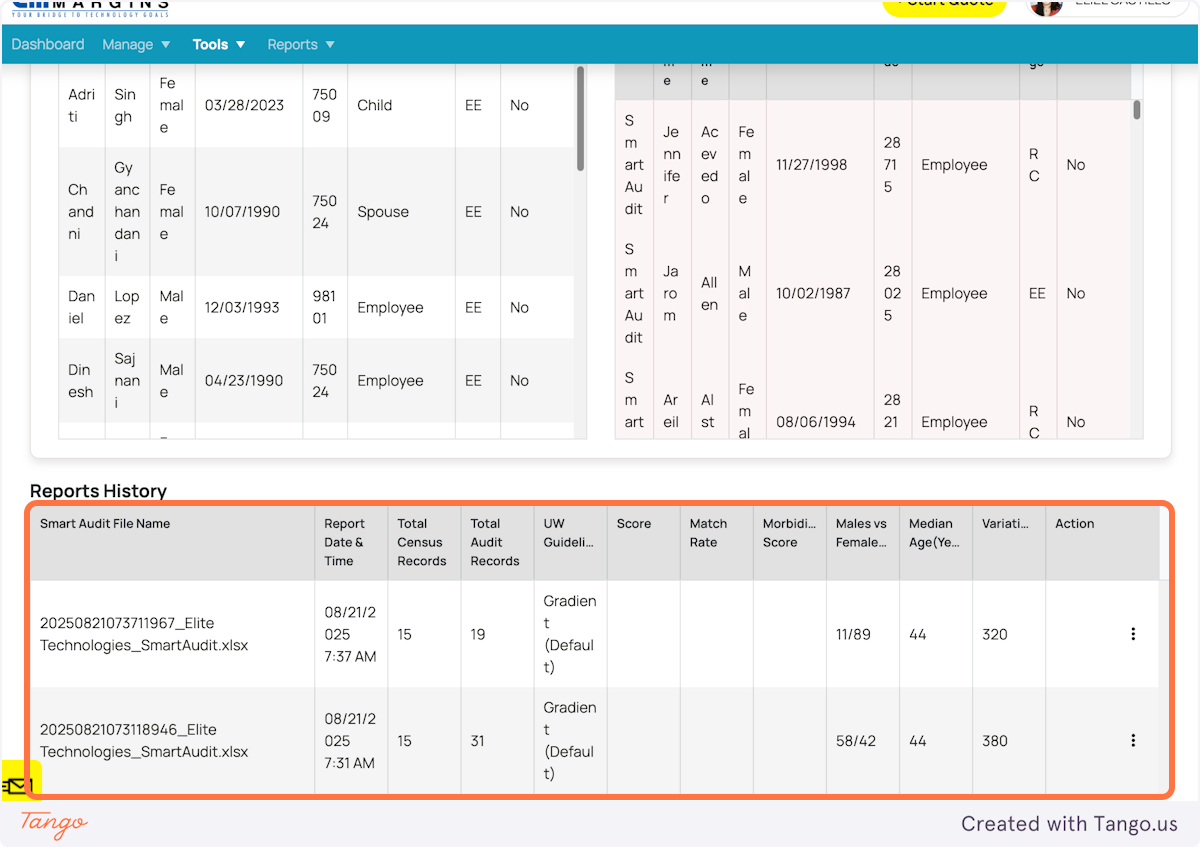
Below also shows a section where the history of reports are being reflected.
If you encounter errors in census information as you upload the data, click here for the guide on how to fix those errors.
Was this article helpful?
That’s Great!
Thank you for your feedback
Sorry! We couldn't be helpful
Thank you for your feedback
Feedback sent
We appreciate your effort and will try to fix the article