This guide shows how a member can fill out the PHQ form.
After either receiving an email that has a the health application link or having access to the link itself, members can click on this link and it will route them to the PHQ registration/login page.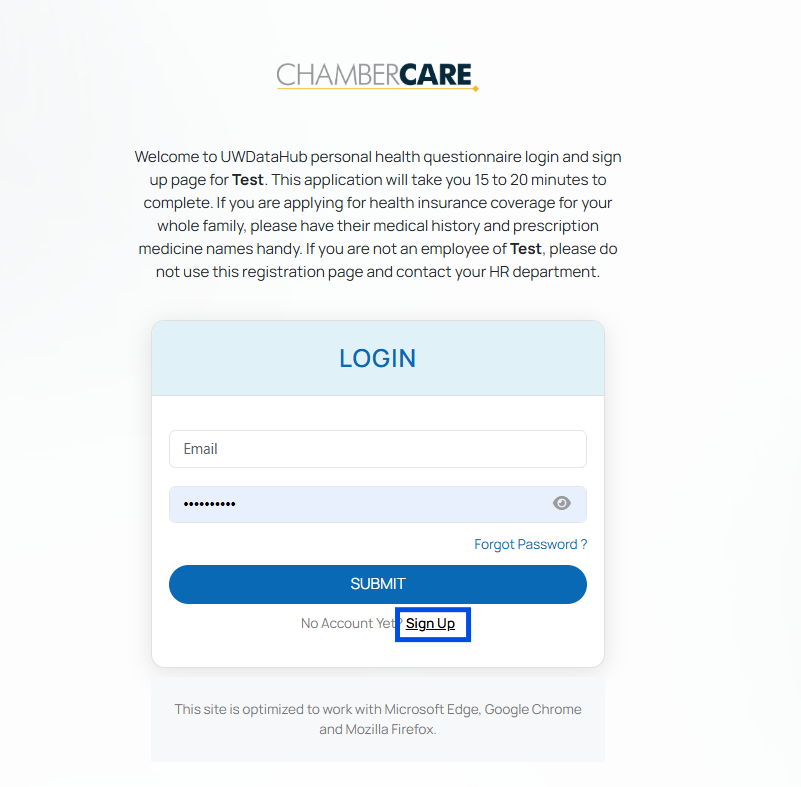
Once signed up successfully by nominating an email and a password. The member will then be routed to the first part of the form. All required fields are shown with an asterisk.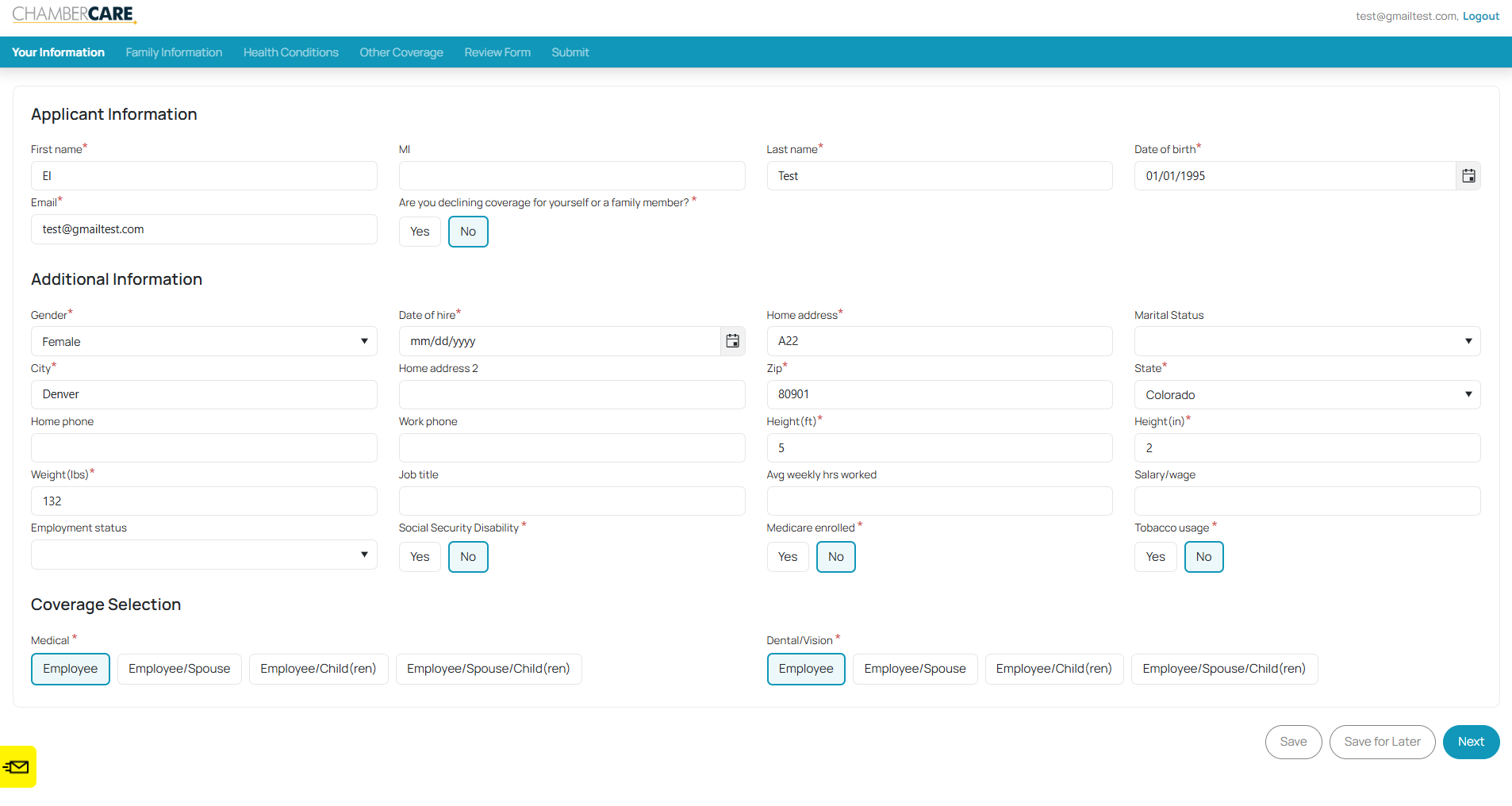
If on the coverage selection, Employee/Spouse, Employee/Child(ren), or Employee/Spouse/Child(ren) is selected. The next page would be where to fill out family information.
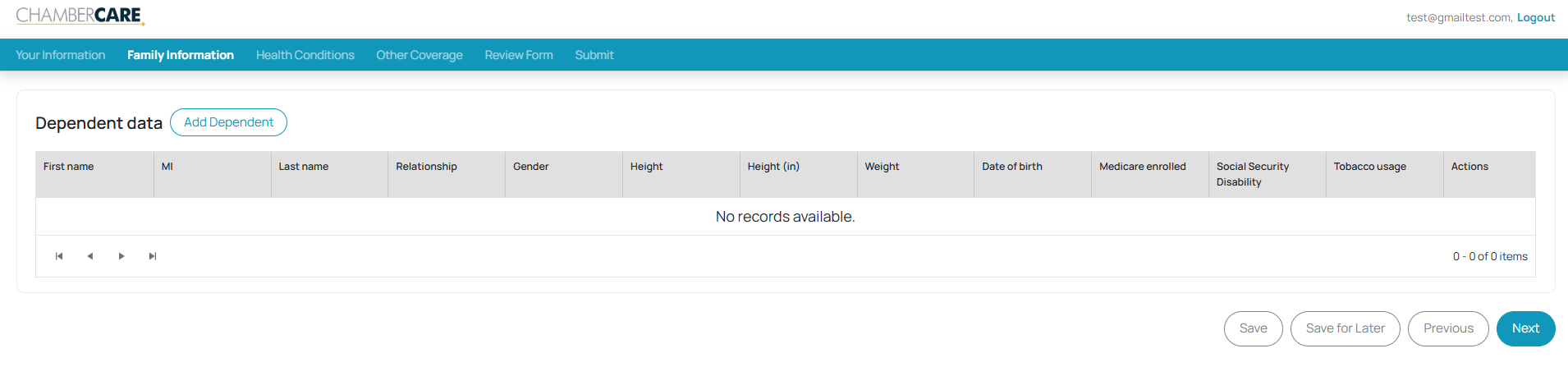
But if not, the next page would be the Health Conditions tab.
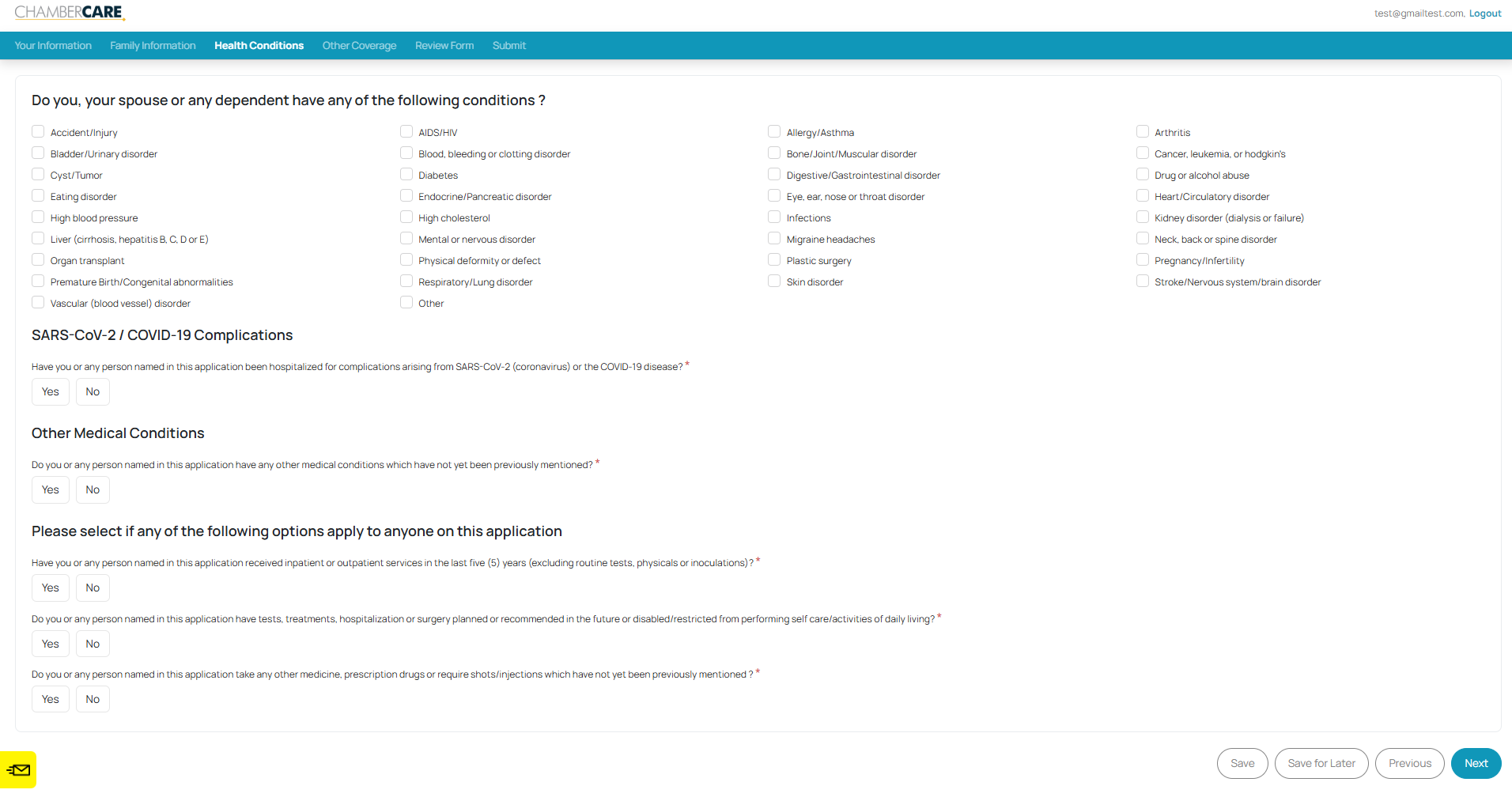
Next tab would be the Other Coverage.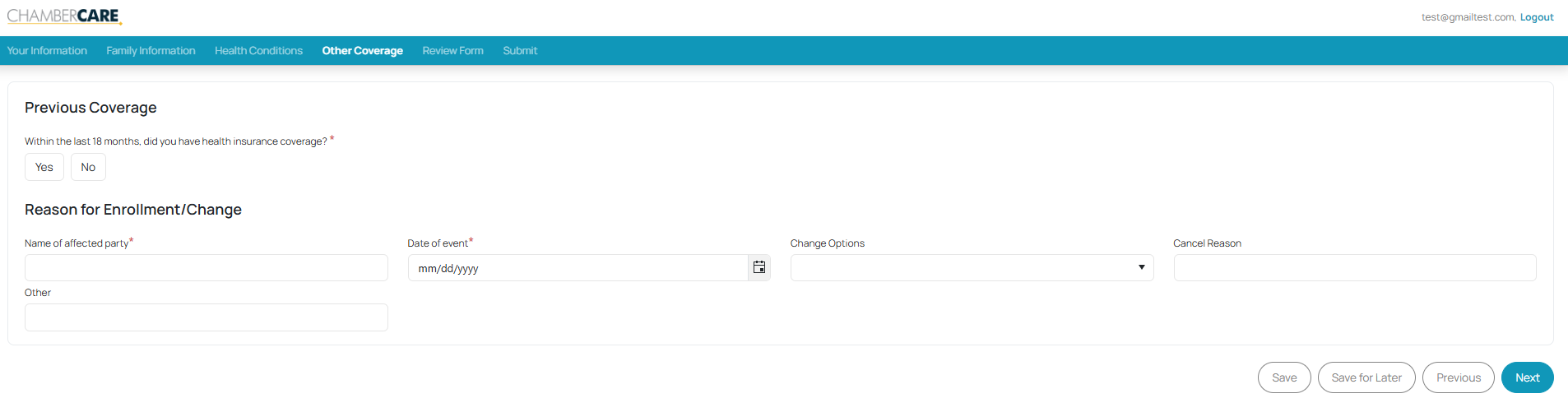
Once all information is on the form, the next tab shows all the answers a member inputs for review before submitting.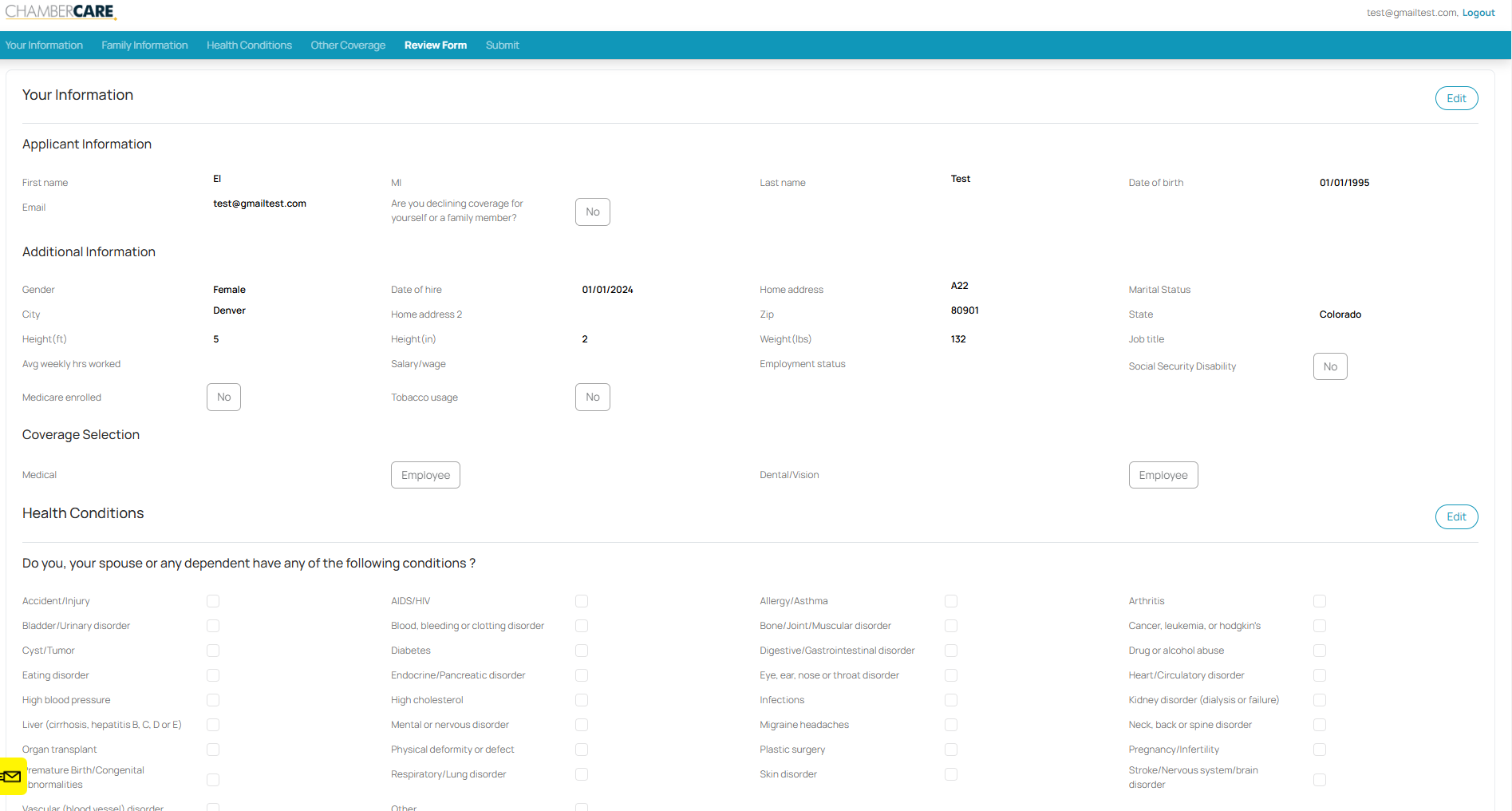
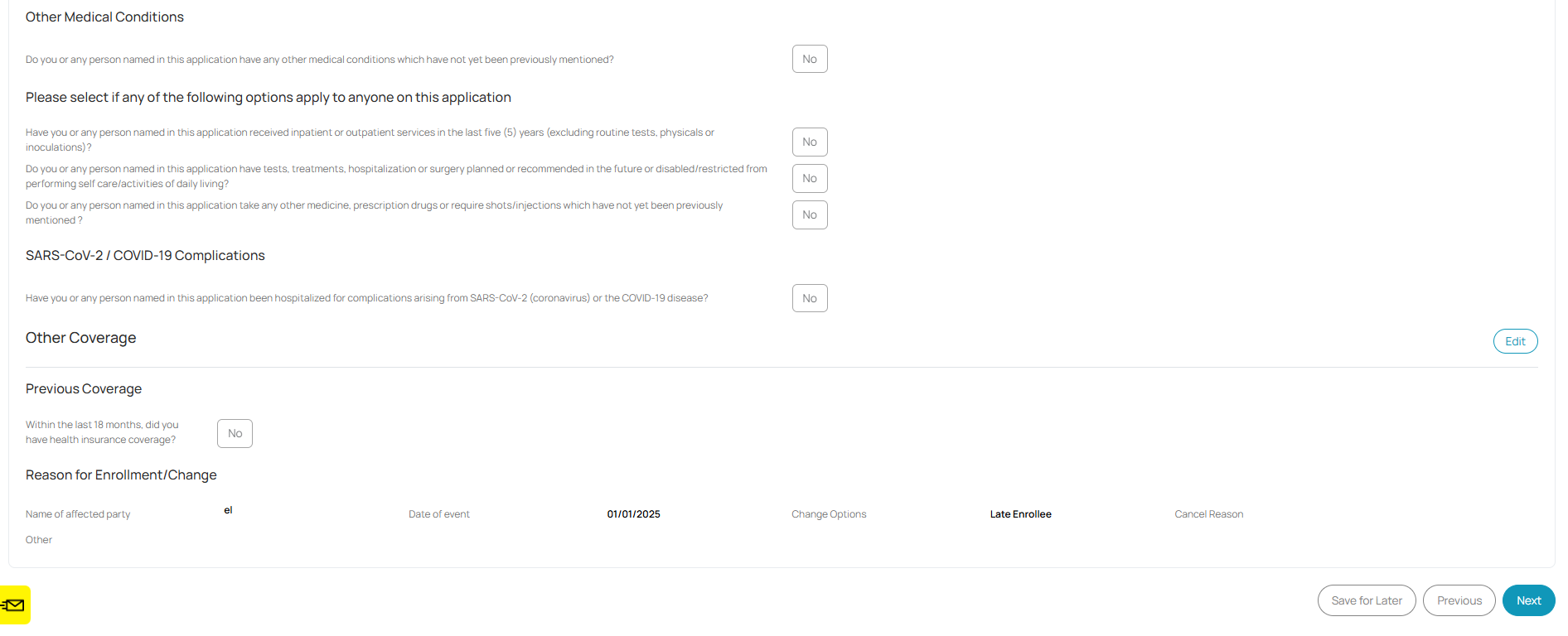
The last page then would prompt the member to sign and submit the form.
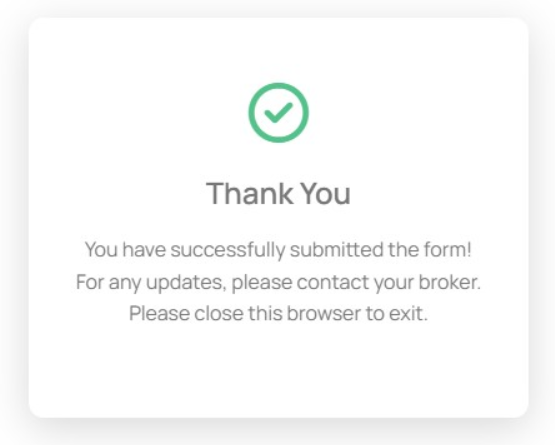
A confirmation message would then appear on the member's screen.
Another confirmation that shows the form has been successful is on the PHQ Information page, the status is COMPLETED.
Was this article helpful?
That’s Great!
Thank you for your feedback
Sorry! We couldn't be helpful
Thank you for your feedback
Feedback sent
We appreciate your effort and will try to fix the article