This guide covers setting a new password and completing the multi-factor verification to access your DataHub dashboard.
If this is your first time logging in or you have forgotten your password, follow these steps to set a new one.
Step 1: Access the Login Screen
Go to the website address: chambercare.datahub.insure/login. Then, enter your Email Address in the field provided.
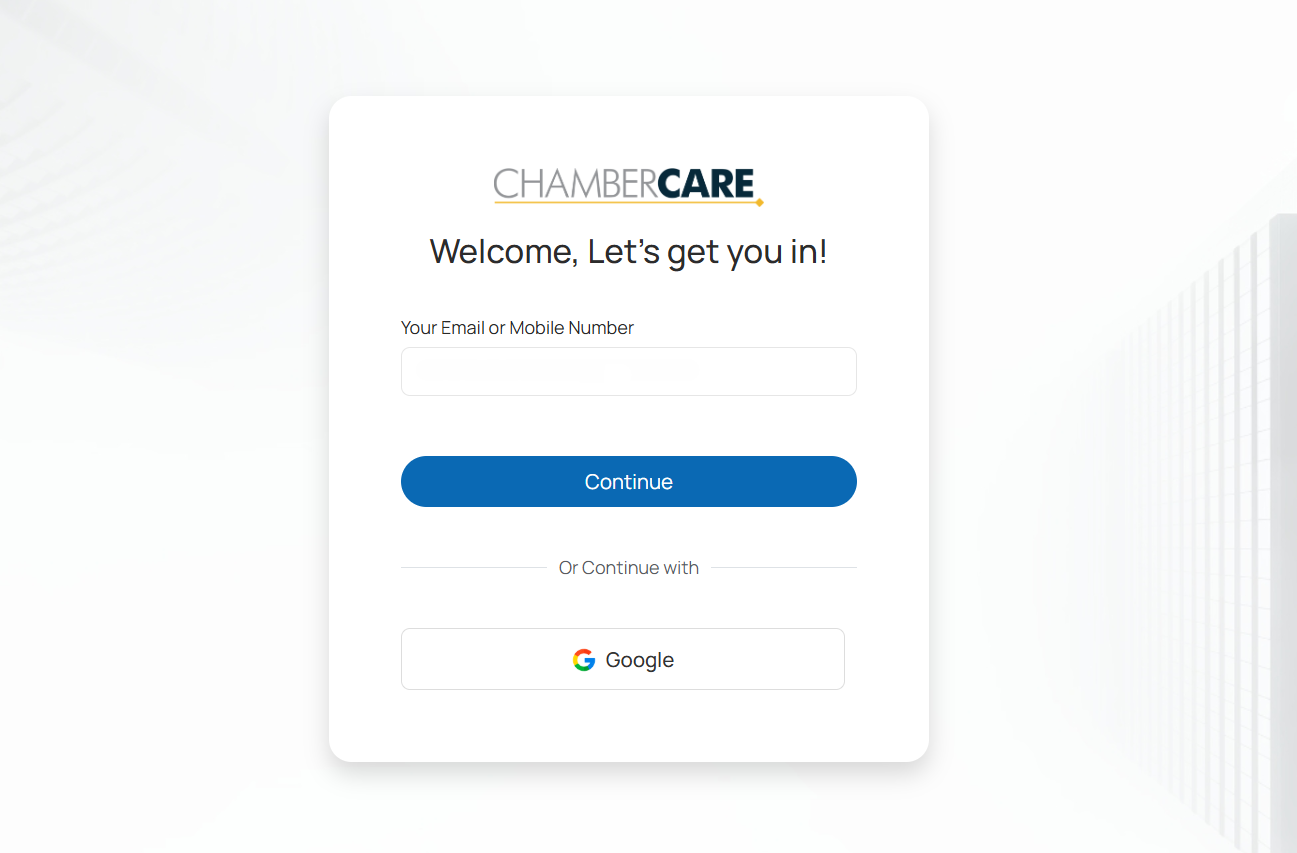
Step 2: Start Password Reset
Click the [Use Password] option, and then select [Forgot Password].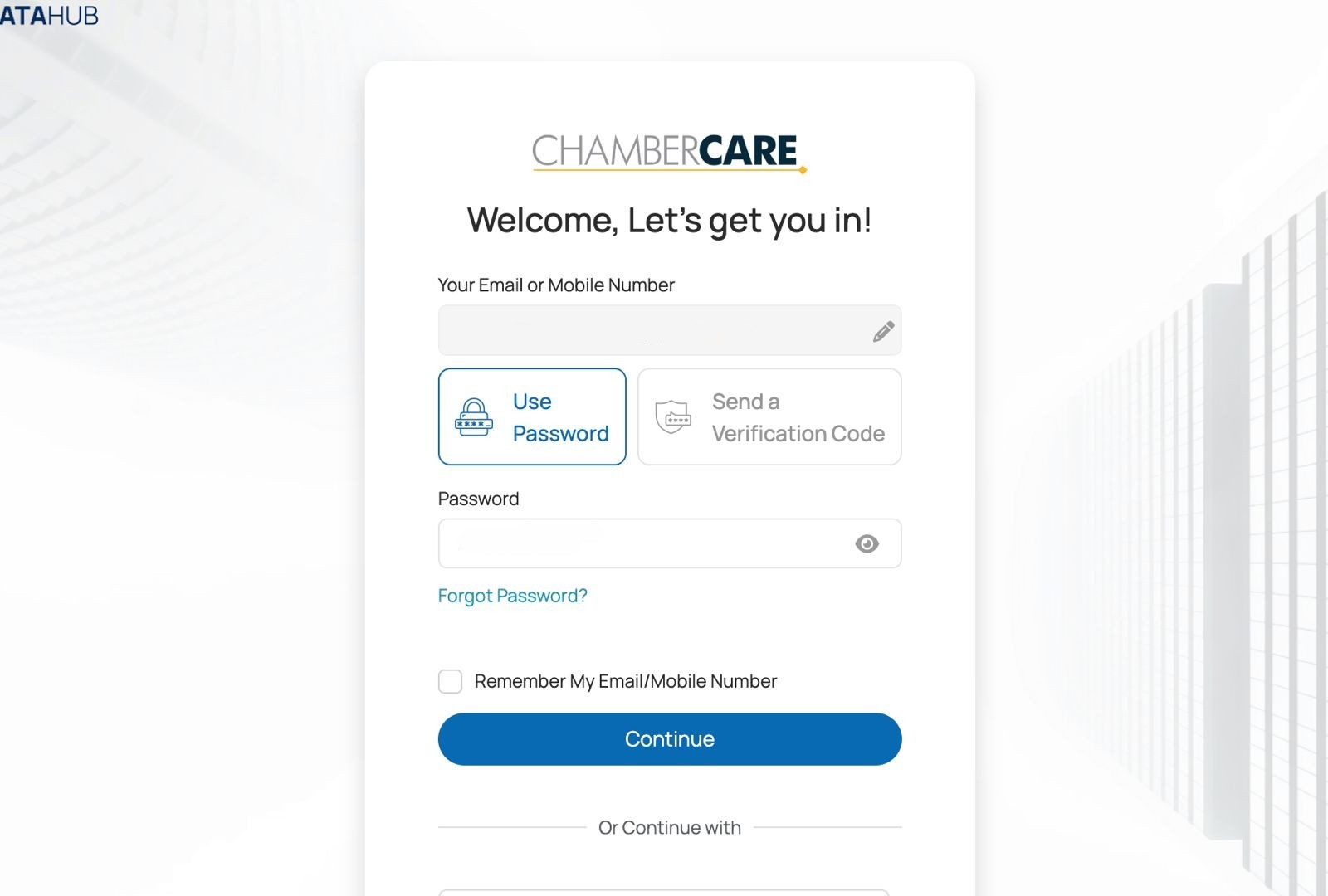
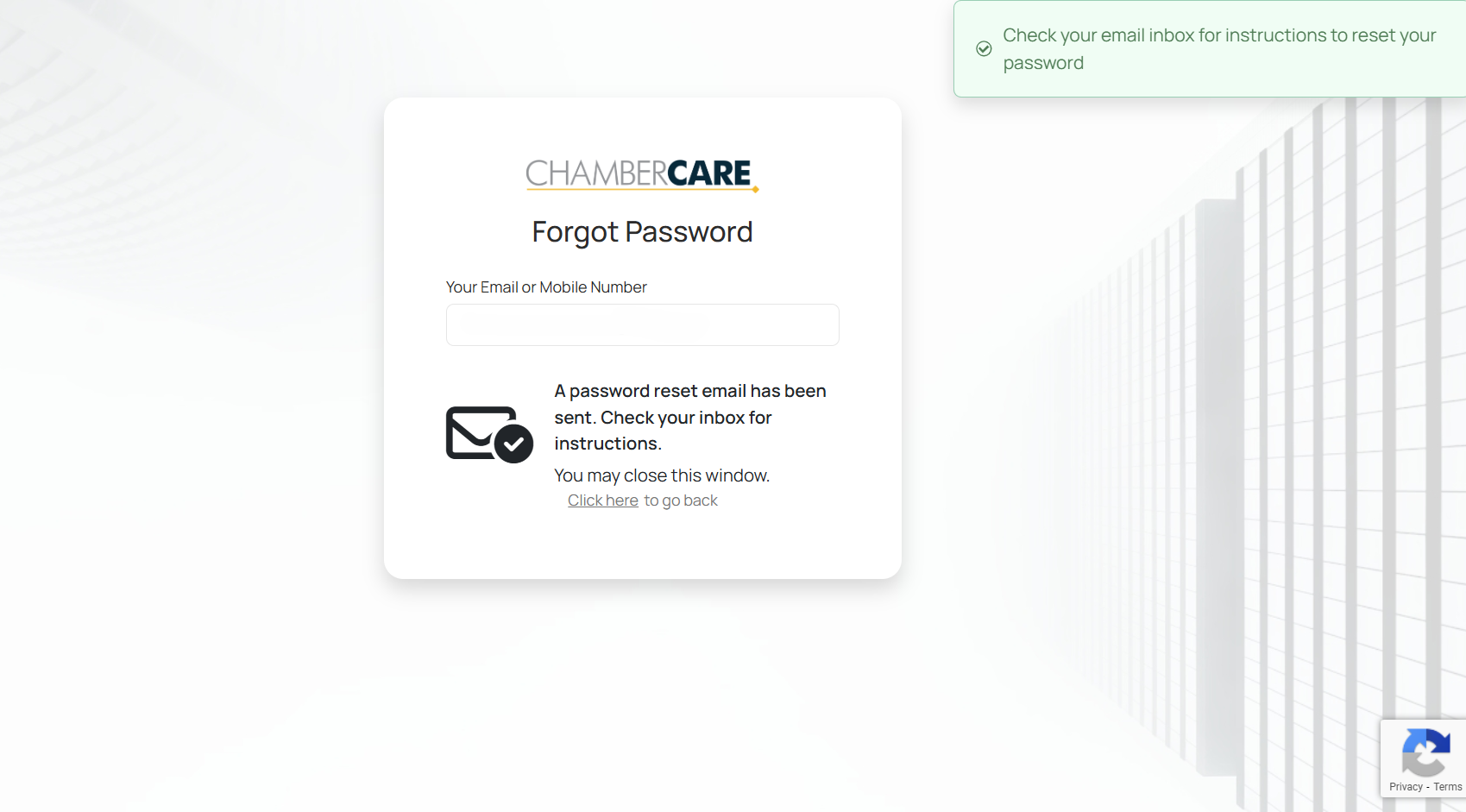
Step 3: Check Your Email
You will receive an email from DataHub. Click the [Reset the Password] button within the email.
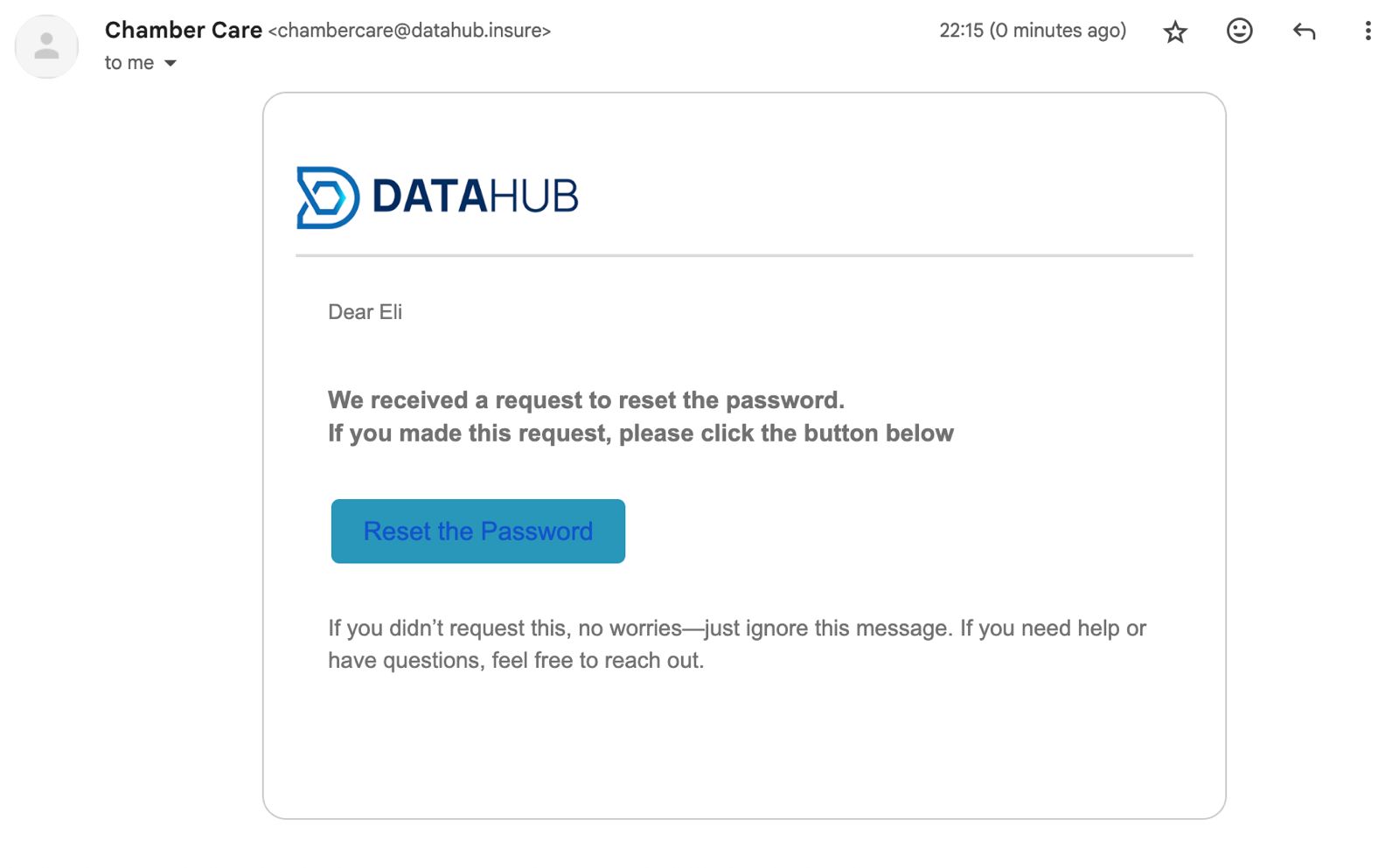
Step 4: Nominate a Password
Input and confirm your new password in the designated fields, and then click [Set New Password].
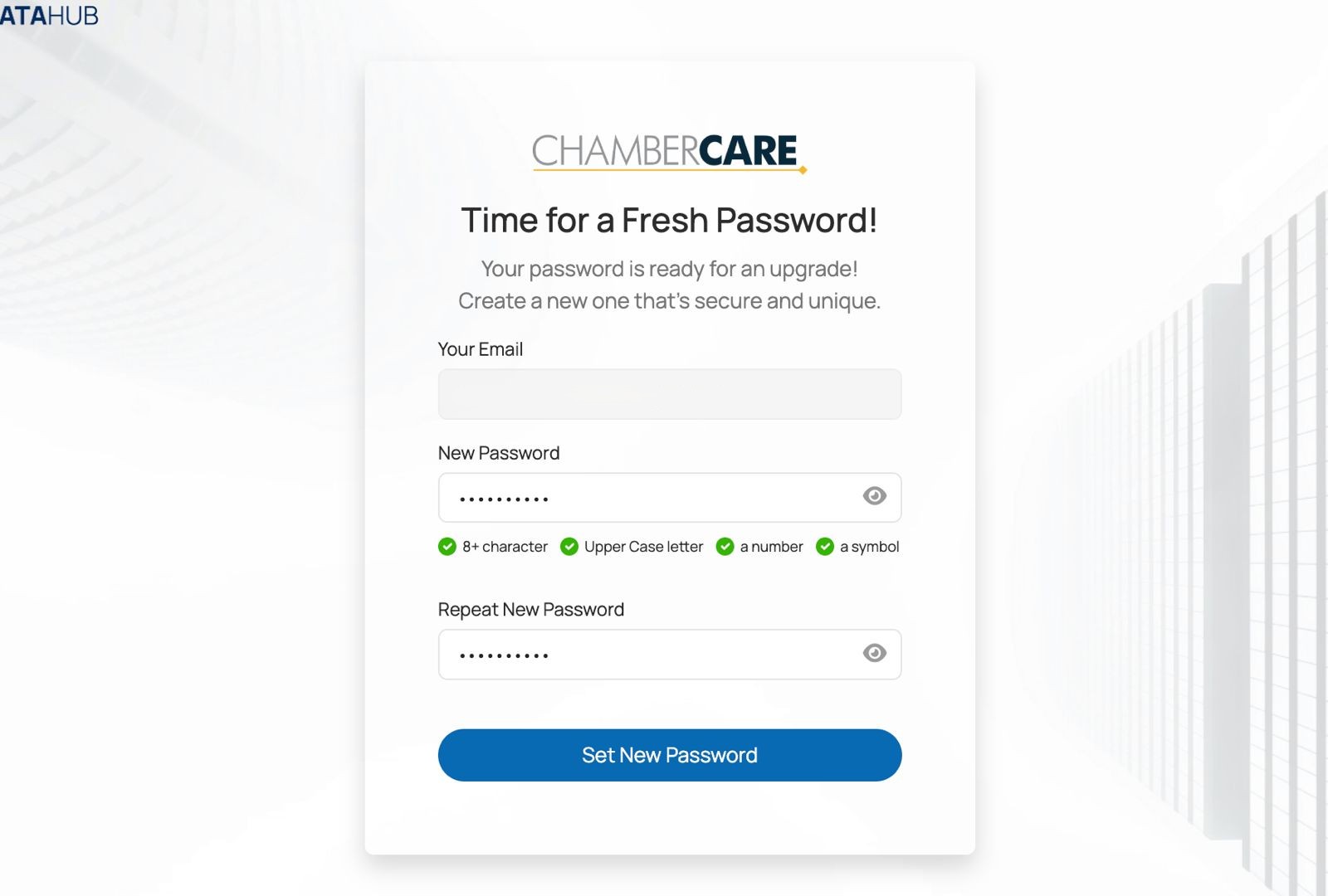
Step 5: Confirmation
Once successful, a screen will appear confirming "You're all set!"
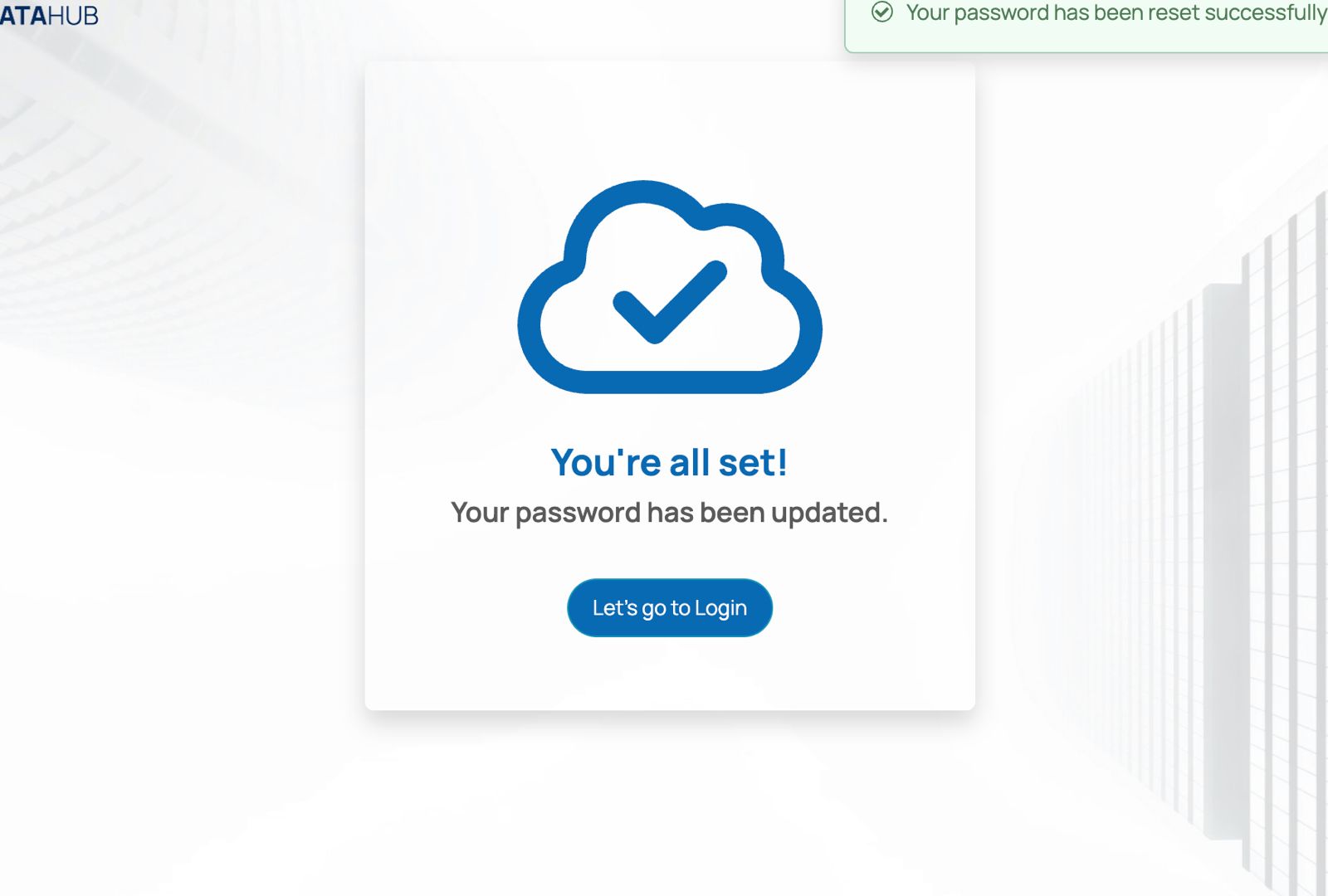
You will be routed back to the main login page. Input your Email and your newly nominated Password to continue.
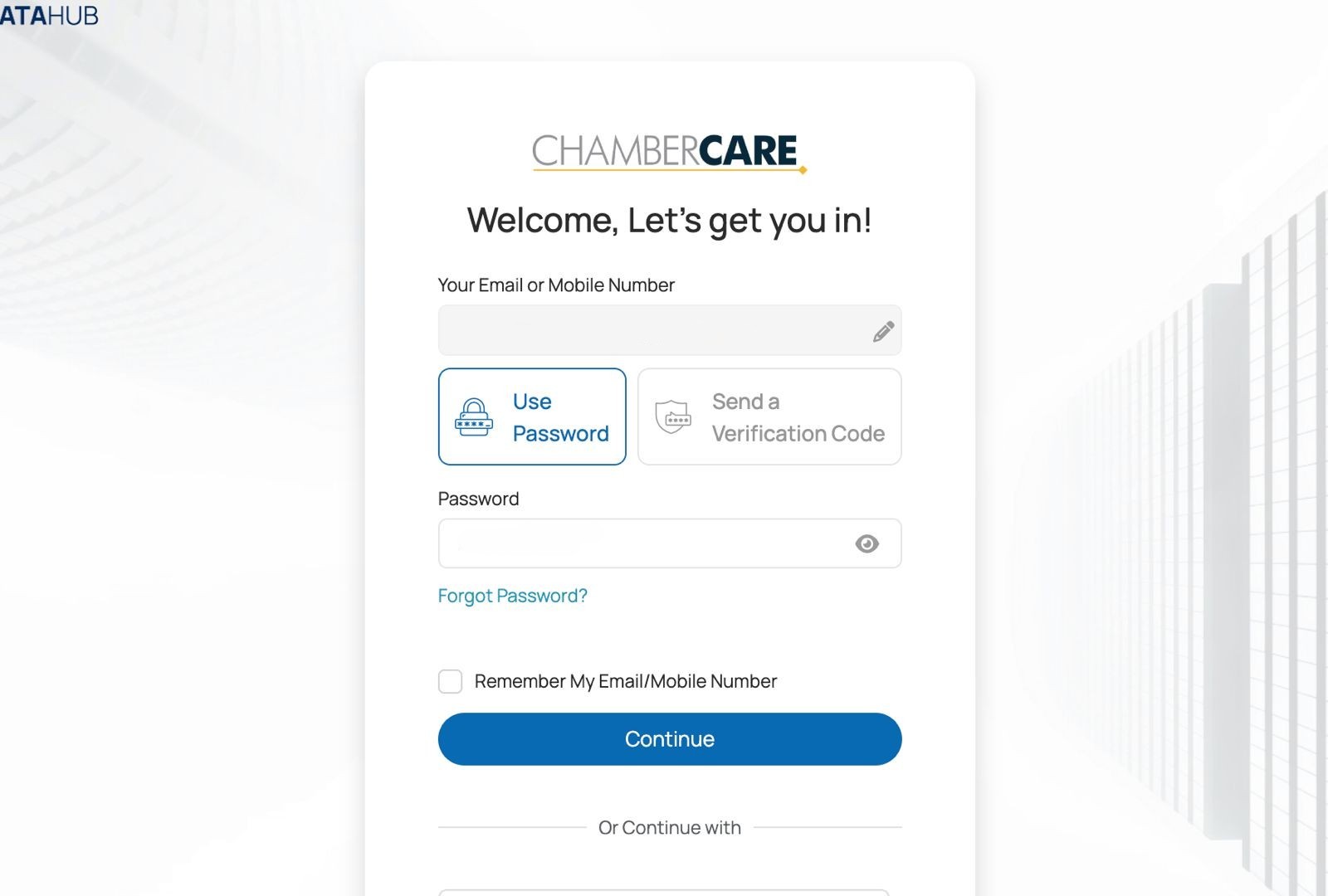
Step 7: Receive Verification Code
The system will prompt you for a code and will immediately send a temporary verification code to your email address.
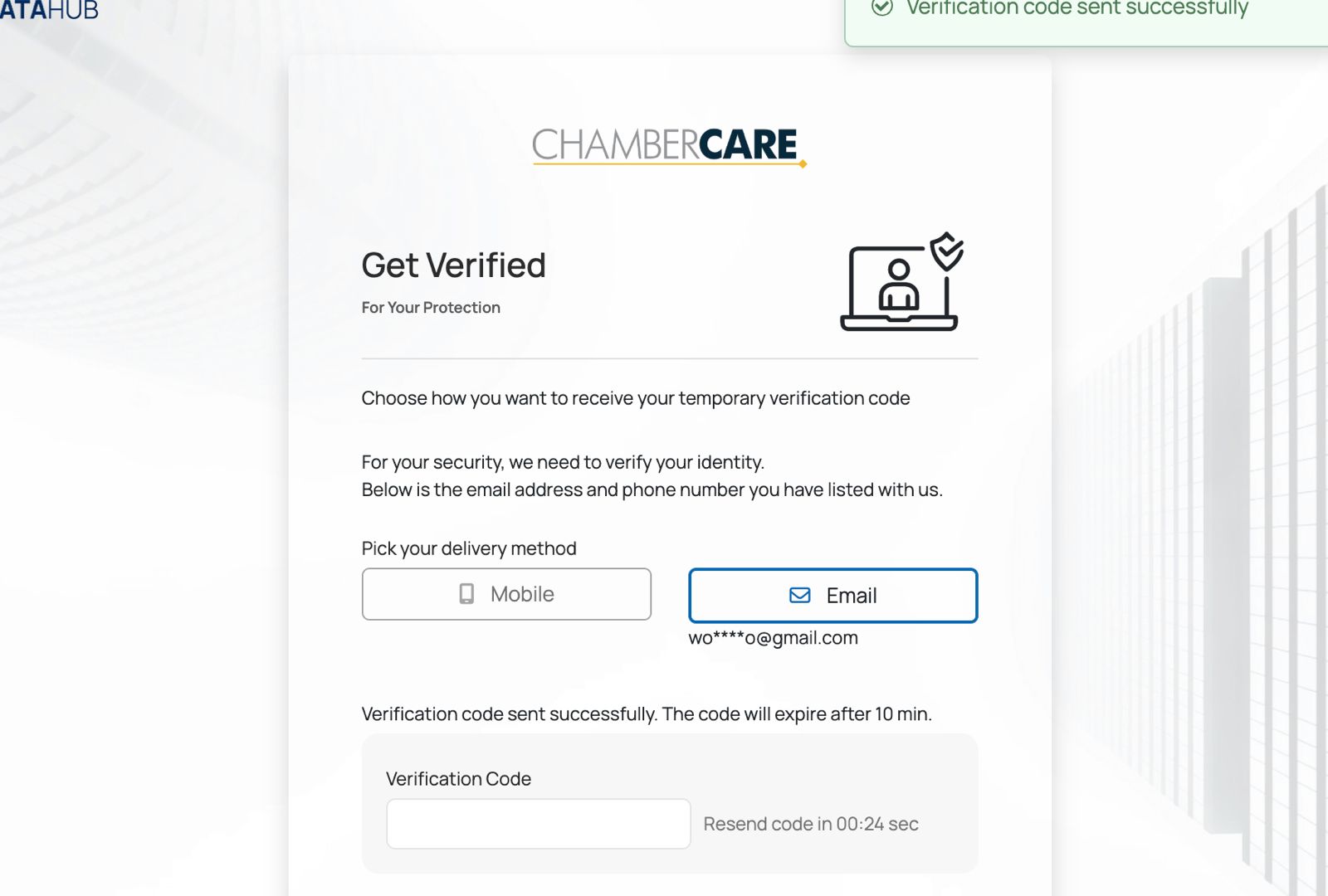
Step 8: Input Code
Check your email inbox. Note the 6-digit verification code and input it on the login verification screen in DataHub.(Also, check your spamfolder if the code doesn't appear in your main inbox right away.)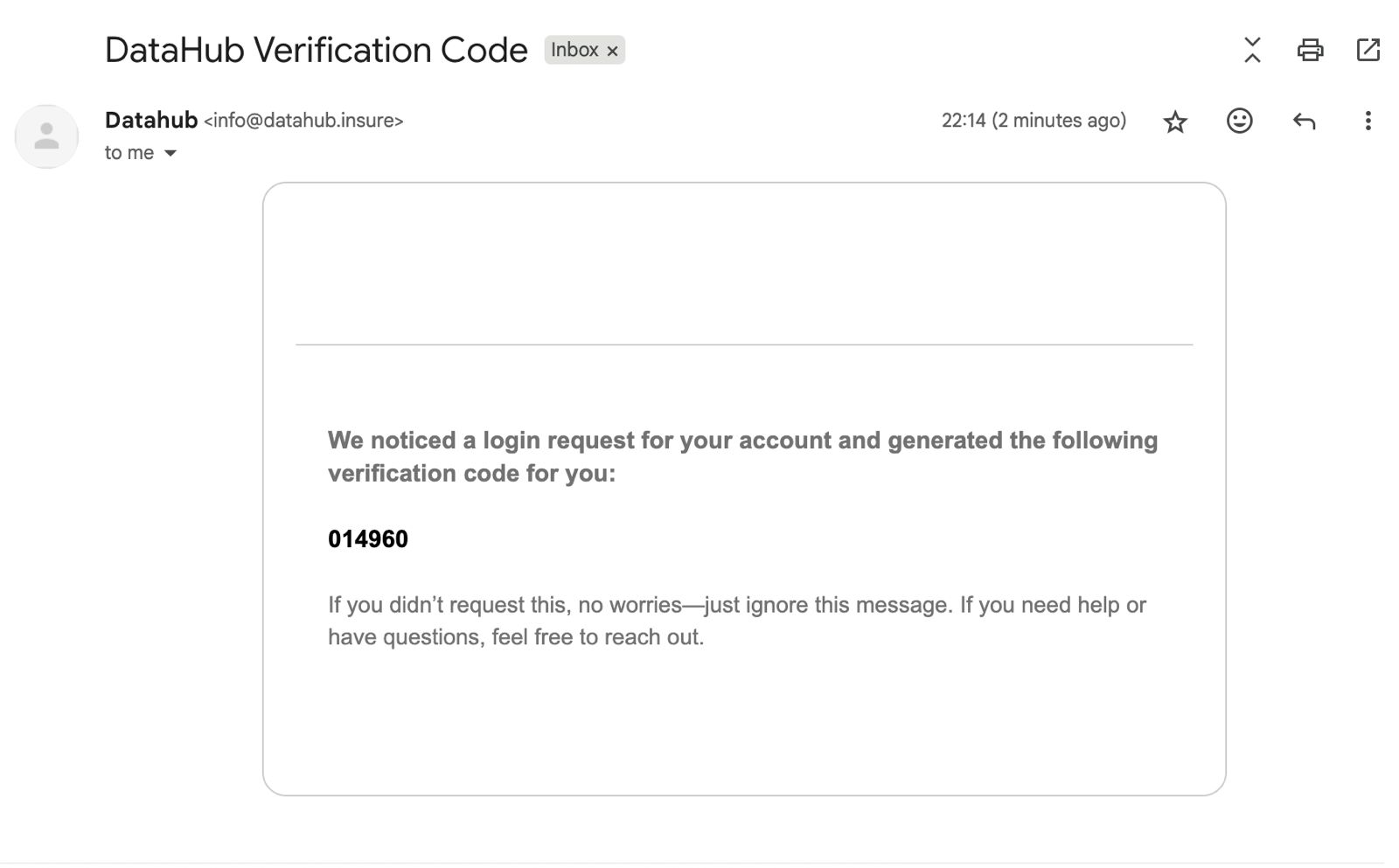
Step 9: Access Dashboard
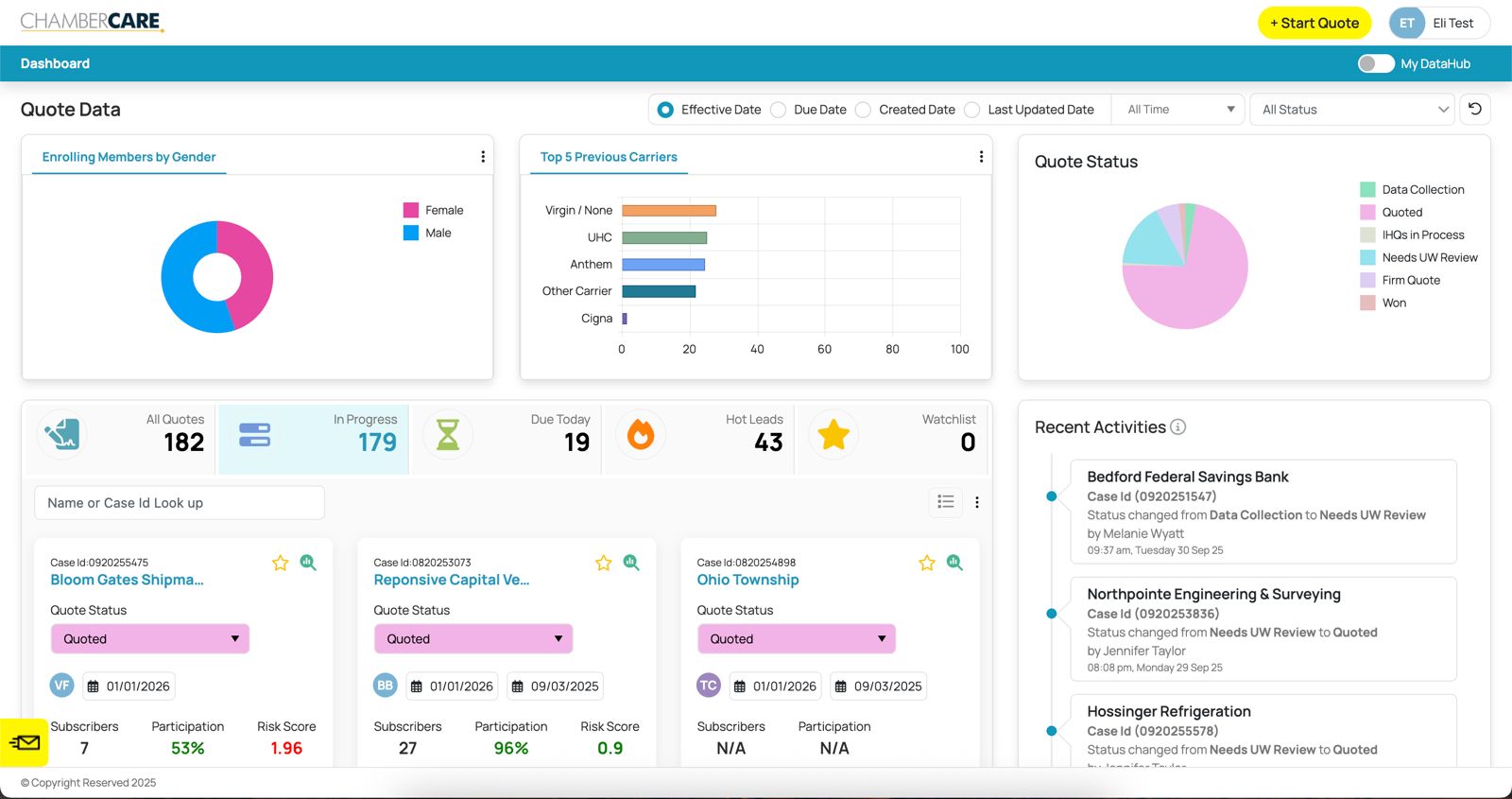
Once the code is successfully verified, you will be routed to the dashboard. You now have access to DataHub!
Was this article helpful?
That’s Great!
Thank you for your feedback
Sorry! We couldn't be helpful
Thank you for your feedback
Feedback sent
We appreciate your effort and will try to fix the article