Requesting Service Attestation
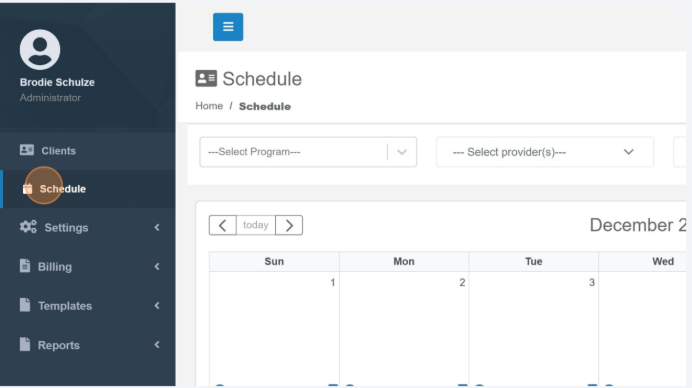
1. Navigate to the "Schedule" page.
2. Click "Sign Off"
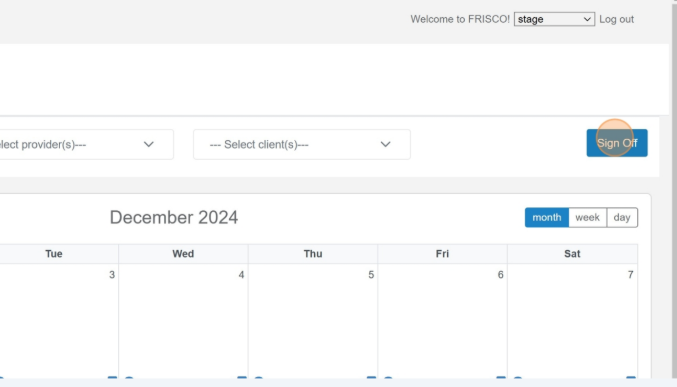
The "Sign Off" option will only appear for users with a role that has the "Encounter
Management - Access" permission.
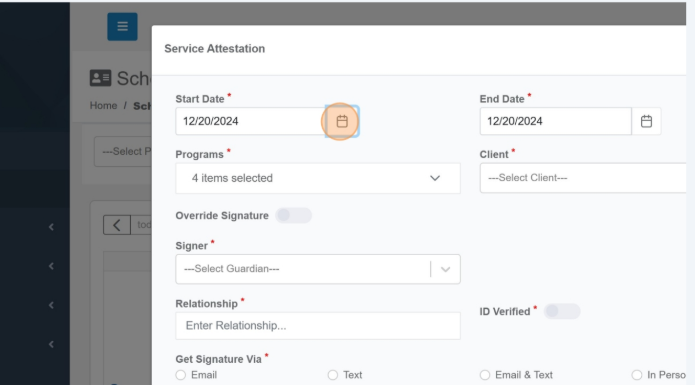
3. Set the date range for which you want to capture signatures.
4. Select which Program Encounter should be included in the Service Attestation. This dropdown will only show Programs the user has access to and Programs that are marked as Signature Required.
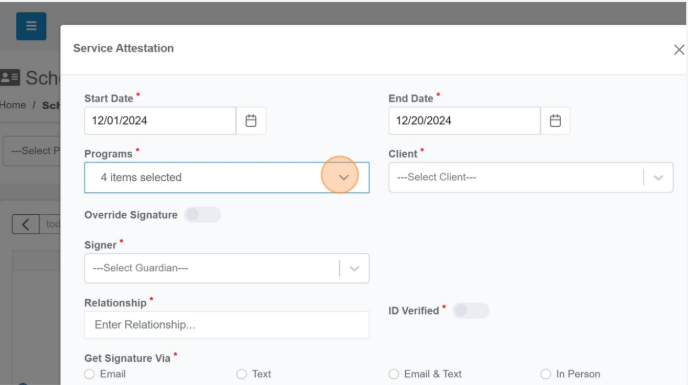
In order to toggle on the Signature Required you will have to access the Program
Management section under "Settings > Manage"
5. Select the Client for the Encounter.
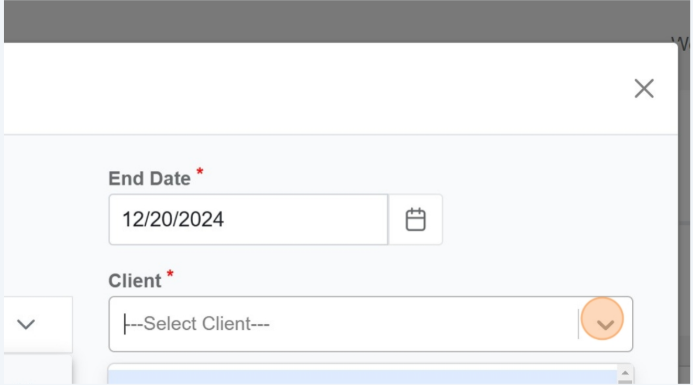
6. Select the Signer by either selecting a contact that has been assigned to the client or select "Unlisted" if the individual is not already associated with the client.
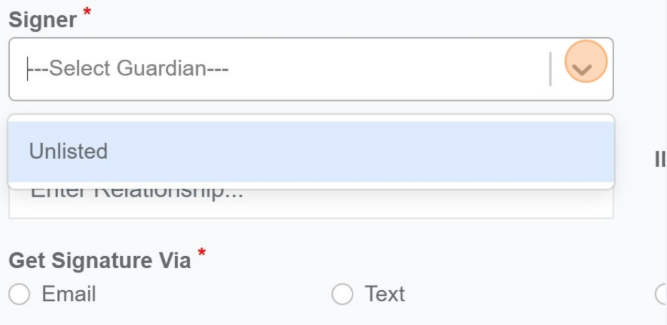
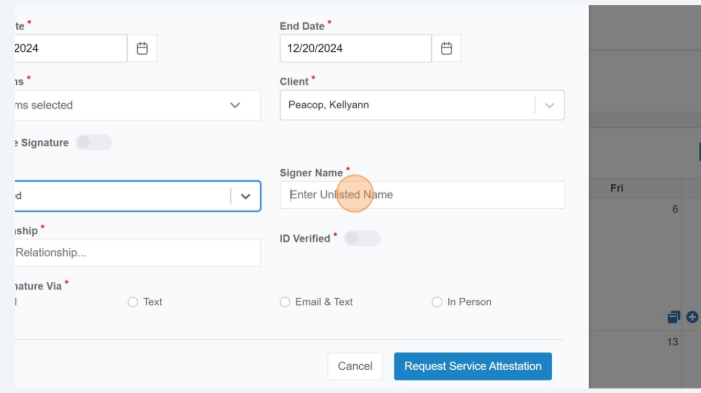
If a User or Contact is already associated with a Client their contact information will auto-populate. If Unlisted it will prompt you to enter the individuals Name and Contact details.
7. For Unlisted individuals you will enter their name here.
8. Enter the relationship this person has to the Client and toggle ID Verified to indicate you have confirmed that Contact details do belong to the person signing.
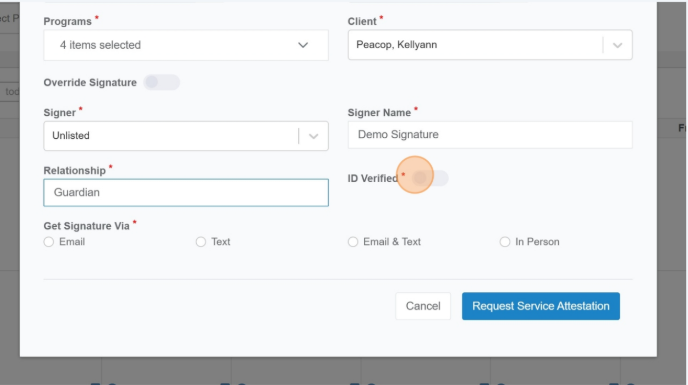
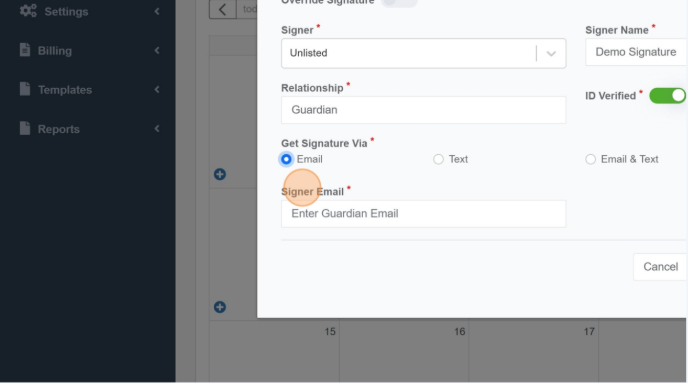
9. To send a signature request through email, select that option and enter the email for Unlisted contacts.
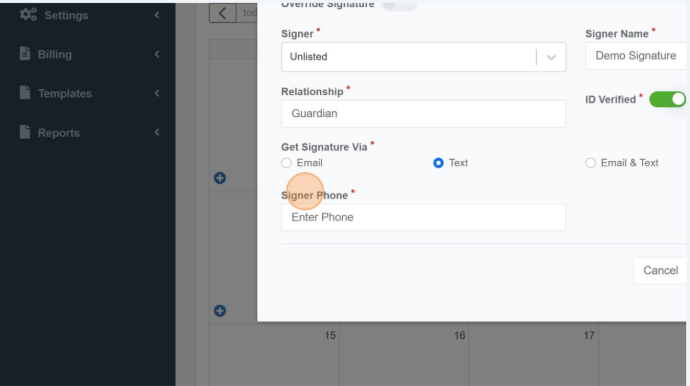
10. To send an SMS message select Text and enter the phone number.
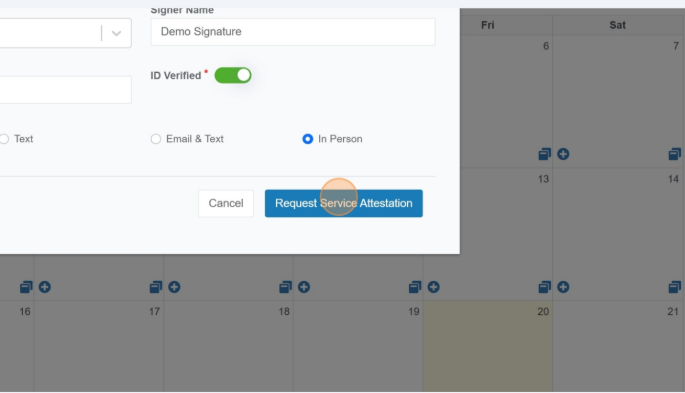
11. To collect a signature from an individual In Person, select that option and it will then prompt for them to sign or use a Pre-Formatted Signature.
Was this article helpful?
That’s Great!
Thank you for your feedback
Sorry! We couldn't be helpful
Thank you for your feedback
Feedback sent
We appreciate your effort and will try to fix the article