Entering/Editing Client Authorizations
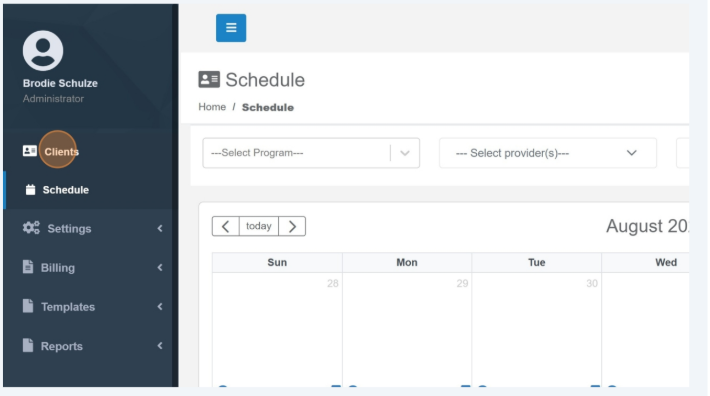
1. Click "Clients"
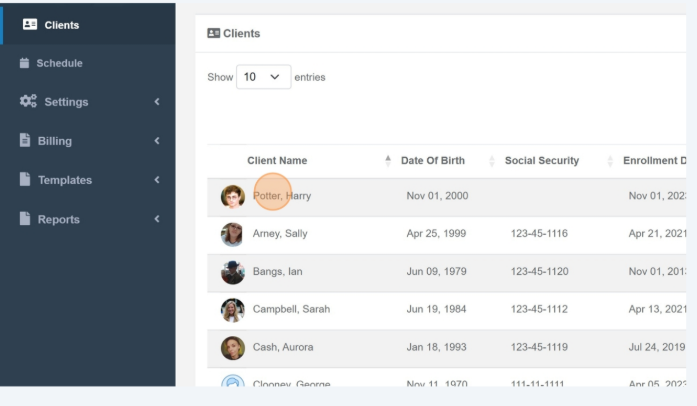
2. Navigate the desired client
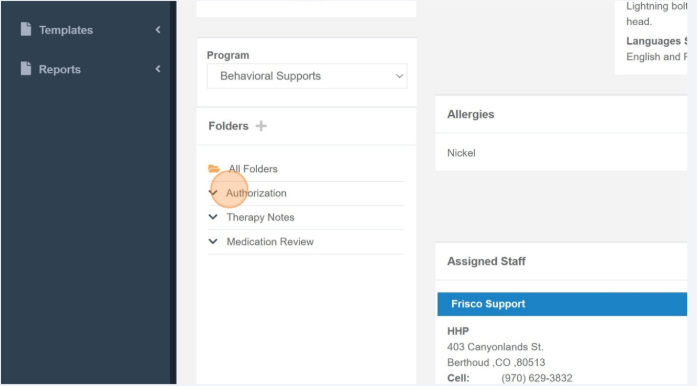
3. Open the "Authorization" folder. Please note that this folder may have been renamed for your agency.
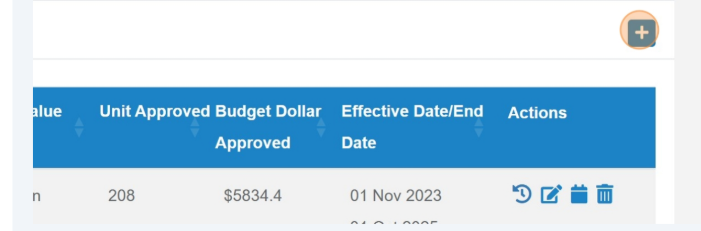
4. To add an authorization, select the plus icon in the righthand corner.
5. Select the correct funding source.
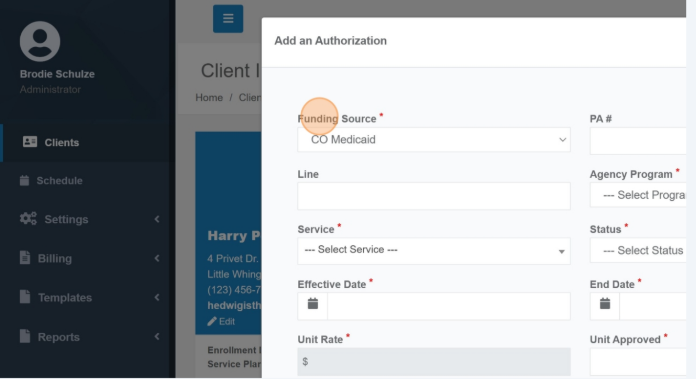
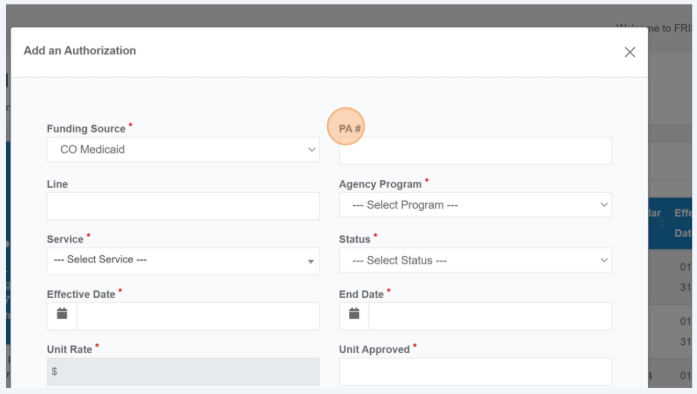
6. If needed, enter the Prior Authorization number.
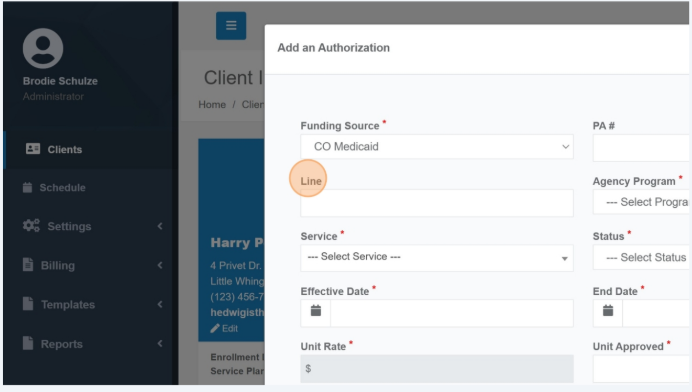
7. If needed, enter the Line number.
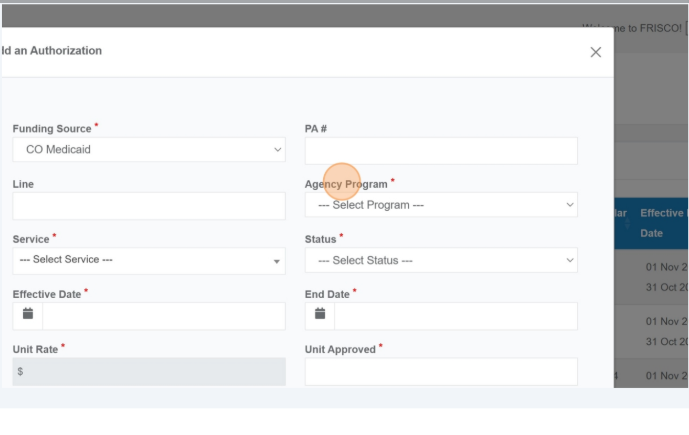
8. Select the Agency Program this authorization is associated with.
9. Select the service you wish to authorize. Please note the service list populates the list of currently active services which can be located in the Services Management area.
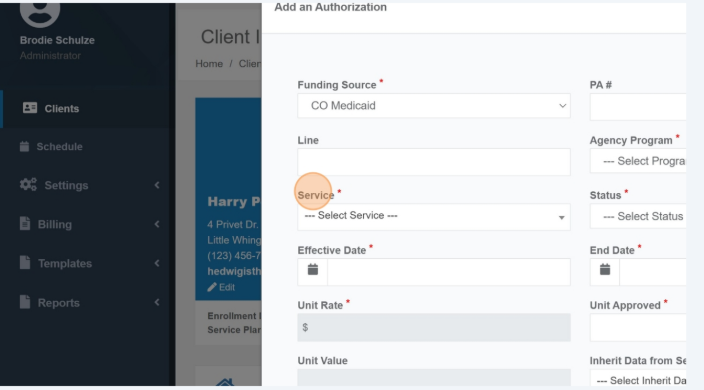
10. Select the appropriate status. Authorizations with the status of Pending or Approved will be treated the same. Authorizations marked as Complete or Discontinued will not allow scheduling or encounter notes.
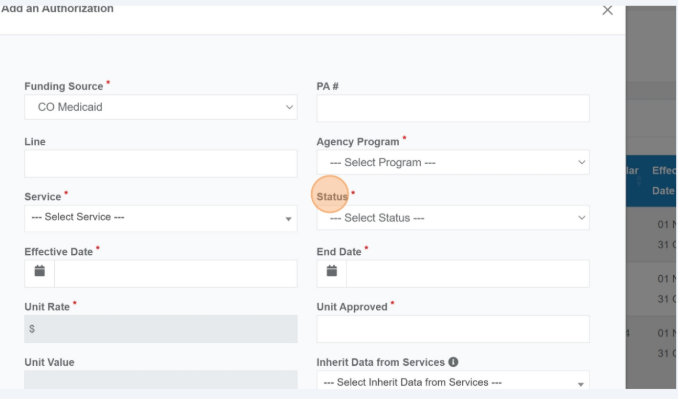
11. Enter the start date.
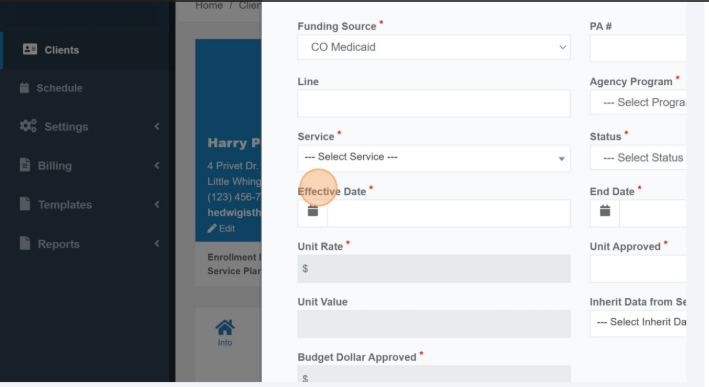
12. Enter the end date.
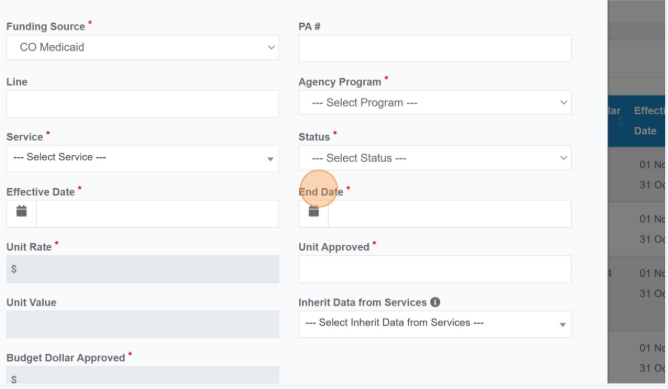
13. Enter the number of units approved. If the unit is a daily rate Frisco will show the total days between the start and end date.
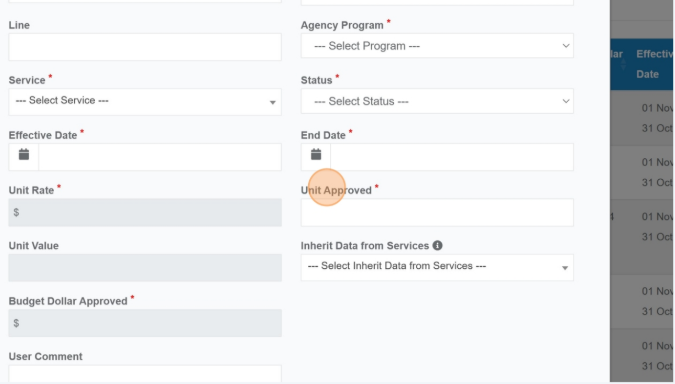
14. Confirm the unit rate. If incorrect, this can be updated in the Services Management area. If the rate is a negotiable rate, this field will be editable.
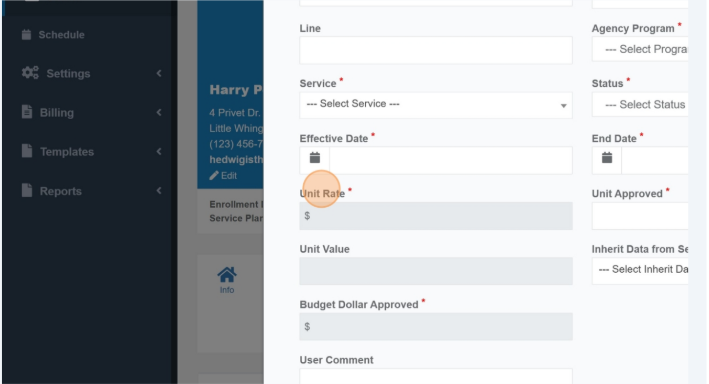
15. The unit value will populate based on the Service Management setup.
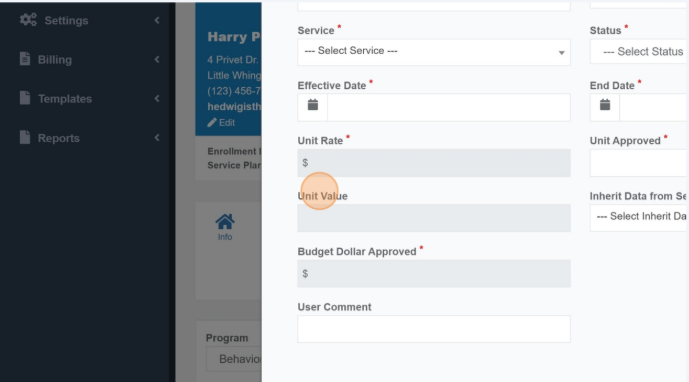
16. The Budget Dollar Approved is the amount of revenue you can expect if all of the units are billed and paid.
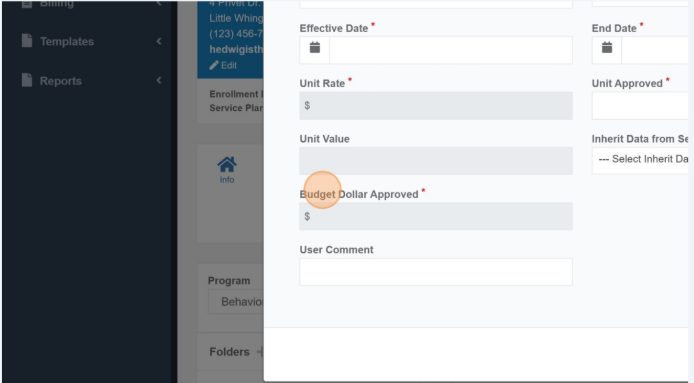
17 If you want to copy an existing schedule of Frisco Support Plan from another service to this one, select the service from the Inherit Data dropdown.
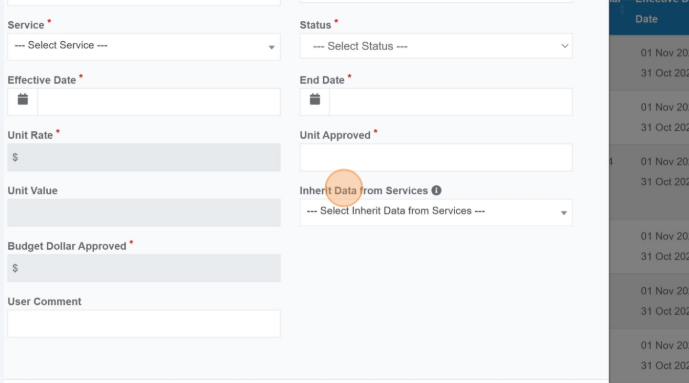
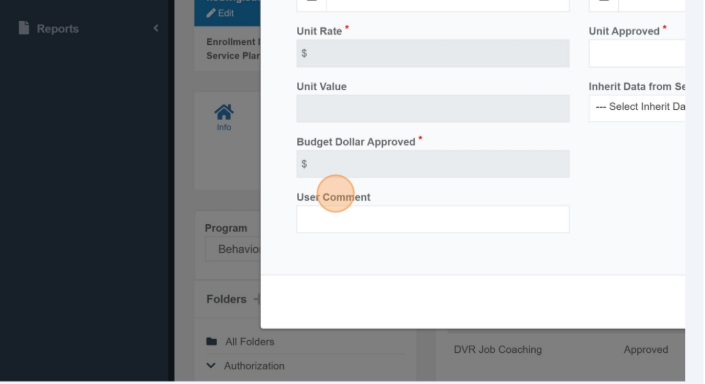
18. The user comment field is optional for internal record keeping.
Was this article helpful?
That’s Great!
Thank you for your feedback
Sorry! We couldn't be helpful
Thank you for your feedback
Feedback sent
We appreciate your effort and will try to fix the article