What is a Smart Extractor?
- Smart Extractor is Powered by AI Integration with Machine Learning capabilities and With the Smart Extractor, even if the standard template is not followed, the system can recognize and extract the necessary data points for upload.
Here is the Step by Step guide for Smart Extractor
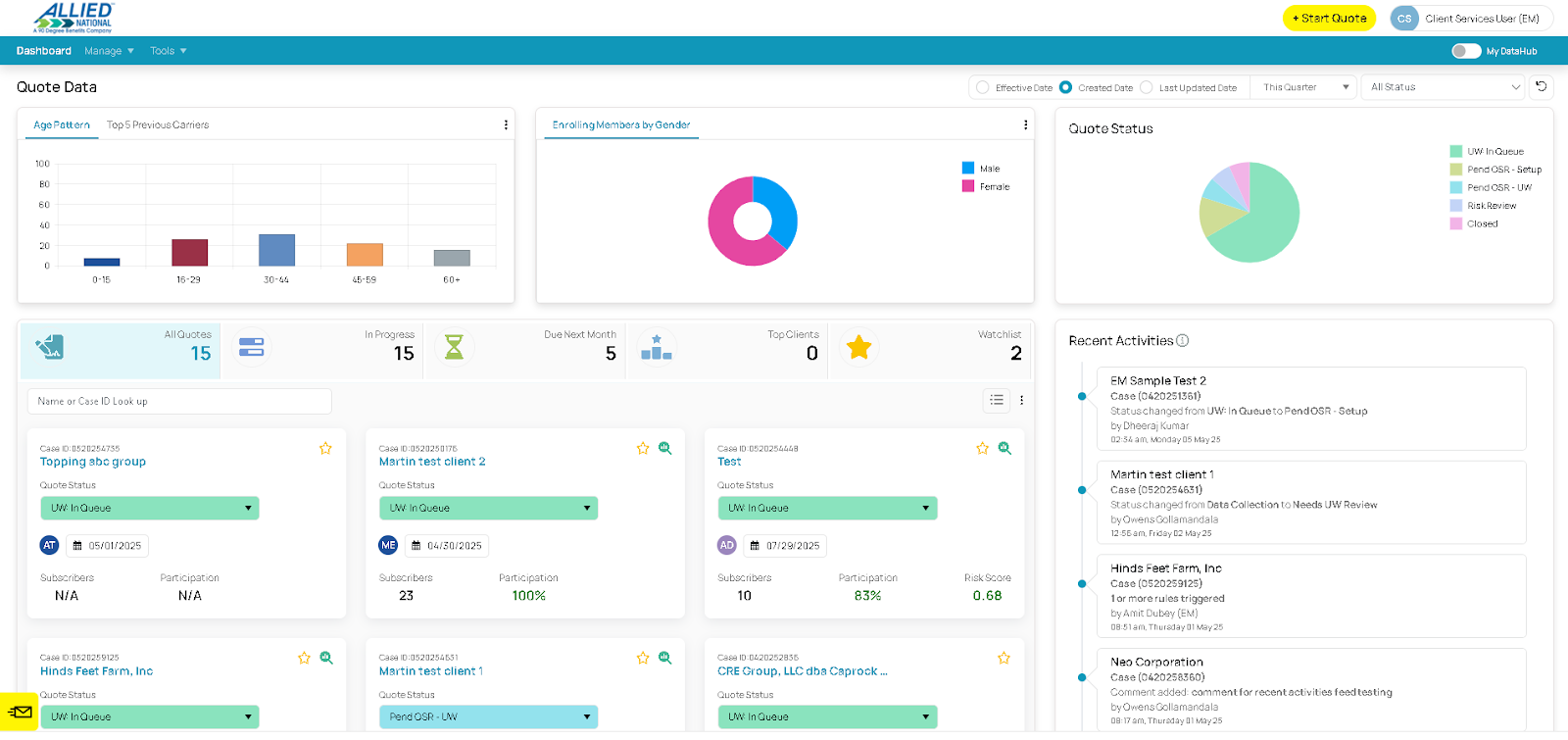
Dashboard
To initiate a quotation, click the "Start Quote" button. This yellow button is located in the upper-right corner of the screen once you're on the dashboard.
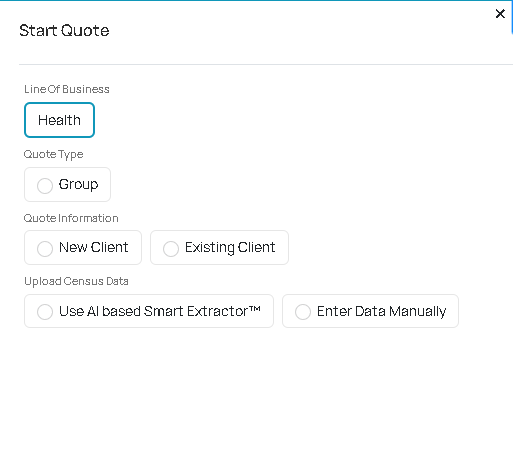
Complete the following required fields: Line of Business, Quote Type, and Quote Information. Additionally, specify the preferred method for uploading census data: utilize the Smart Extractor or manually enter the data.
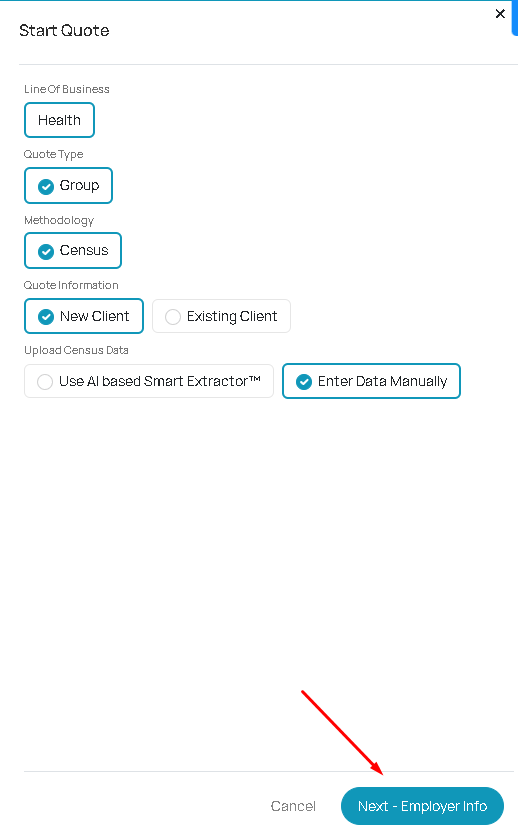
Selecting all and choosing the option to "Enter Data Manually" allows you to input data directly into the selected cells.
Proceed to complete the Group Info (Employer details) by clicking "Next - Employer Info".
Complete all required group information, which is indicated in red.


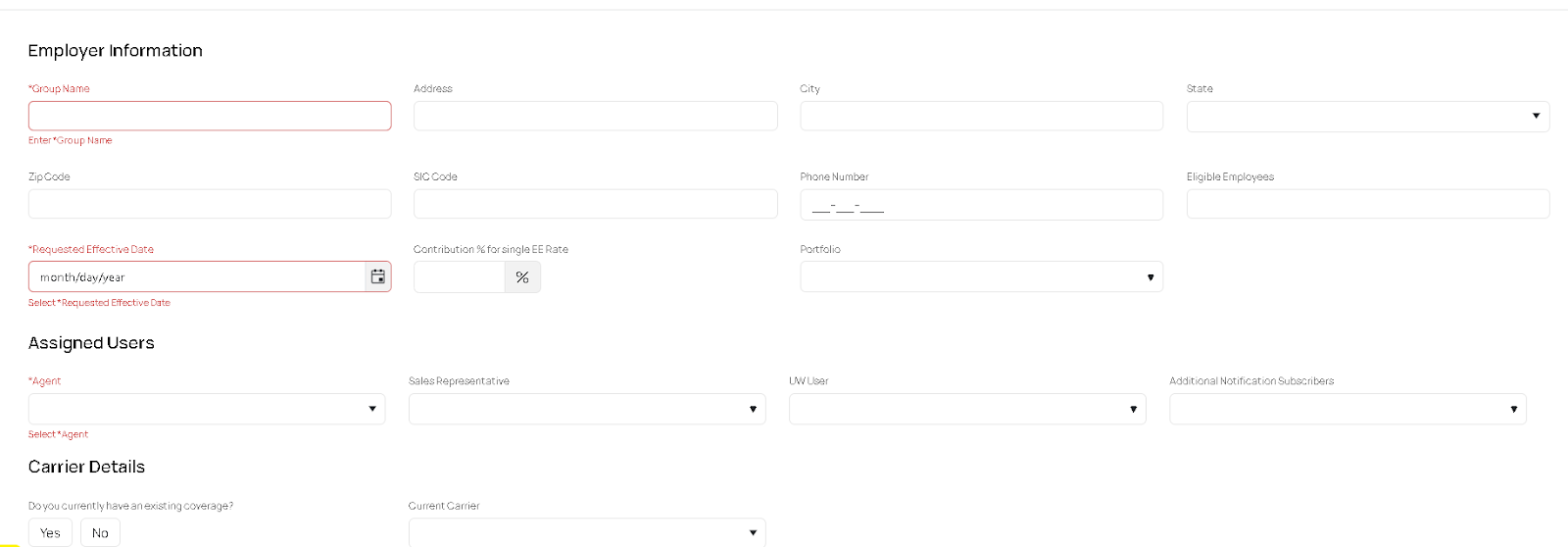
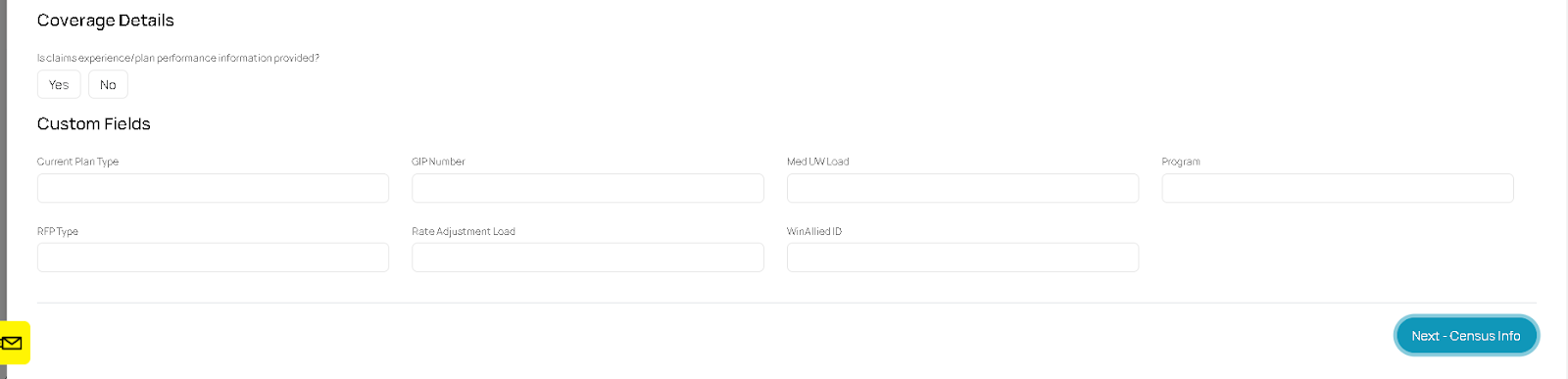
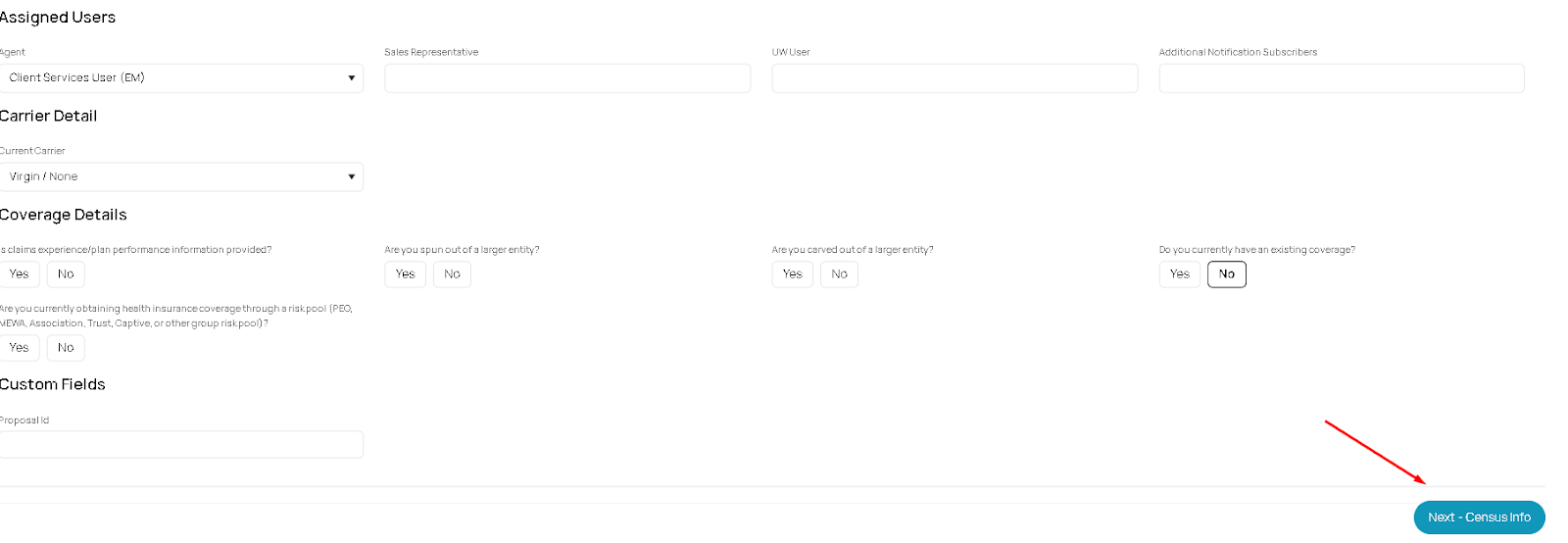
Upon completion of data entry, proceed by clicking "Next Census Info" located at the lower right corner of the screen.
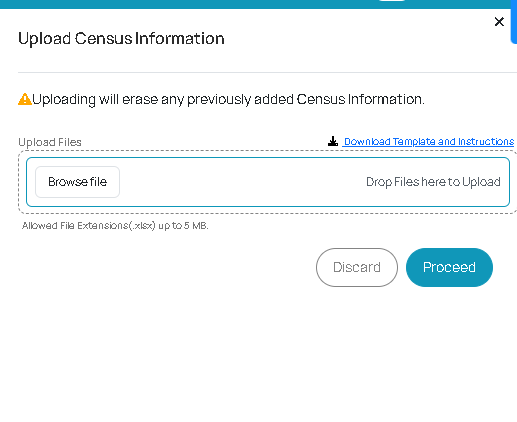
Now you are on the census tab and for you to upload a census just select the Upload census button (You have an option to Browse files in your Computer or just select files)
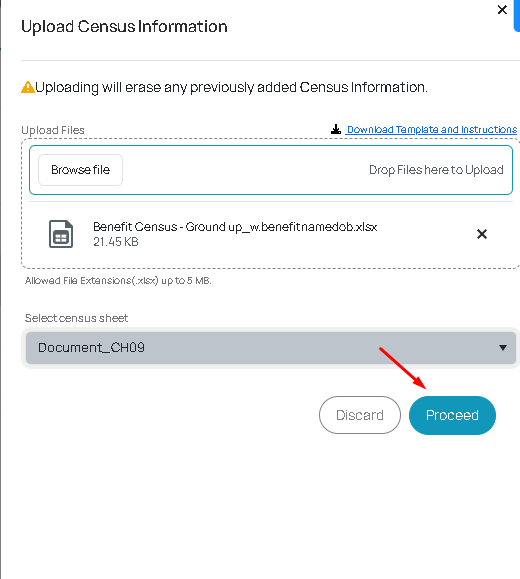
Select the sheet on your file where your census information can be located.

Upon successful file upload, click "Proceed."
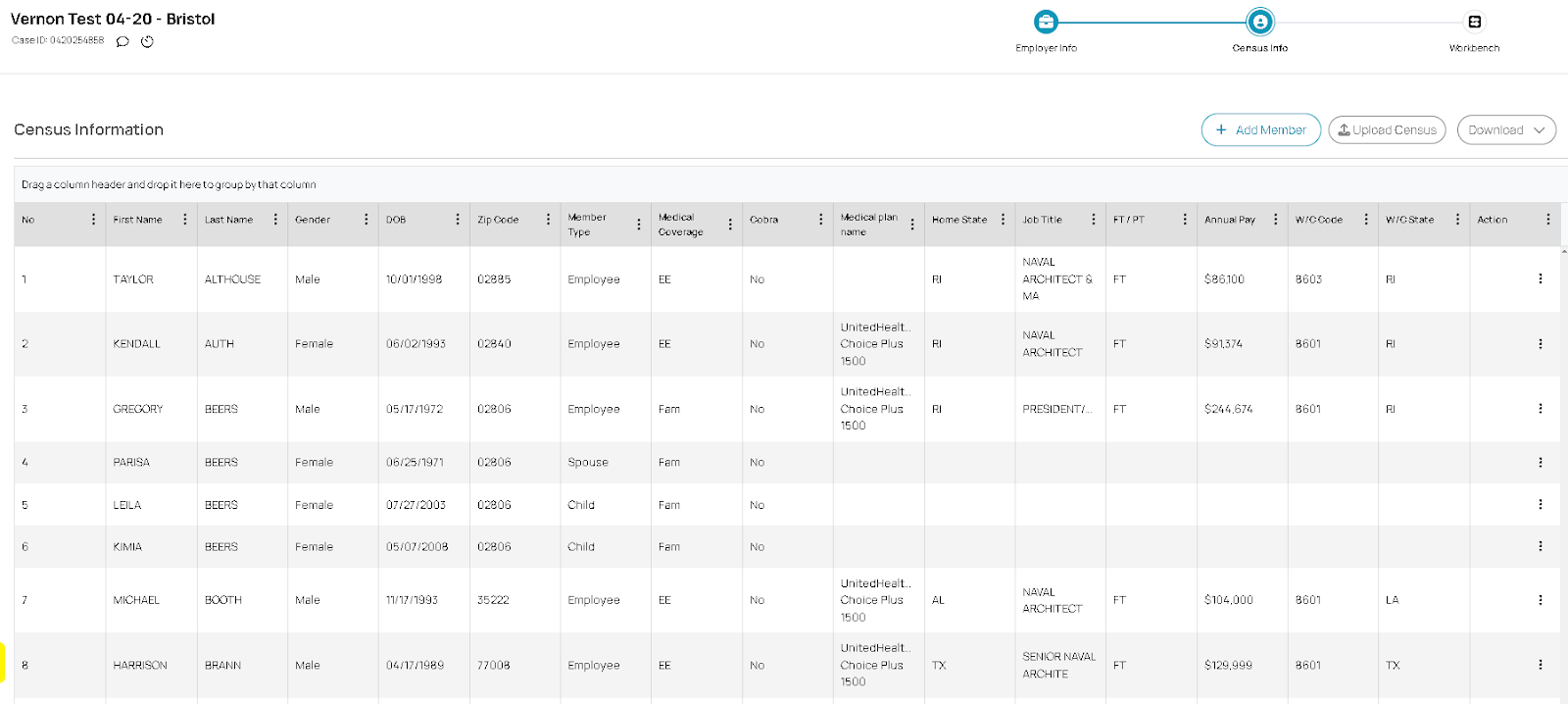
You will now see all the uploaded census files on your screen.
Was this article helpful?
That’s Great!
Thank you for your feedback
Sorry! We couldn't be helpful
Thank you for your feedback
Feedback sent
We appreciate your effort and will try to fix the article