The Contact Support button in DataHub is the fastest way to report a system issue or request assistance. Located in the lower-left corner of your screen, the button opens a support form pre-filled with your name and email, ensuring a quick and seamless submission experience.
Whether you're experiencing a bug, seeing unexpected behavior, or need help with a specific feature, this tool provides a direct line to the support team with all necessary context.
Step-by-step guide:
1. Initiate the Support Form. Look to the bottom-left corner of your screen. Click the yellow “Contact Support” button that looks like an envelope.
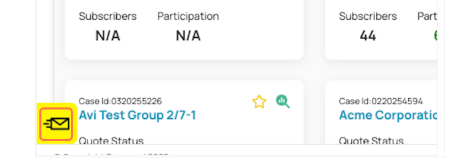
This opens a pop-up window with a form.
2, Review your information. Your name and email are automatically populated based on your login credentials. This ensures your support request is traceable and routed correctly–no need to manually enter this information.
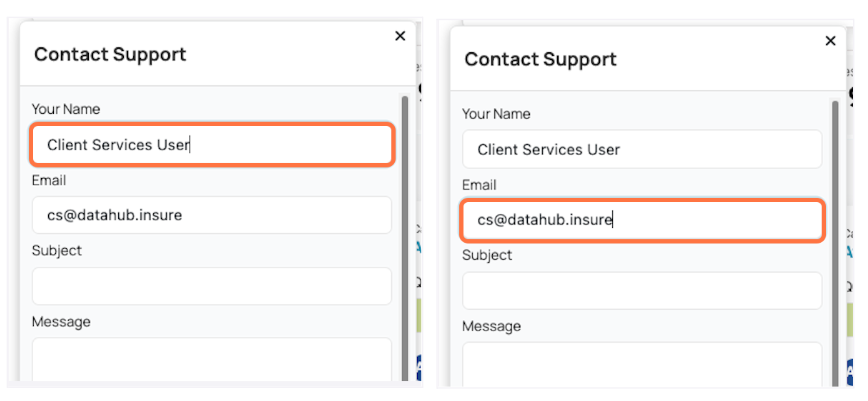
3. Describe the issue.
- In the Subject field, type a short title that says a preview of what the error is about. For this instance, we wrote “Error Test”.
- In the Message field, explain what the issue is in detail or what you are currently experiencing (or not).
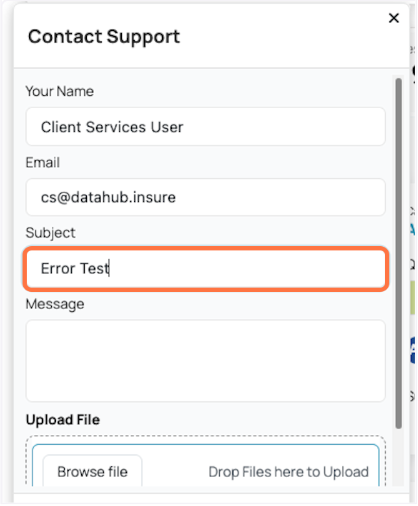
4. Attach a File (Optional). If you have a relevant screenshot, file, or document:
- Click Browse File.
- Select the file from your device.
- This attachment will be included in your ticket to help the support team reproduce and understand the issue.

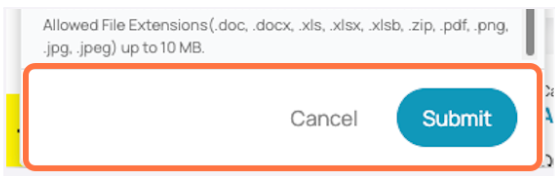
5. Submit the form. Once you are ready to send the request, click Submit.
Best Practices
- Be concise but specific in your descriptions.
- If the issue is urgent or blocks a key workflow, indicate that in the subject line.
- Use screenshots or attachments when the issue is visual or file-related.
Was this article helpful?
That’s Great!
Thank you for your feedback
Sorry! We couldn't be helpful
Thank you for your feedback
Feedback sent
We appreciate your effort and will try to fix the article