This feature allows the organization to define how different users interact with the system, ensuring secure, streamlined, and role-appropriate access across teams. By configuring user roles and group permissions, admins can control who sees what, who can act on specific data, and how team responsibilities are reflected within the platform.
Why It Matters
Security & Compliance: Ensures sensitive information is only accessible to authorized roles.
Operational Clarity: Teams access only the tools and data relevant to their function, reducing clutter and error.
Scalability: As the organization grows, structured roles and groups make it easier to onboard, manage, and audit user activity.
Right now, as a standard, the Current Roles with Access levels are:
Underwriter User
Broker User
Sales User
Step-by-Step Instructions:
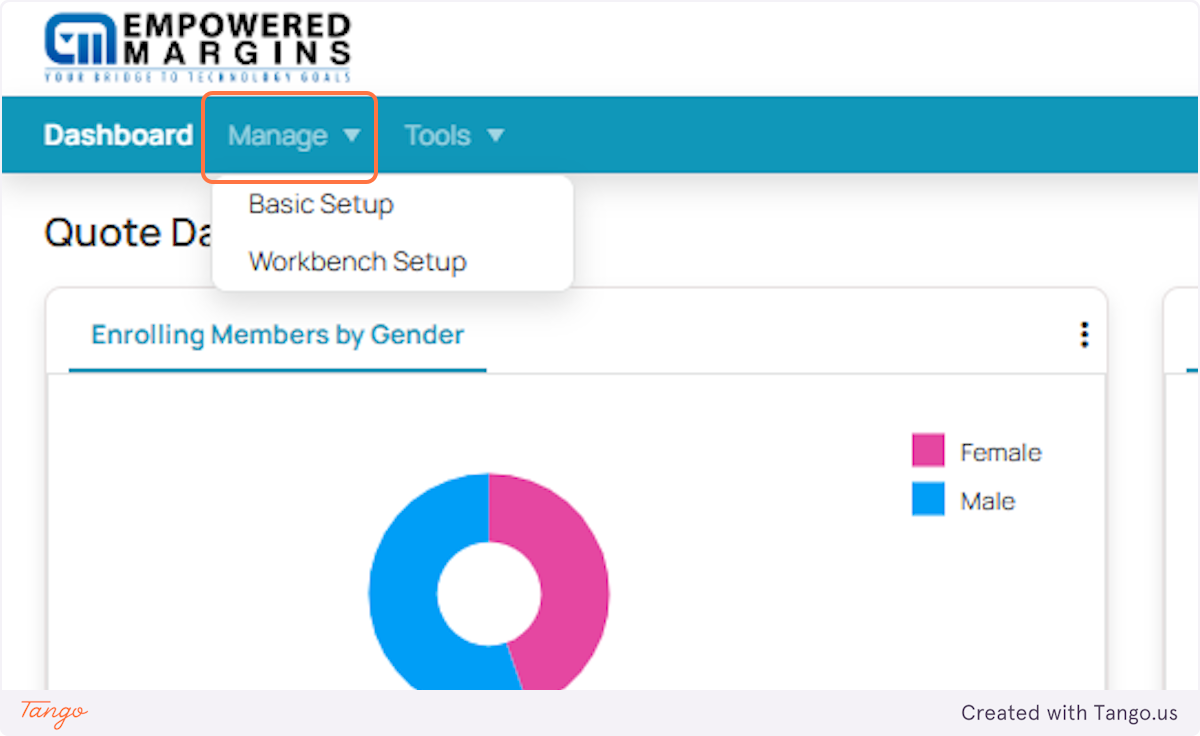
1. From the main dashboard, click Manage. This is your entry point for system-wide configuration.
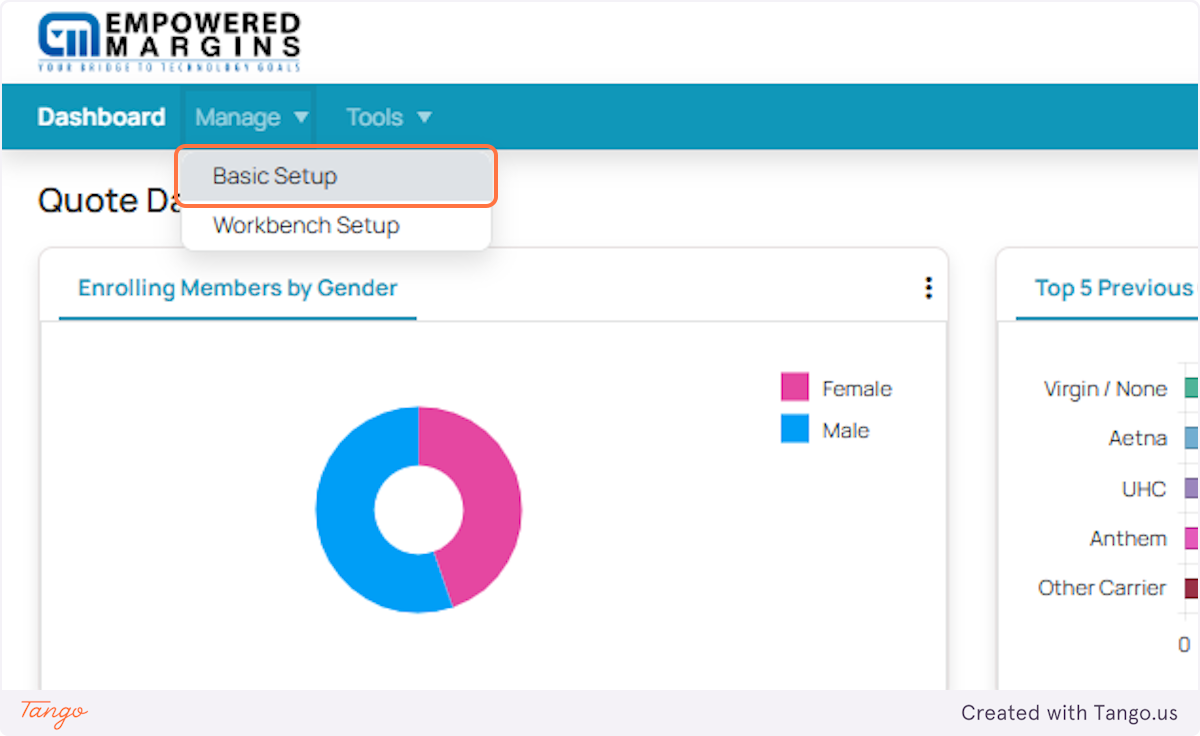
2. Next, click Basic Setup to begin defining your access structures.
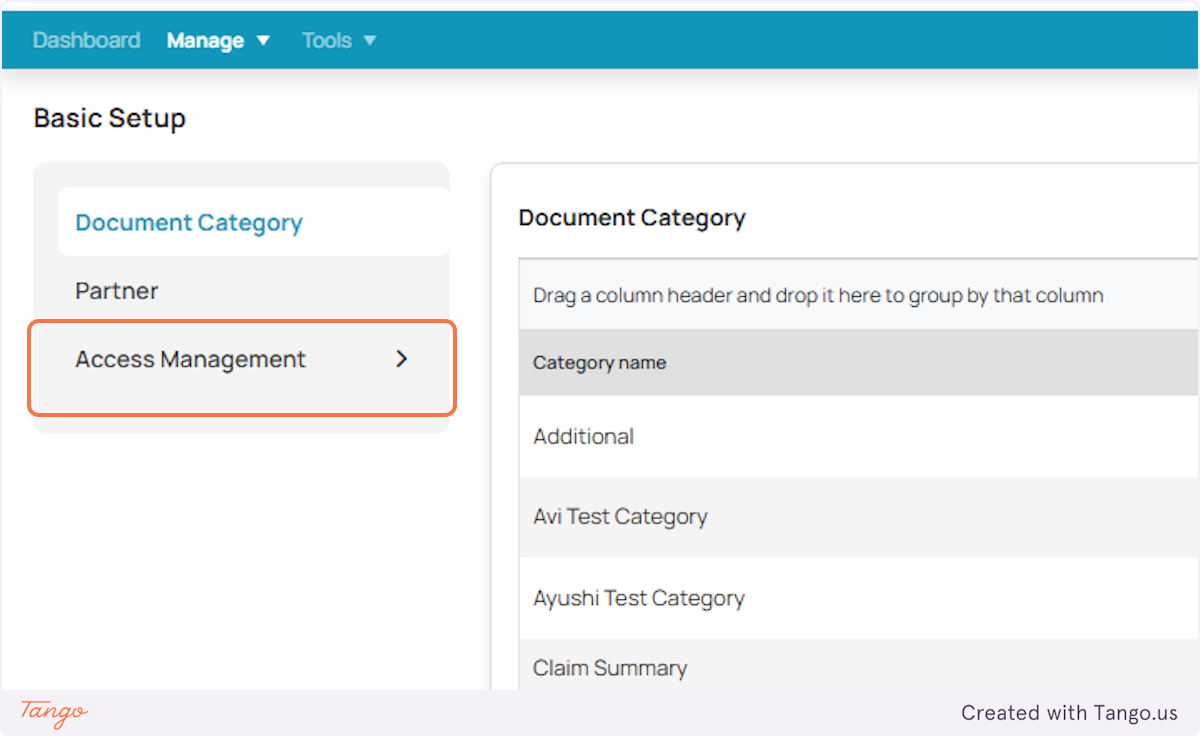
3. Select Access Management from the menu. This is where user groups and permissions are controlled.
4. Within Access Management, click on Groups.

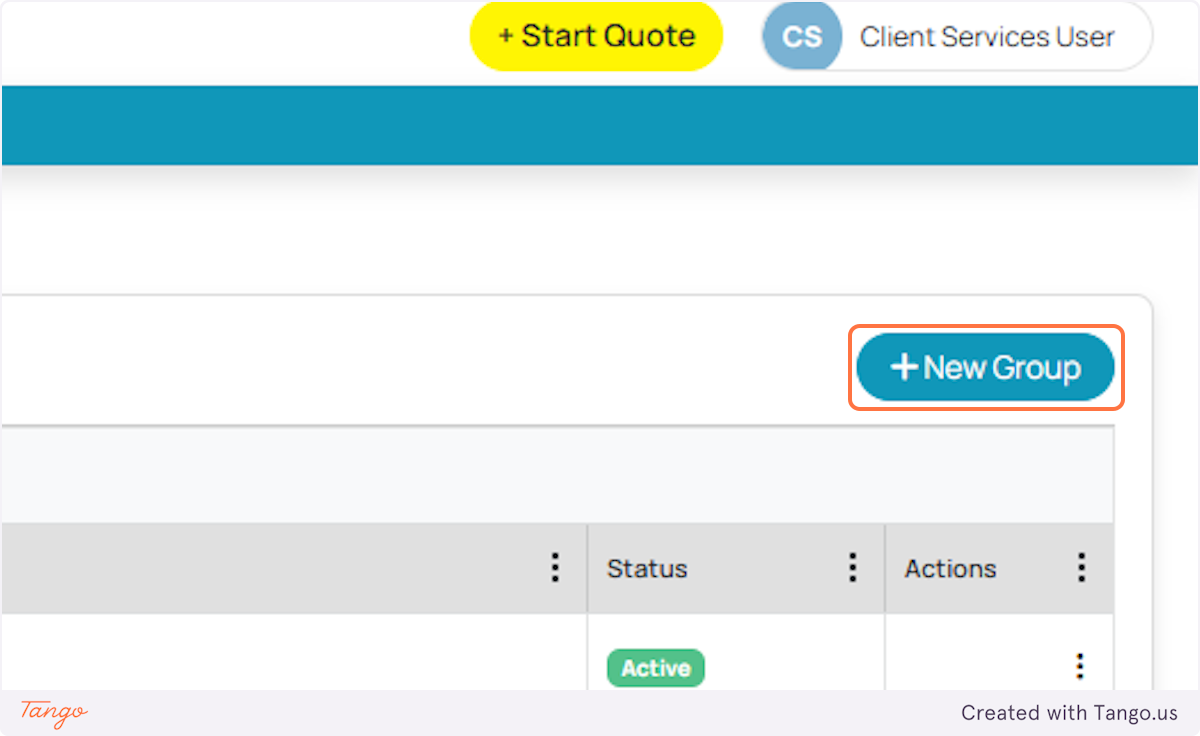
5. Now, click New Group to start creating a dedicated group team.
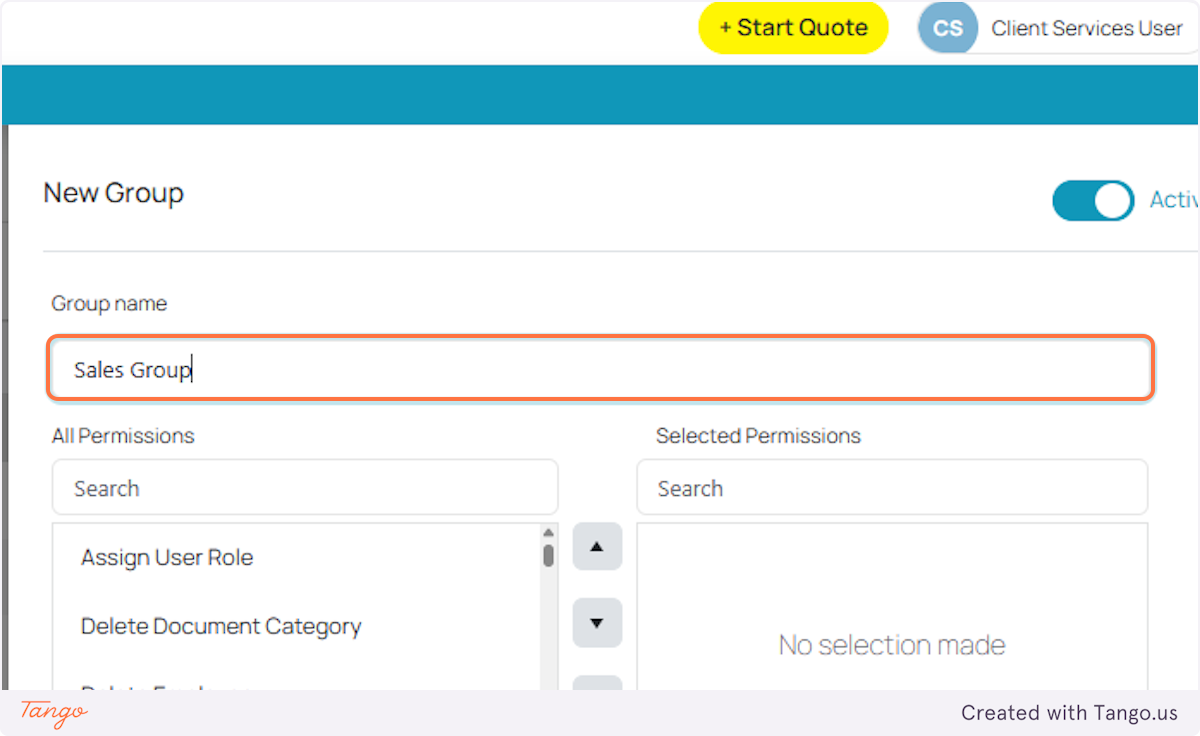
6. For this instance, we will be creating access for the Sales team. In the Group Name field, input Sales Group (this is something you can customize based on however your organization would want to call it).
7. Please refer to the last section of this document for the list of Permissions available. This can be configured as well based on the role of each user. For example, if you want this user to edit and view another sales user, it is possible. Just Click on the permission, then select Transfer to button.
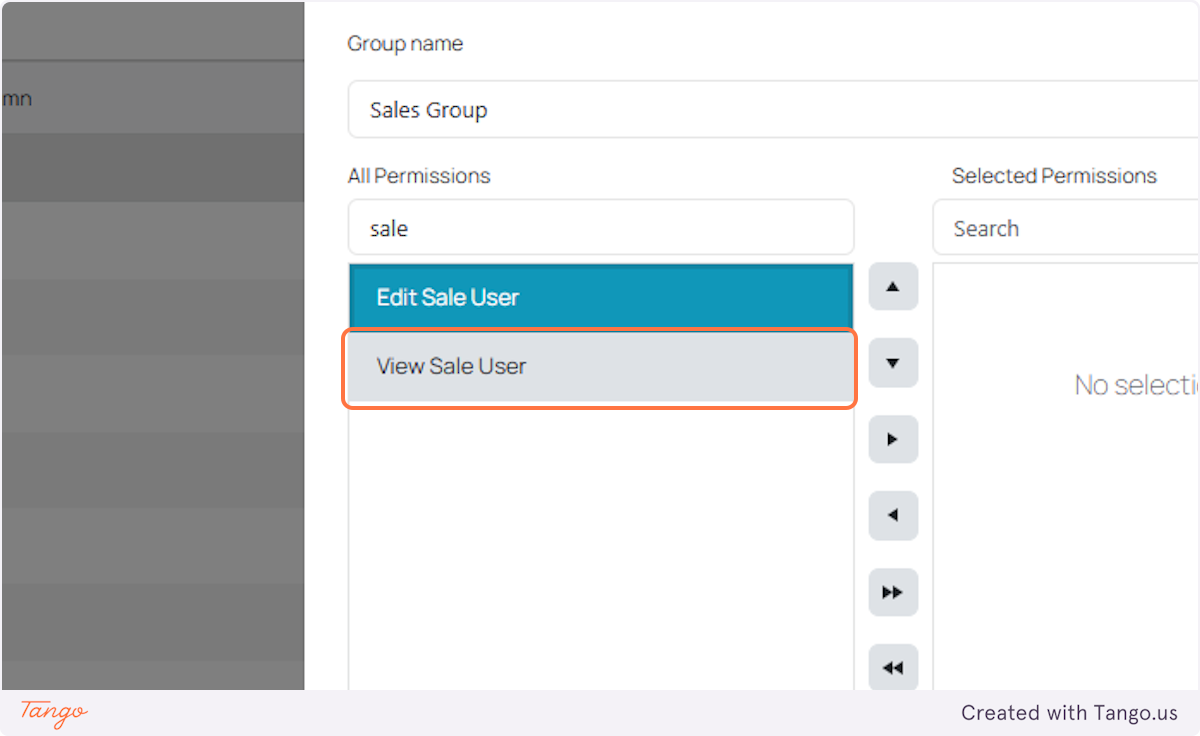
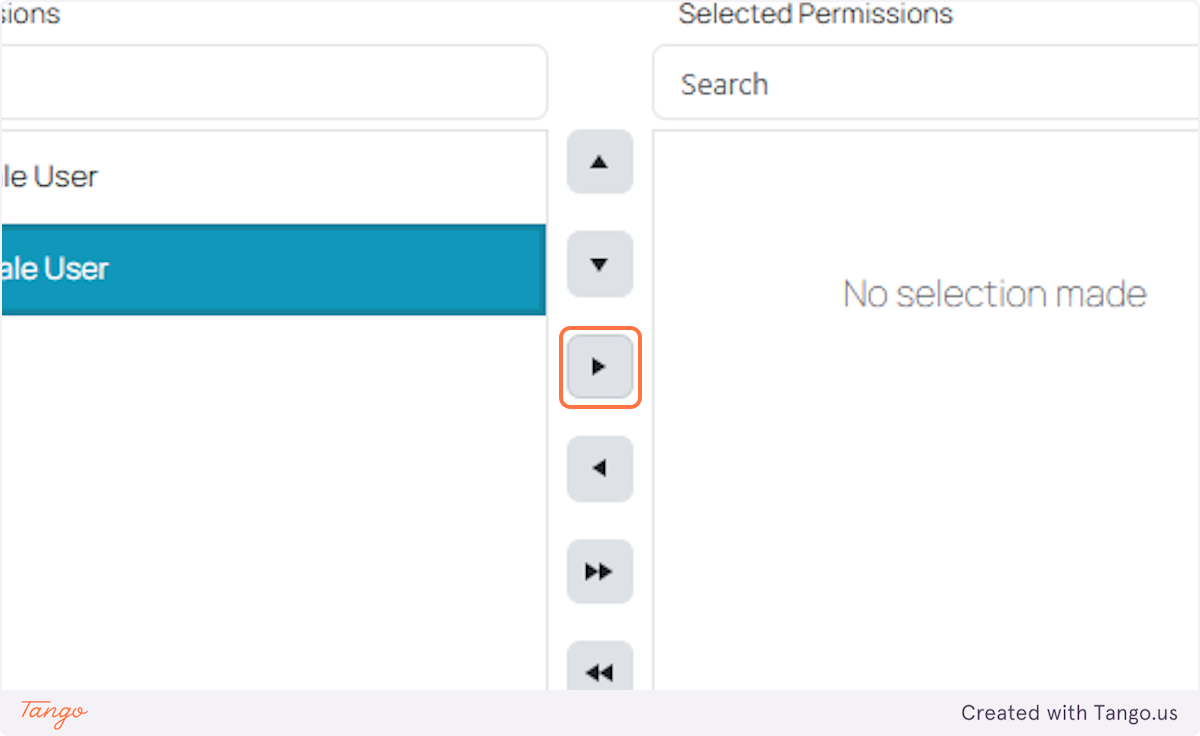
8. Continue adding and refining those permissions that you prefer for each user under this group.

9. Once done, select Save to apply all changes made so far.

Creating a Role for the Group
10. Click on Roles right under Groups - under Access Management.
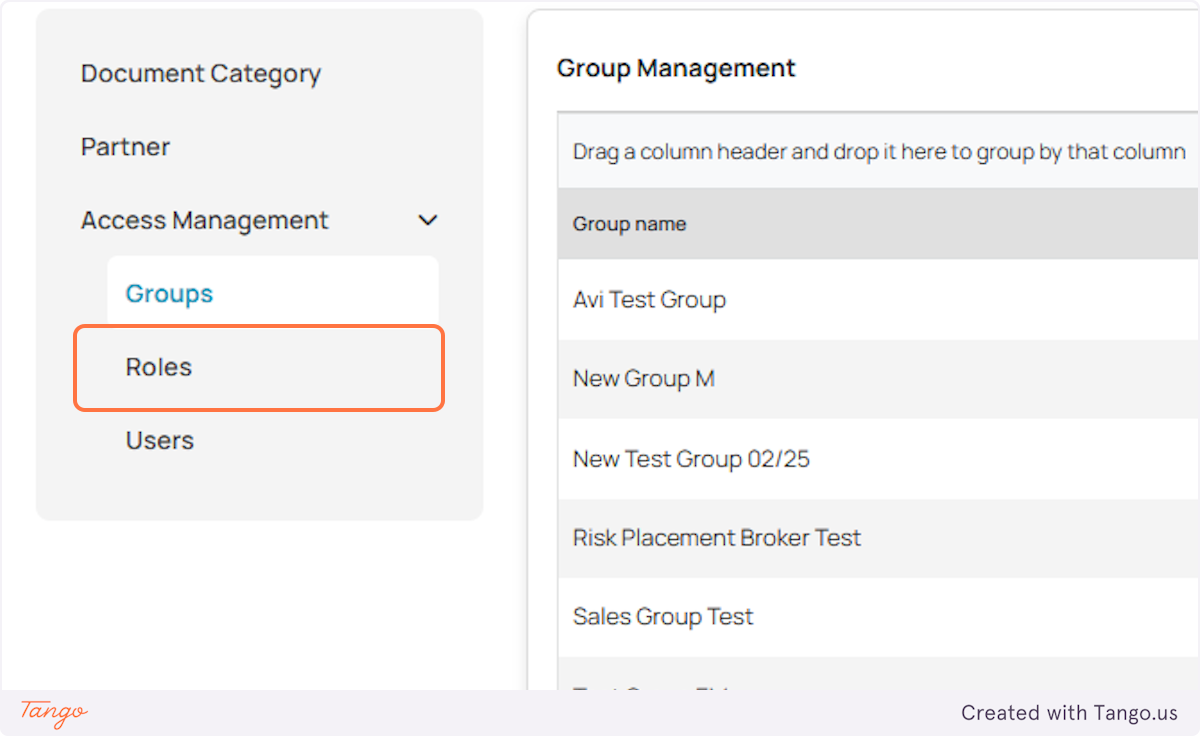
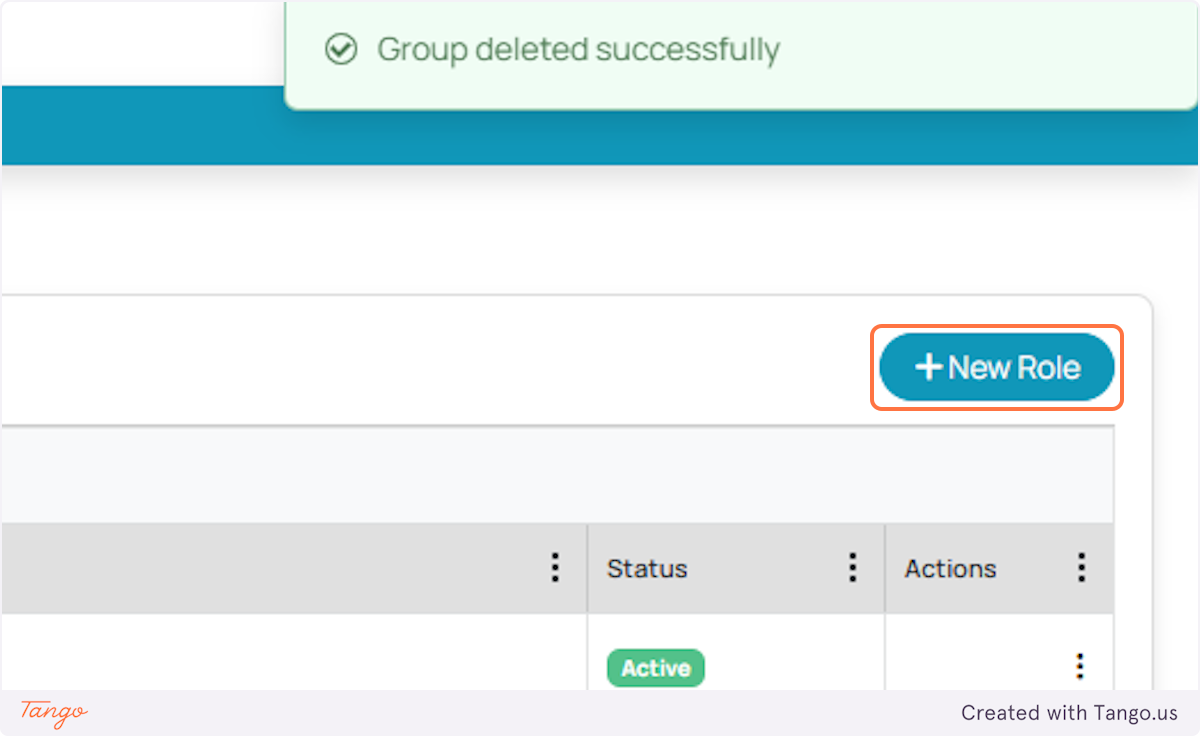
11. Select New Role to begin creating a role specific to the Group you’ve created.
12. Click on the Group or Groups where you want to assign a specific role. For this instance, we want to assign roles to the group for the Sales Group.
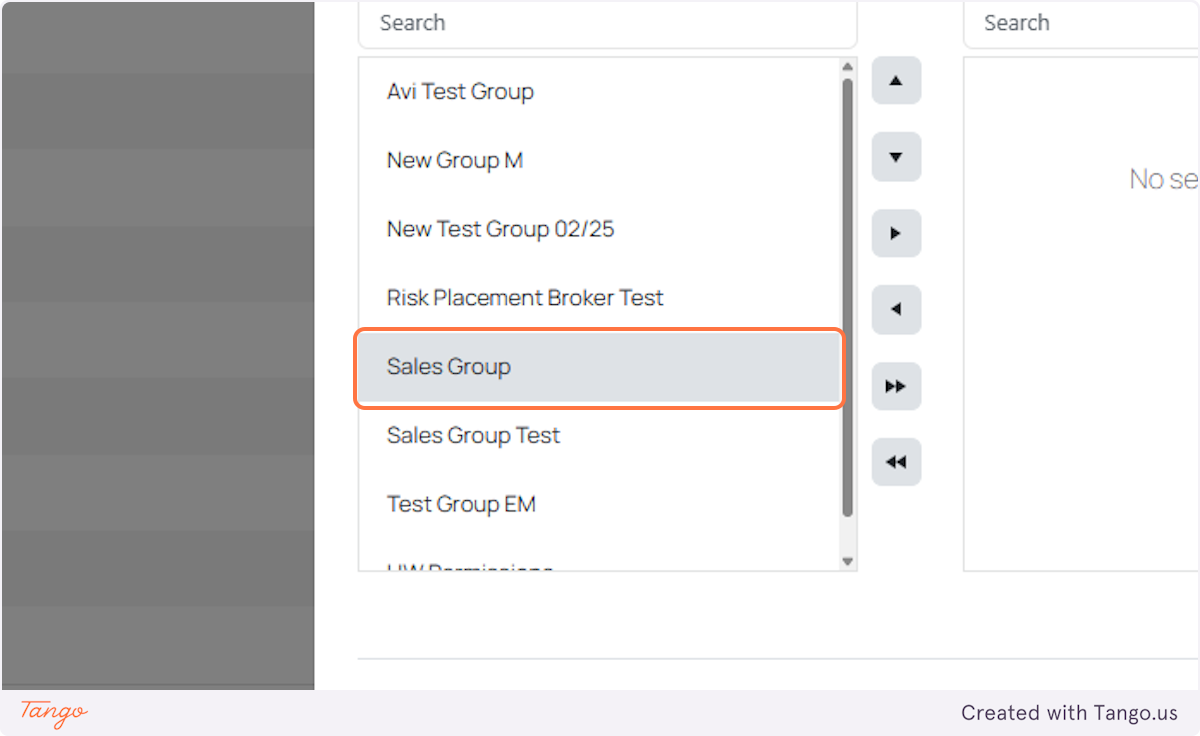
13. Click on the Transfer To button. Once done,

Assigning the Role to the User.
14. Now, go to the Users section of the dashboard.
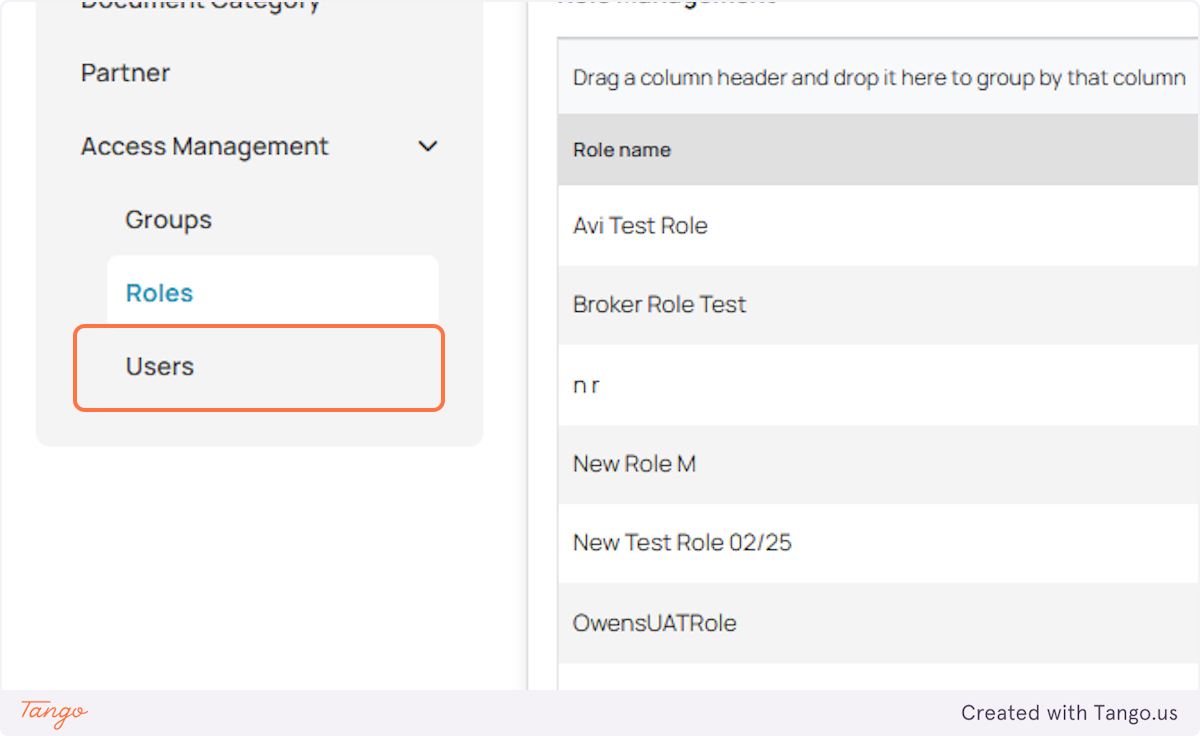
15. Here you will see the list of end-users of DataHub within your organization. Find the user you want to assign the role to. In this instance, we are assigning a role to “Client Services User”.

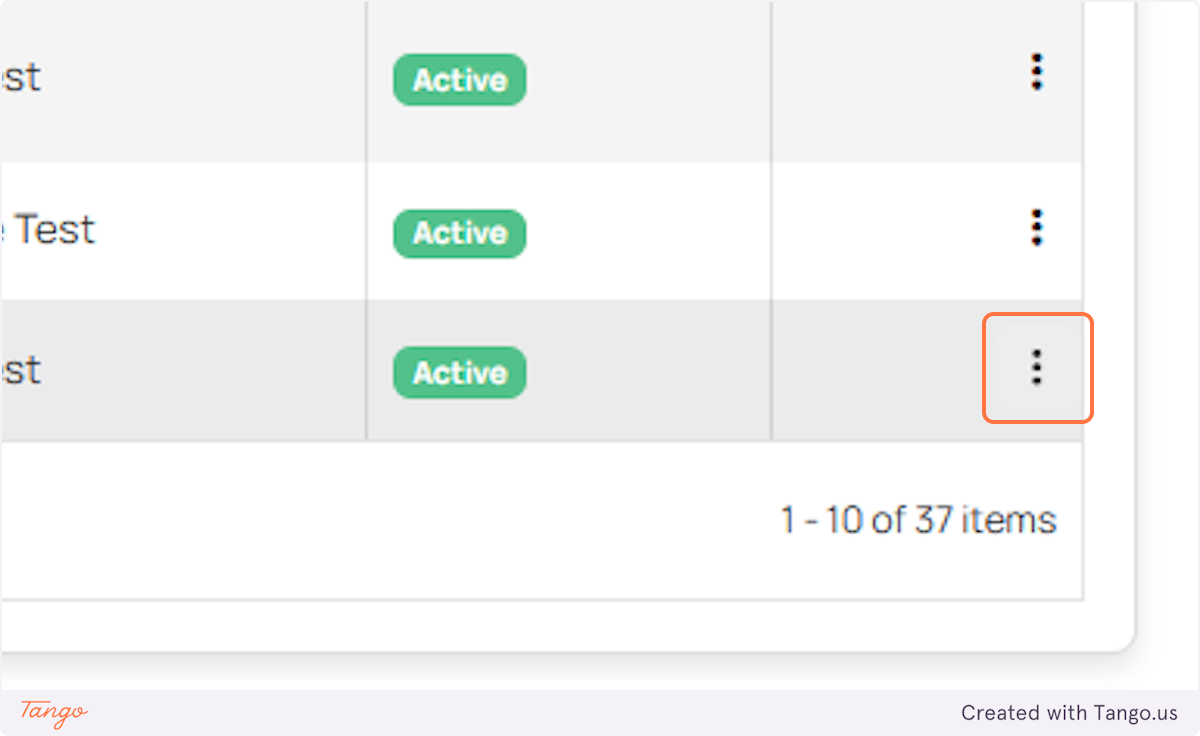
16. Parallel to the users name, to the right, you will find three dots - select that then click User Roles.

17. For this, we are choosing a Sales Role to assign to User: Client Services User.
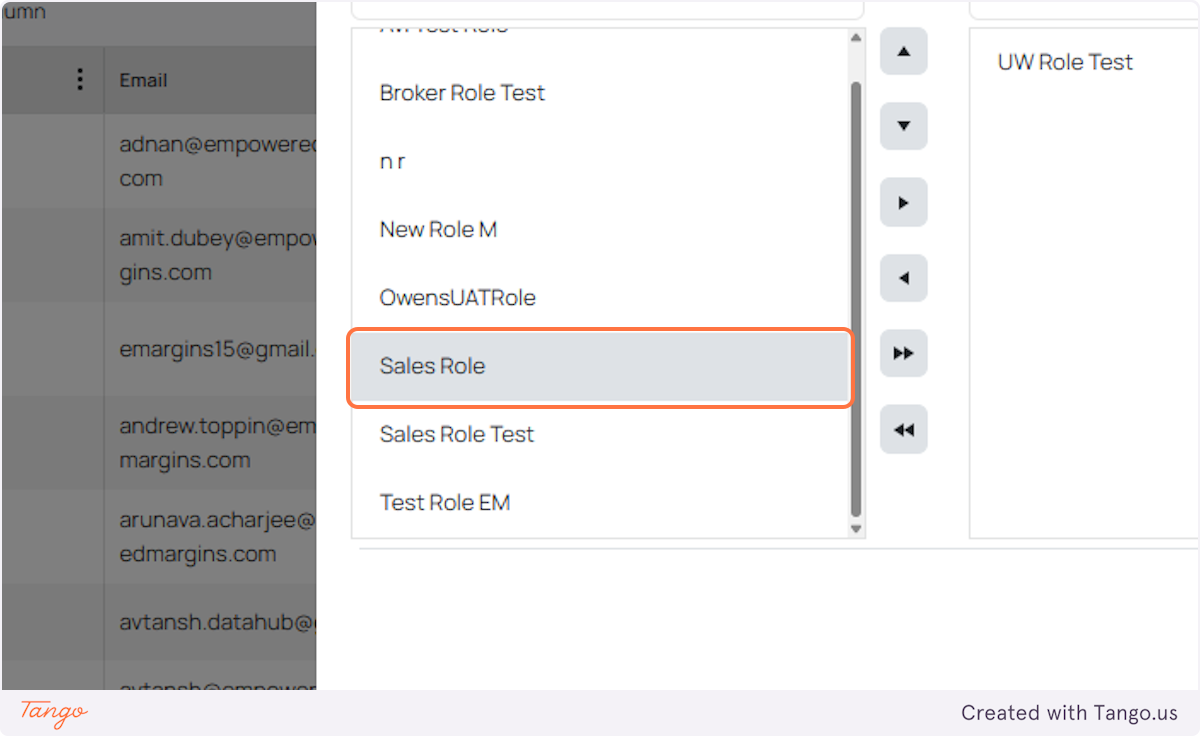
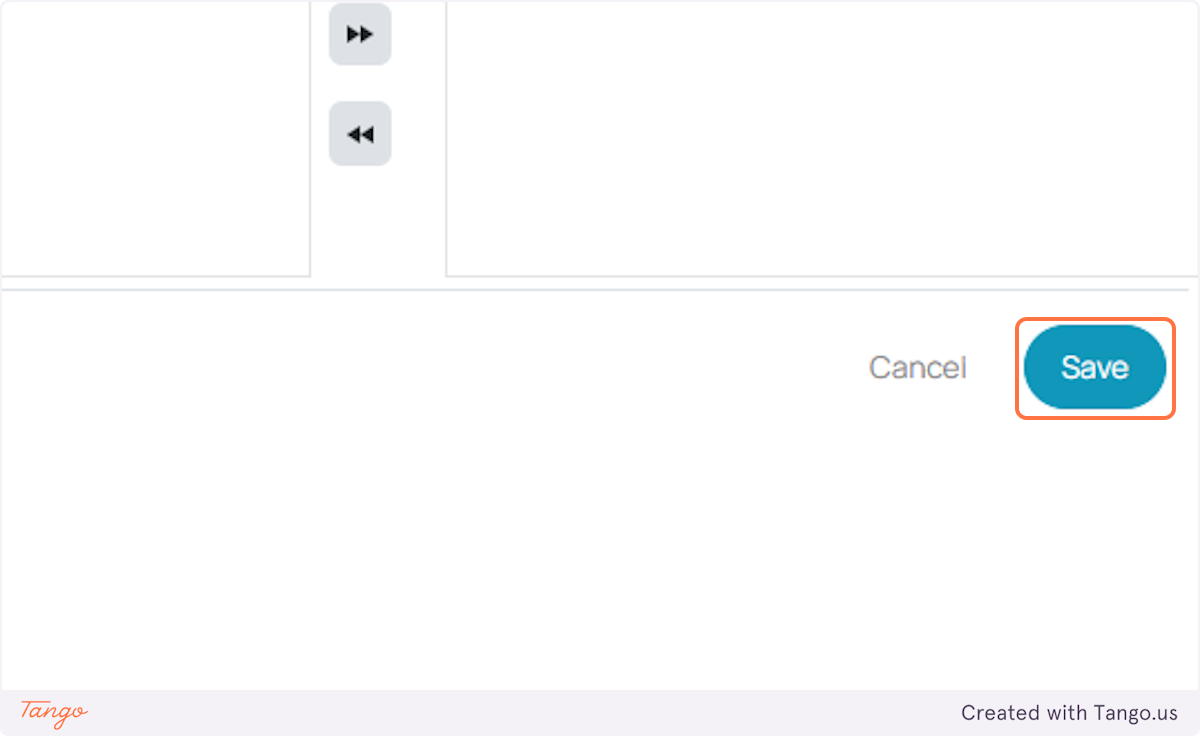
18. After clicking the Transfer to button, do not forget to click Save to complete the setup.
Was this article helpful?
That’s Great!
Thank you for your feedback
Sorry! We couldn't be helpful
Thank you for your feedback
Feedback sent
We appreciate your effort and will try to fix the article