Adding a new user or agent in DataHub is a foundational administrative task that ensures the right team members have access to the tools, data, and permissions they need to perform their roles effectively. This feature plays a critical role in maintaining operational efficiency, data security, and clear role-based access control within the platform.
Why it's important to know:
Onboarding Efficiency: New team members can be activated quickly, minimizing downtime and ensuring they’re productive from day one.
Access Control: Assigning the appropriate roles (e.g., Underwriter, Admin) ensures users only see and interact with the parts of the system relevant to their responsibilities.
Audit & Compliance: Properly managing user access supports audit readiness and compliance with internal policies or external regulations.
Step-by-step guide:
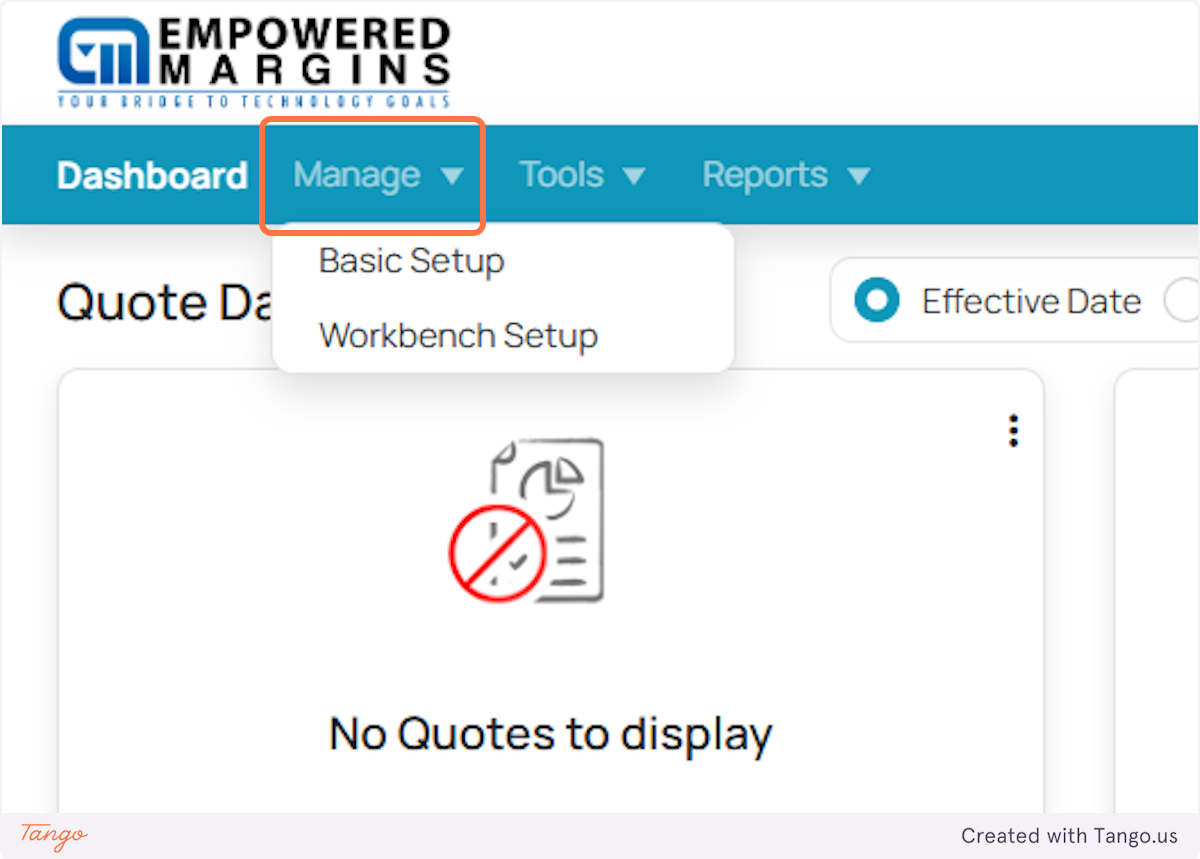
1. Start by opening the Manage tab in the main dashboard.
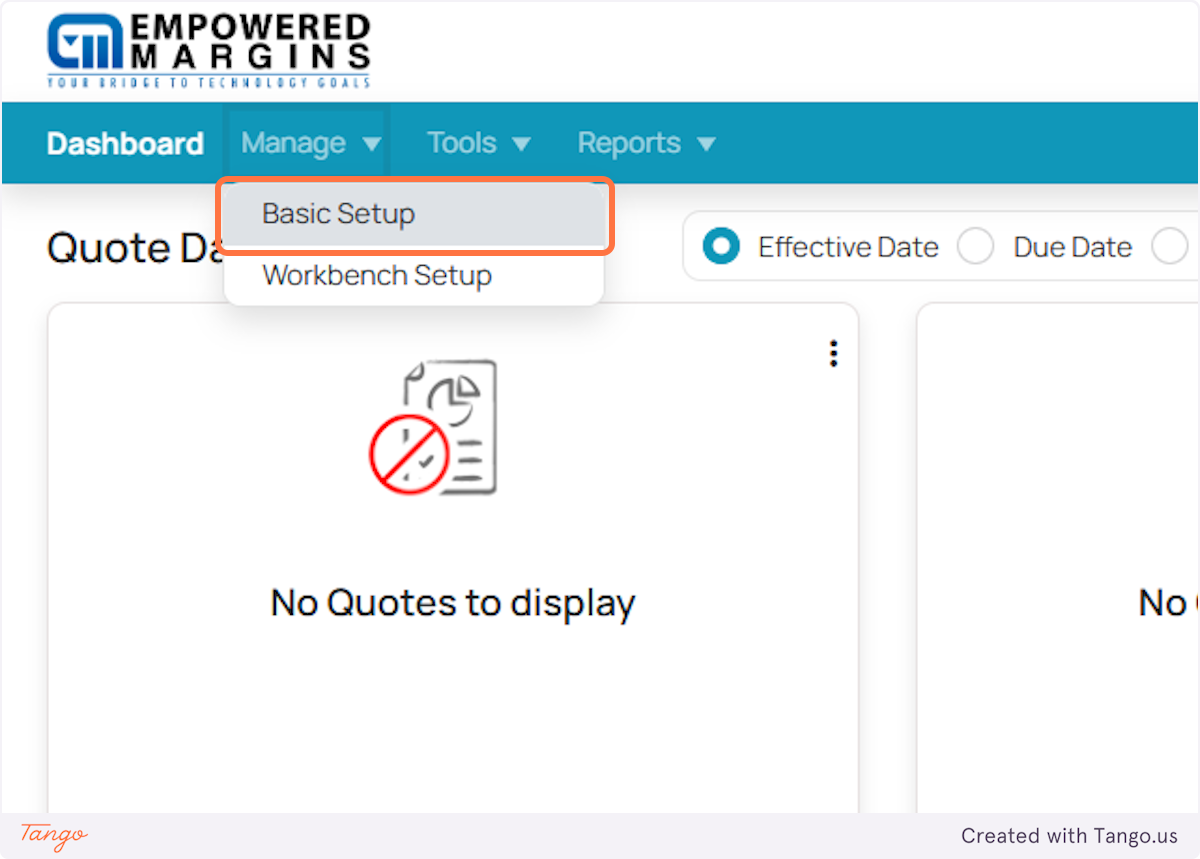
2. Click on Basic Setup, where you'll find your key configuration options.
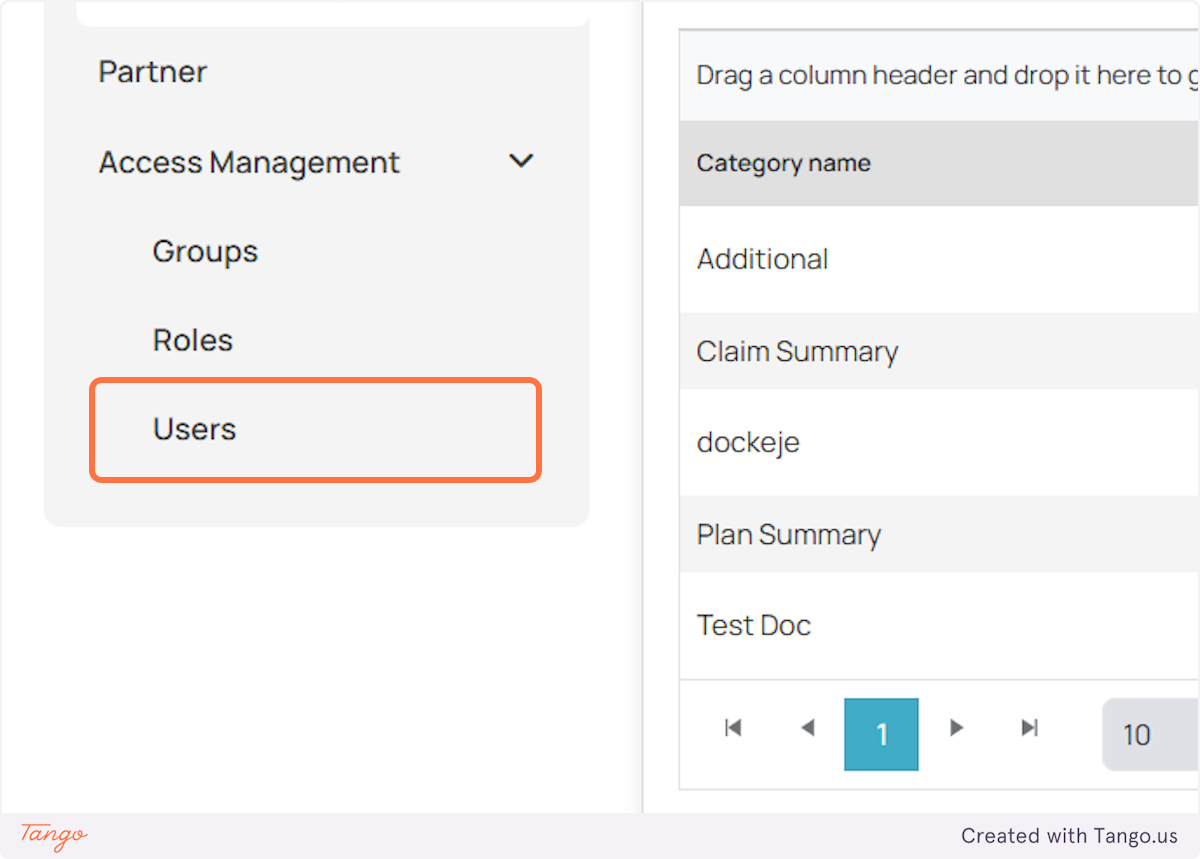
3. Open Access Management.

4. Click on Users to view everyone currently in DataHub.
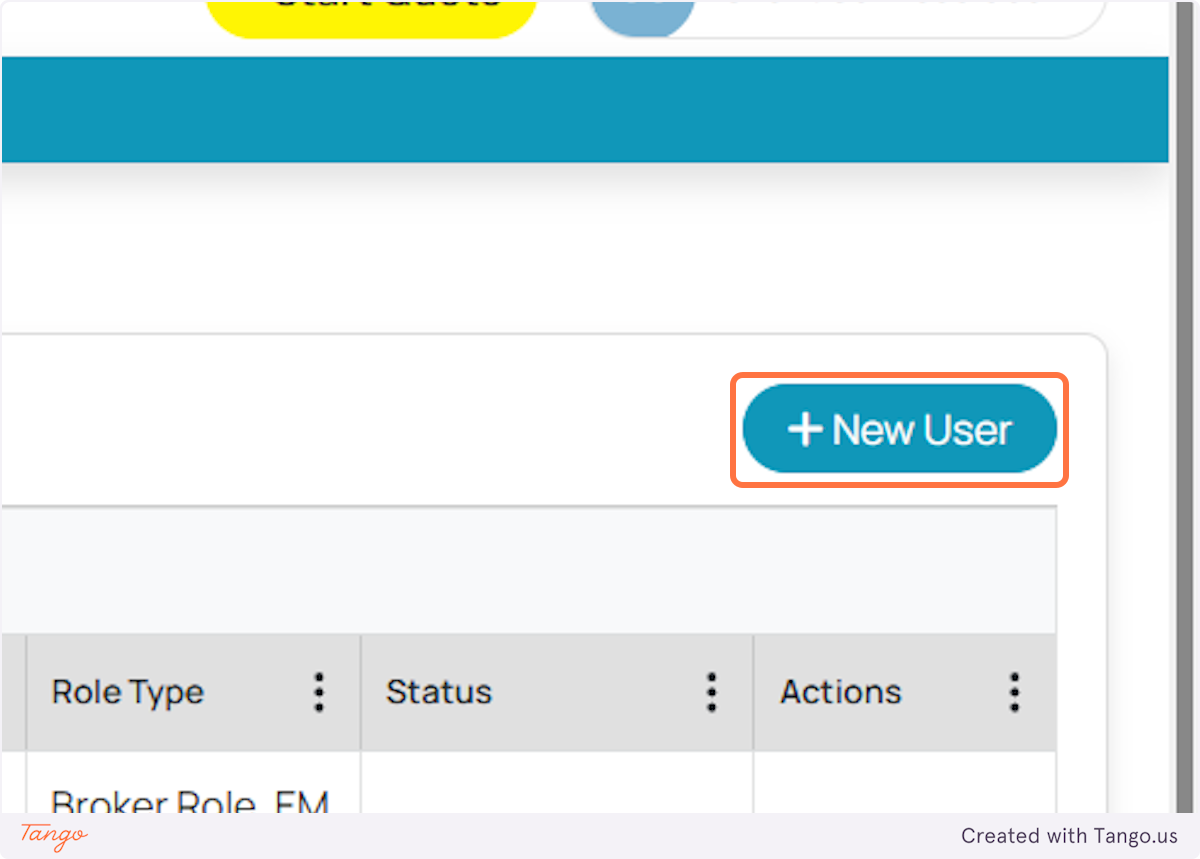
5. Select New User to begin creating a profile for the broker/agent.
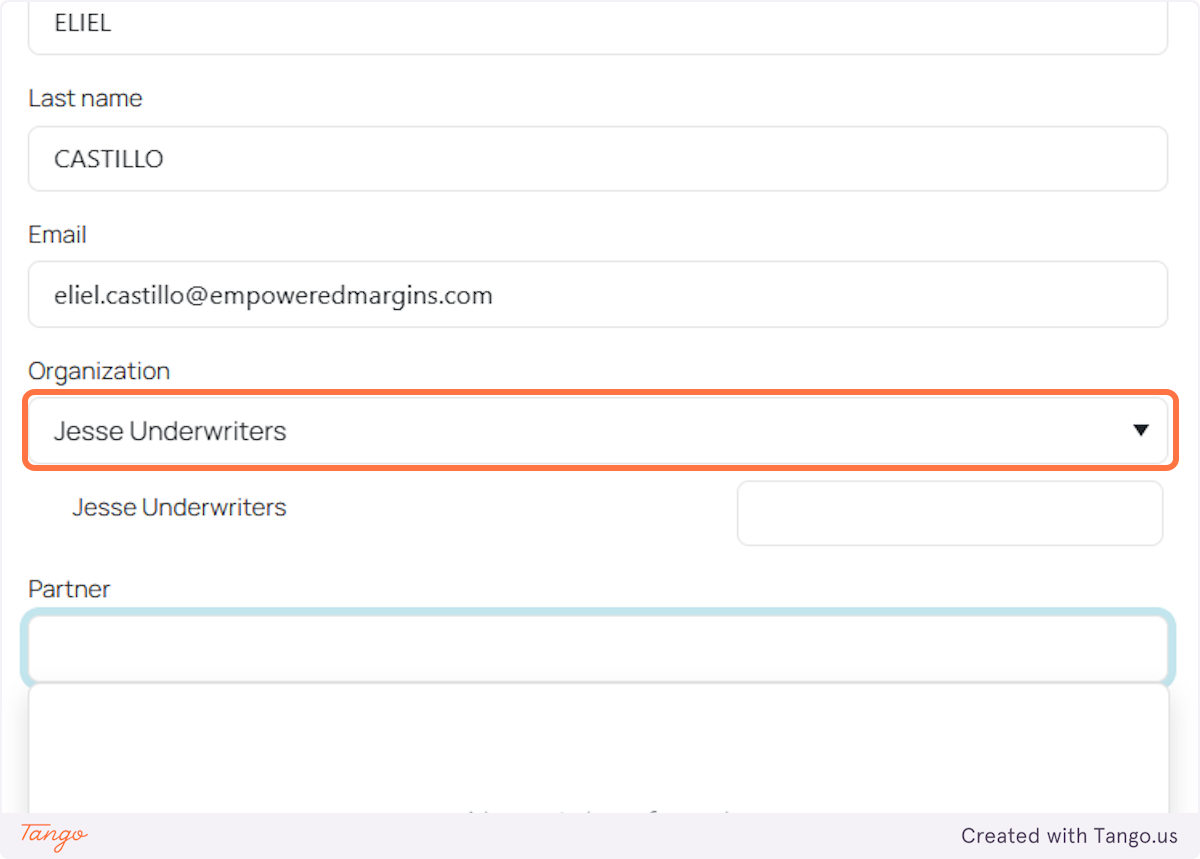
6. Input all the important information - from First Name, Last Name and the Email address. Do not forget to choose the organization.
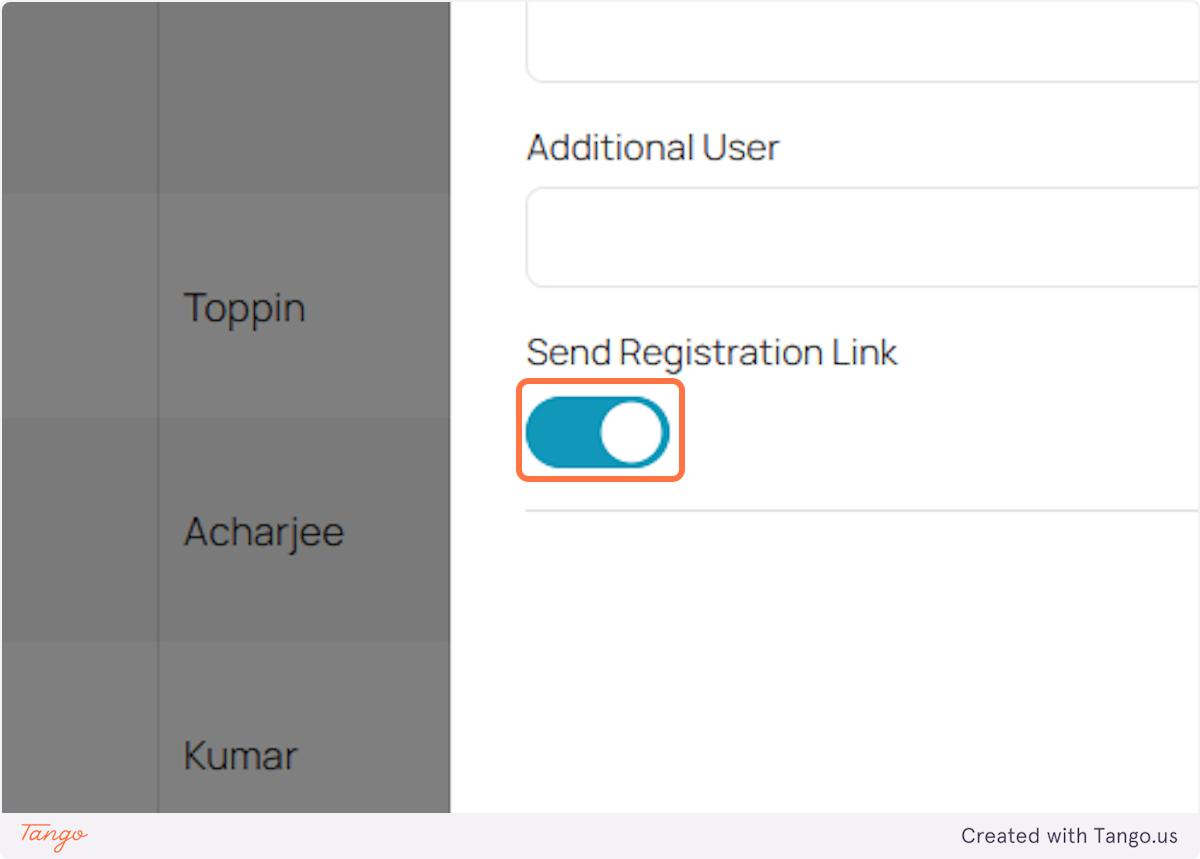
7. Make sure that the Send Registration Link toggle is switched on.
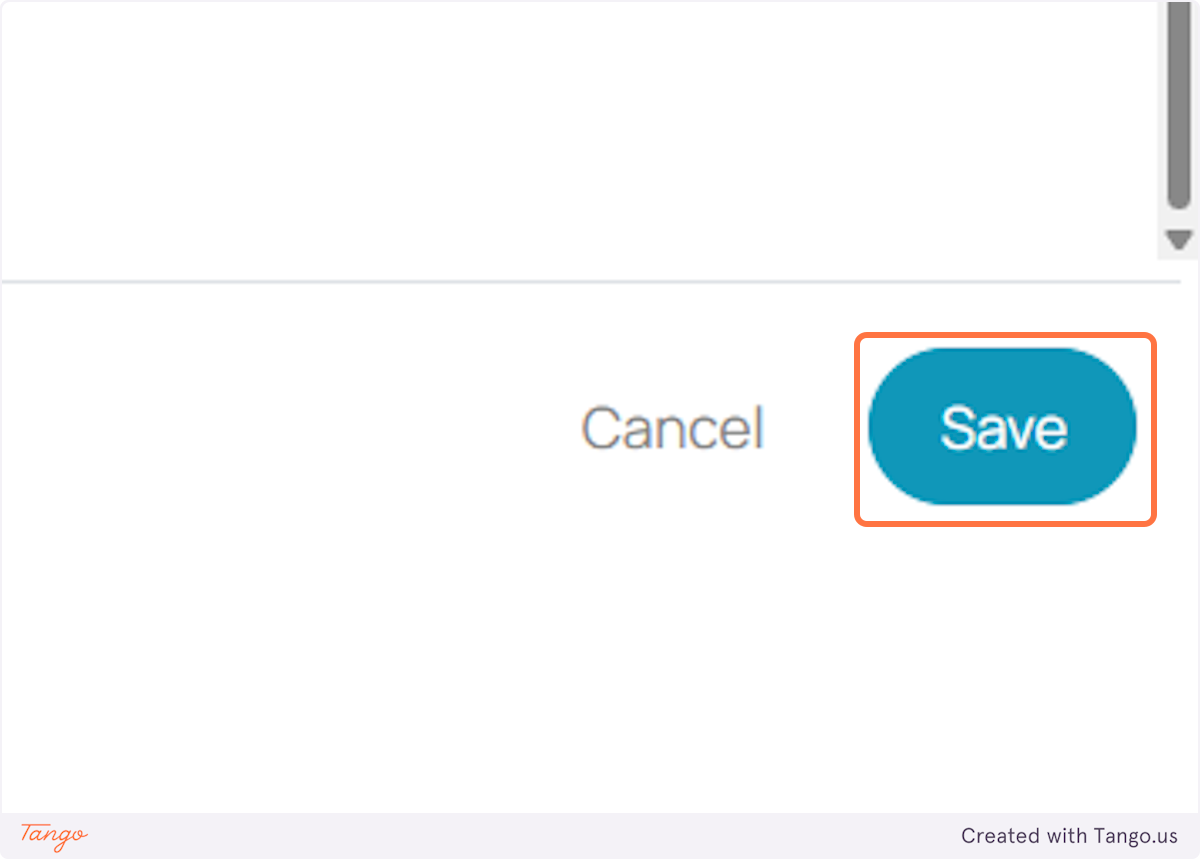
8. Please hit Save to finalize the setup.
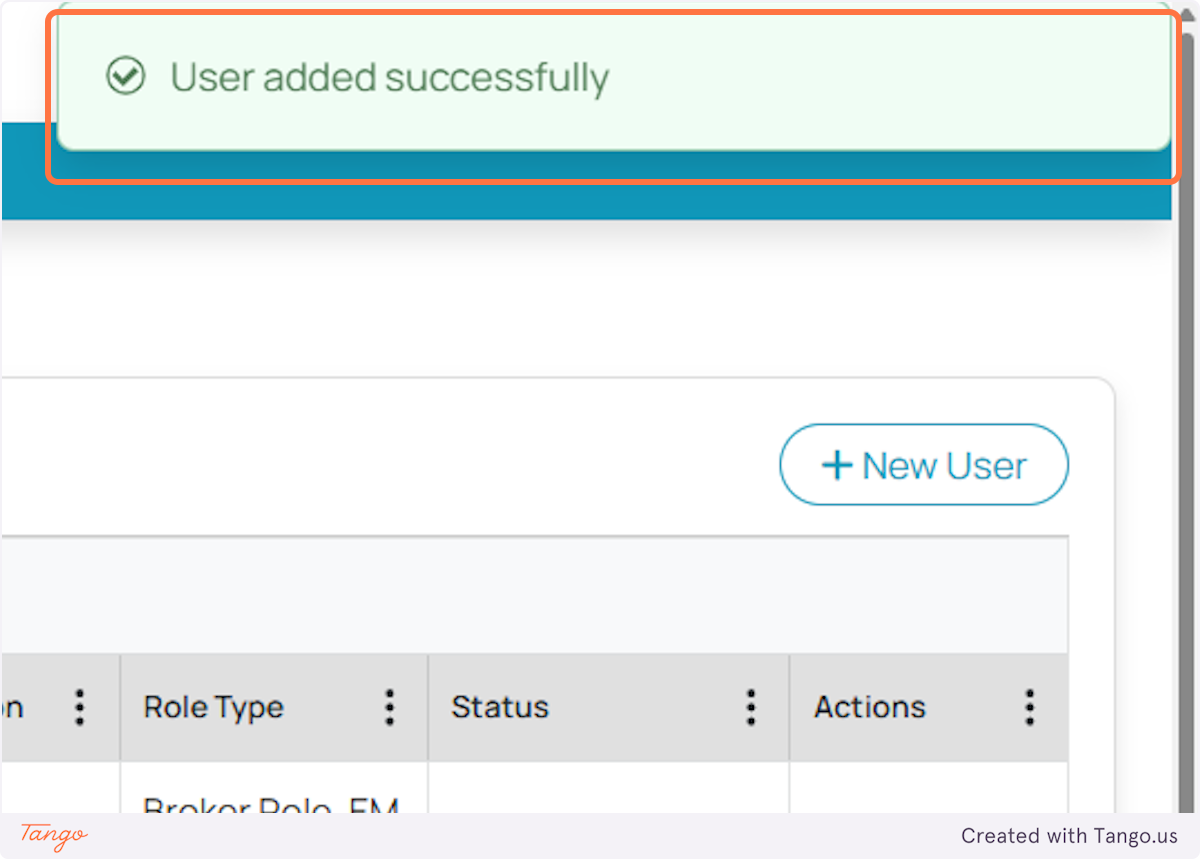
Once the profile is created, the new user will receive an email to get started:
9. Go to your email and look for a message from DataHub addressed to the user.

10. Open the email and click the link that says "Please click here to access."
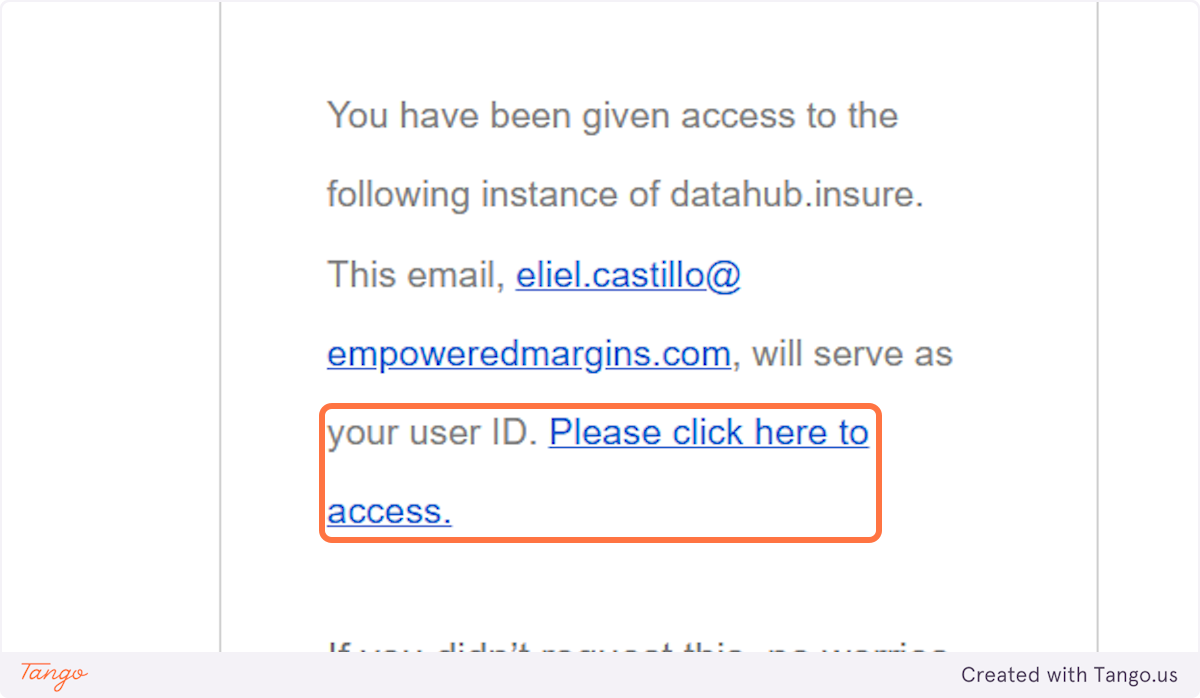
The user should be able to successfully log-in after that.
Click here to know how to add User Roles.
Was this article helpful?
That’s Great!
Thank you for your feedback
Sorry! We couldn't be helpful
Thank you for your feedback
Feedback sent
We appreciate your effort and will try to fix the article