
This guide is designed to help you navigate your first login smoothly. Whether you are a returning user or brand new to the system, follow these simple steps to get started.
Step 1: Accessing the Login Page
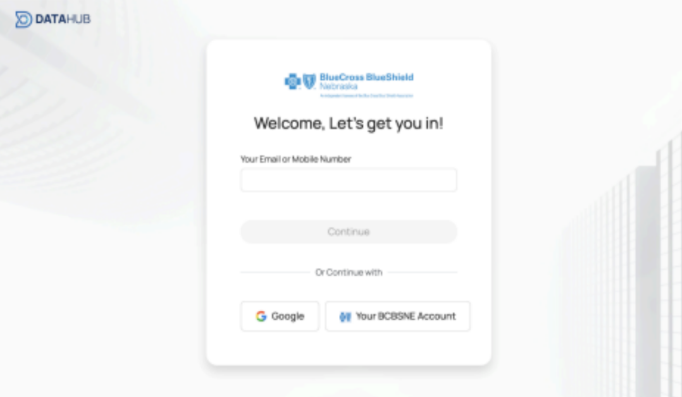
To begin, navigate to the Nebraska Data Hub login portal. You will be greeted by a secure login screen
designed to protect your data.
Step 2: Choosing Your Login Method (SSO)
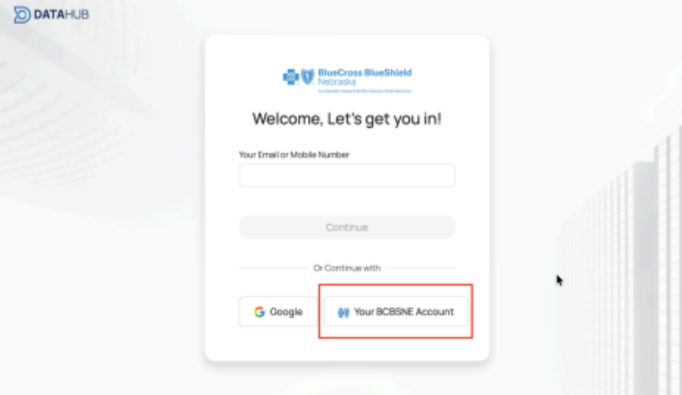
The system uses Single Sign-On (SSO). This means you don’t need to remember a new username or password; you can use your existing professional credentials. You have two primary options:
1. BCBSNE Account (Recommended): Click the "BCBSNE Account" button. This is the most
seamless way to log in.
2. Google Account: If you prefer, or if instructed, you can select the "Google" button to log in using
your work-associated Google email.
Step 3: Authenticating Your Account
Once you click your preferred login method, a secure pop-up window will appear.
● For BCBSNE Users: Simply enter your standard credentials if prompted.
● For Google Users: A window will ask you to "Nominate" (select) the specific email address you
wish to use. Click on your official email address to proceed.
Step 4: Processing
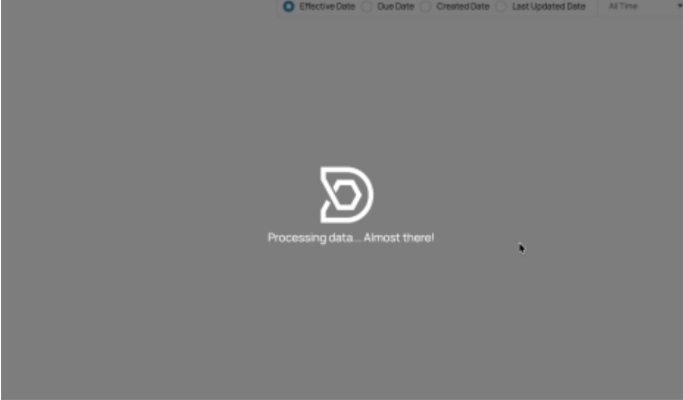
After you select your account, you will see a screen that says "Processing Data."
● All your saved credentials from the old dashboard have been automatically migrated to this new
dashboard.
● Wait a few moments for the system to sync your information.
Step 5: Entering the Dashboard
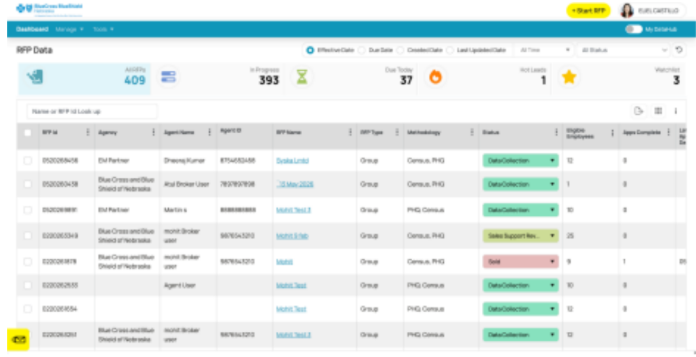
Once the processing is complete, you will be redirected automatically to the main dashboard
homepage. You are now ready to explore your data!
Quick Tips:
● Nominate a New Password: As soon as you login, do not forget to reset your password.
● Browser Pop-ups: If the login window doesn't appear, make sure your web browser isn't blocking
"pop-up windows."
● Need Help? If the "Processing Data" screen hangs for more than a minute, try refreshing your page
or clearing your browser cache.
Was this article helpful?
That’s Great!
Thank you for your feedback
Sorry! We couldn't be helpful
Thank you for your feedback
Feedback sent
We appreciate your effort and will try to fix the article