Adding partners is quick and simple — and it’s an important step in keeping underwriting smooth and accurate. By having partners set up correctly, underwriters can:
Route RFPs and documents to the right organization
Apply the correct plan rules and rates if the partner has their own plans
Keep records clean and consistent for reporting and compliance
Step-by-Step: How to Add a Partner
Go to Tools
From the top menu, click Manage > Basic Setup.

Open the Partner section
On the left side, click Partner.

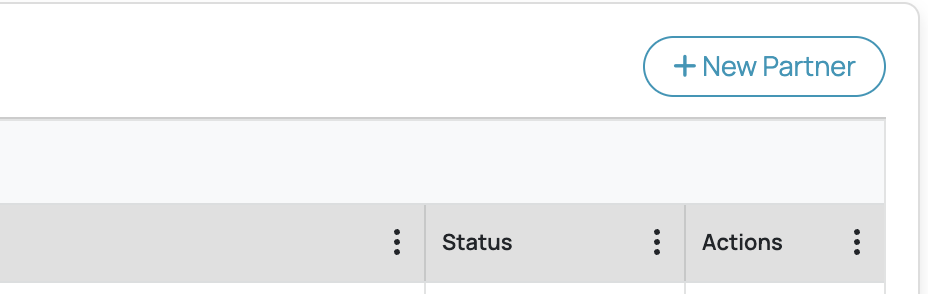
Add a new partner
Click the + New Partner button in the top right corner.
Fill in the details
Partner’s Name
Address, City, State, and Zip Code
Turn the Active toggle ON if this partner should be available right away
Choose Has own plan → Yes or No
Select Yes if this partner has their own special plans
Select No if they use the standard plans
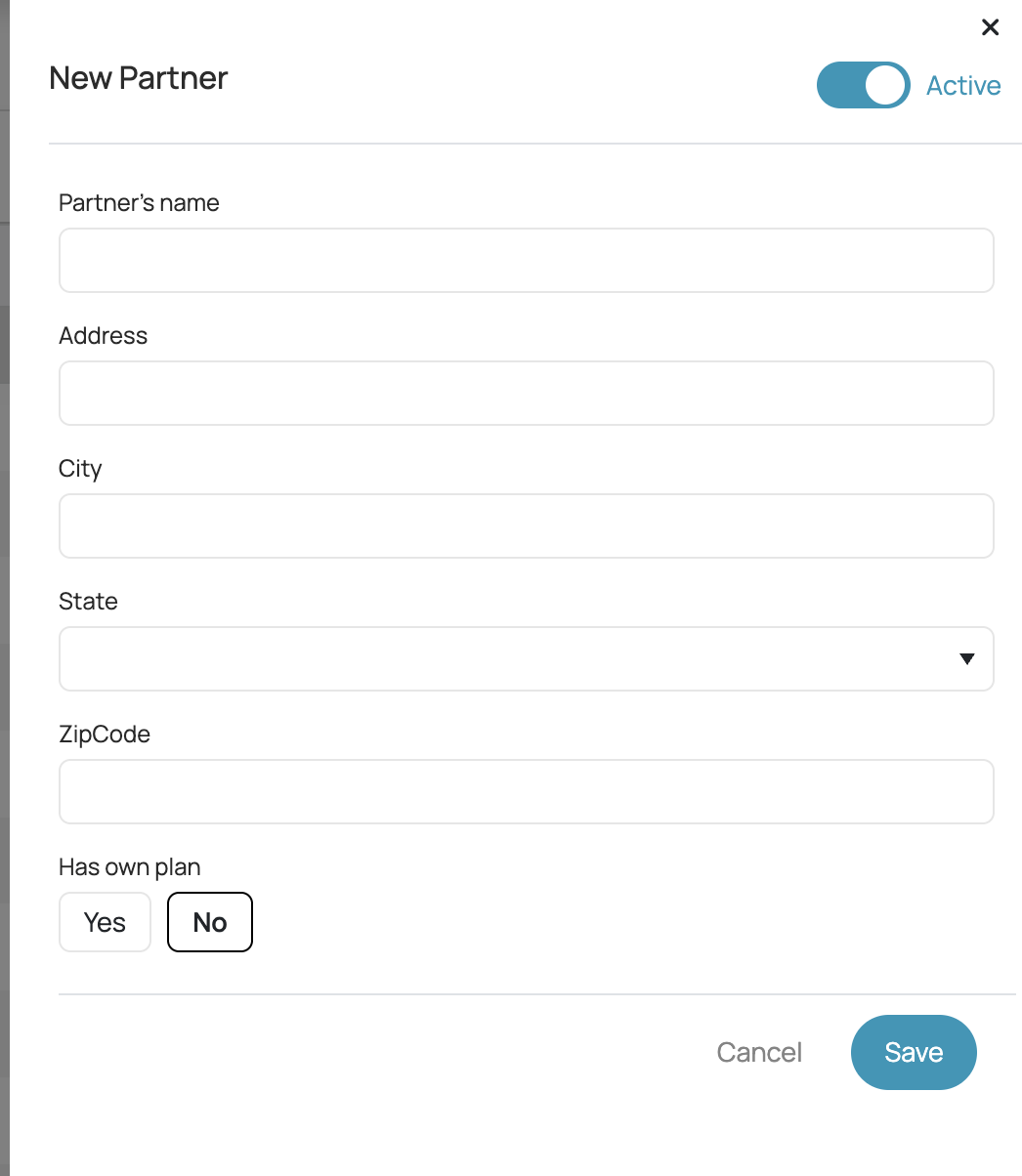
Save
Click Save and you’re done!
Tips
If a partner is no longer active, you don’t need to delete them. Just toggle Active off.
Use Has own plan = Yes only if underwriting needs to connect custom plans to that partner.
Was this article helpful?
That’s Great!
Thank you for your feedback
Sorry! We couldn't be helpful
Thank you for your feedback
Feedback sent
We appreciate your effort and will try to fix the article