This guide provides step-by-step instructions to help you log into DataHub using your email, password, and Google Authenticator for two-factor authentication. If you encounter any errors during login, this guide will walk you through how to troubleshoot issues such as incorrect passwords or authentication errors. By following these steps, you will be able to securely access your DataHub account, which includes using app-based authentication to ensure a safe and verified login process.
Step 1: Access the Login Screen
Click on the Welcome, Let’s get you in! prompt to start the login process.
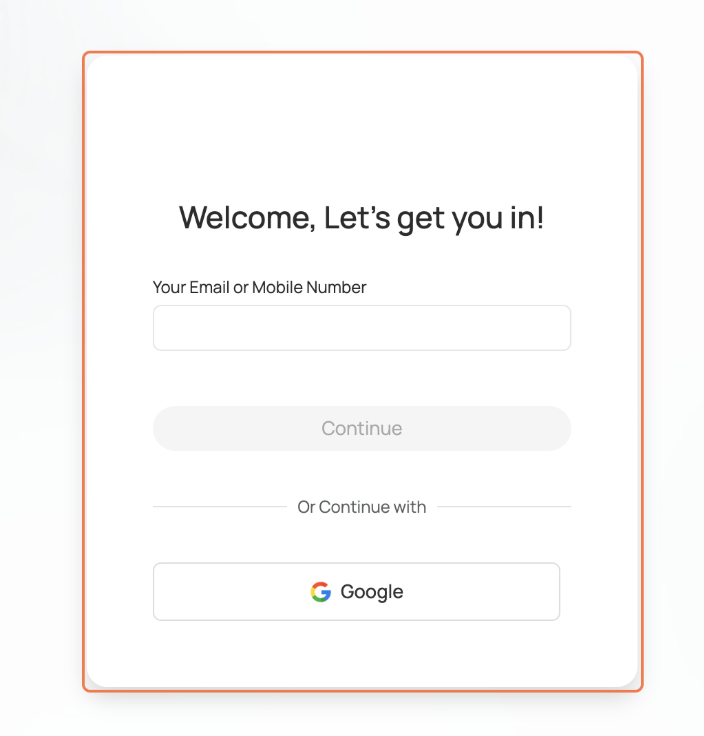
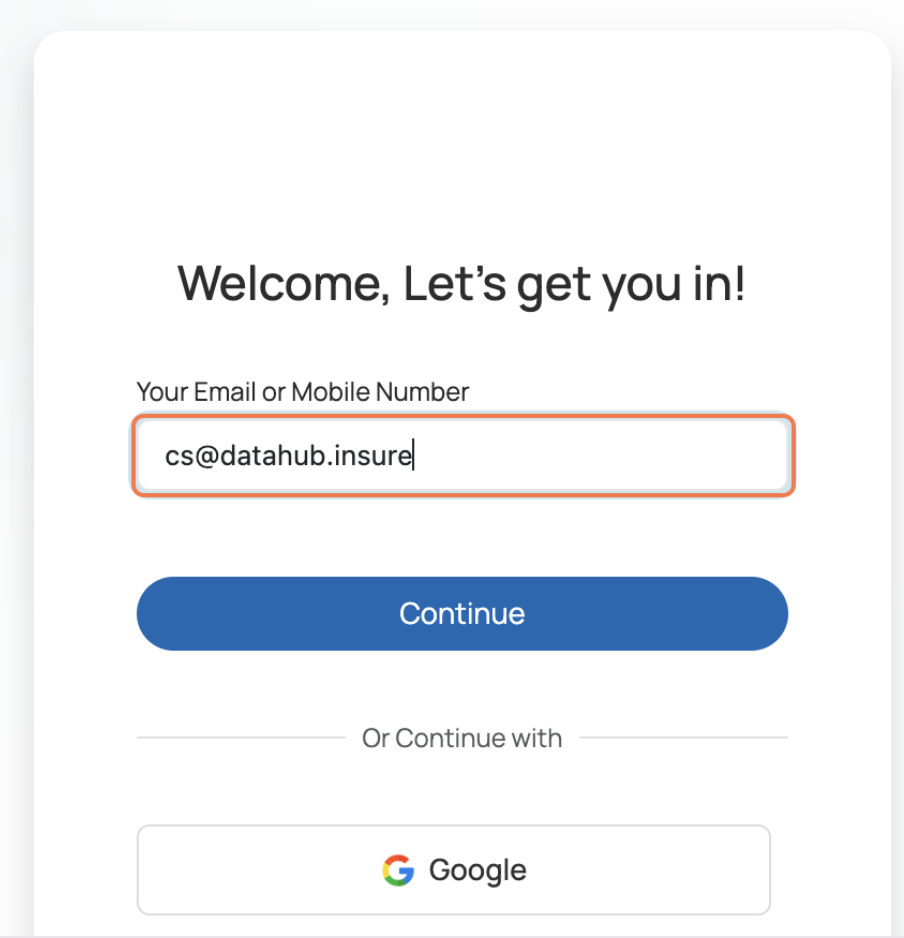
Step 2: Enter Your Email Address
Type in your email address: into the provided field.
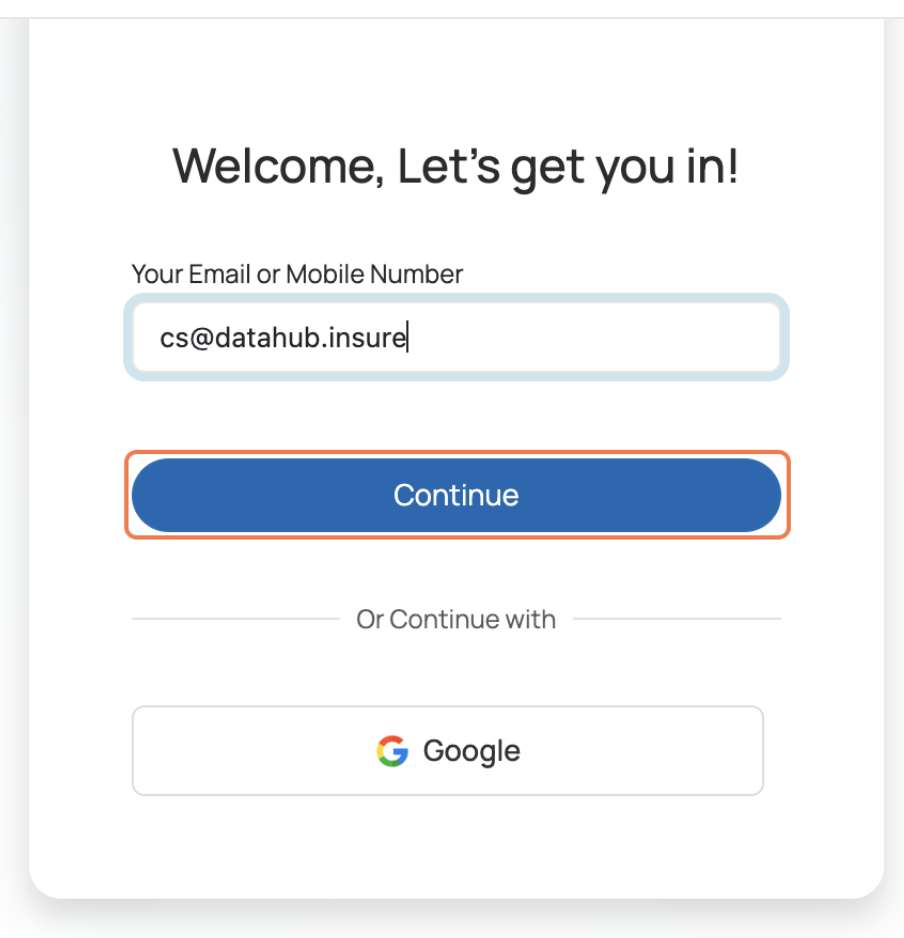
Step 3: Click Continue
After entering your email, click on the Continue button.
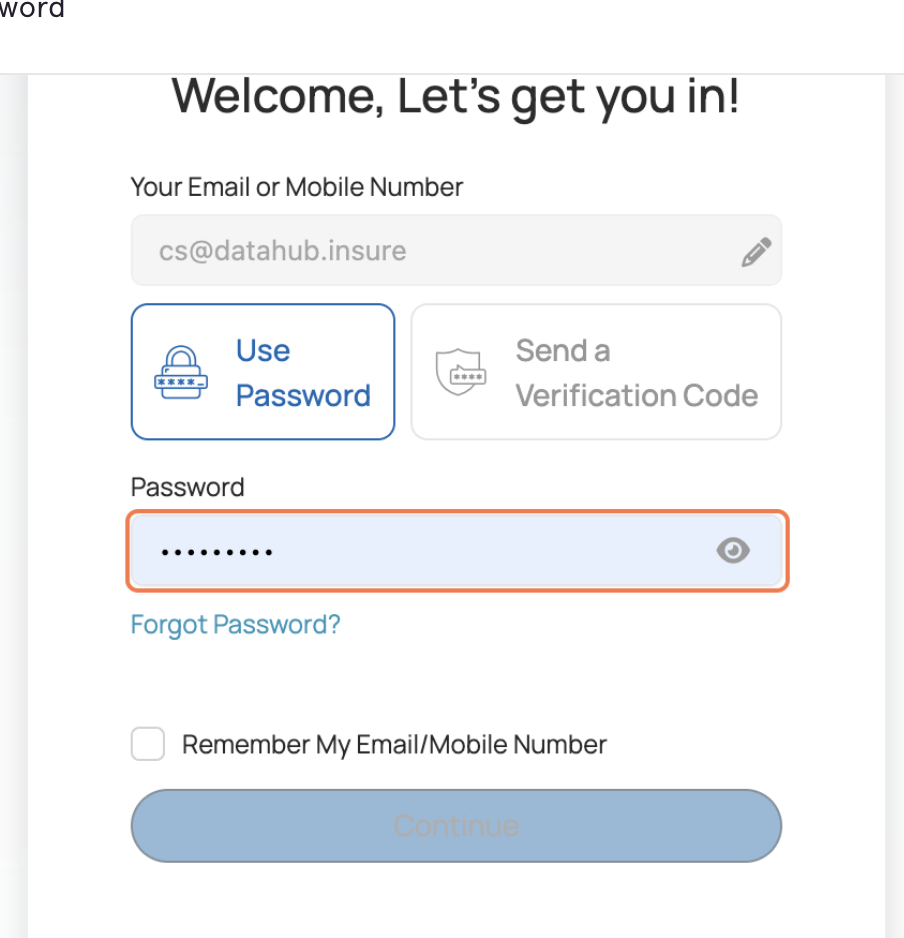
Step 4: Enter Your Password
Type your password into the Password field.
Step 5: Click Continue
Once your password is entered, click on the Continue button.
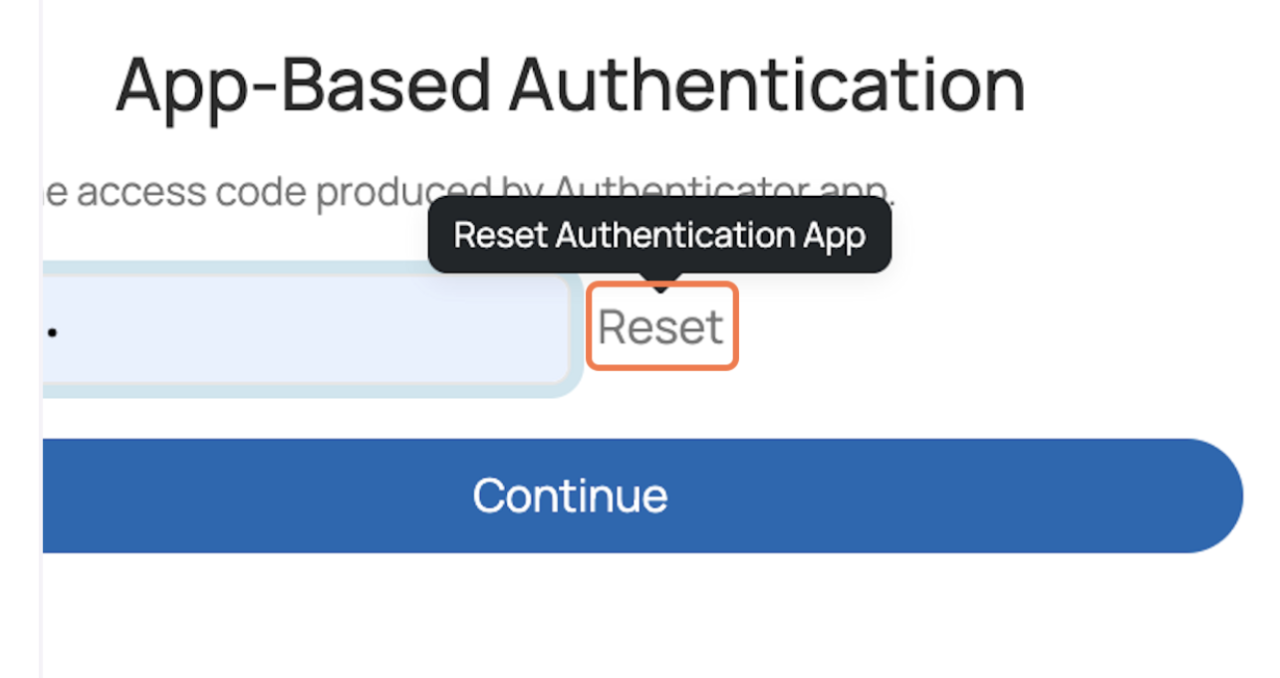
Step 6: Reset Authentication (if needed)
If you encounter issues with your login, such as an incorrect password, click on the Reset button.
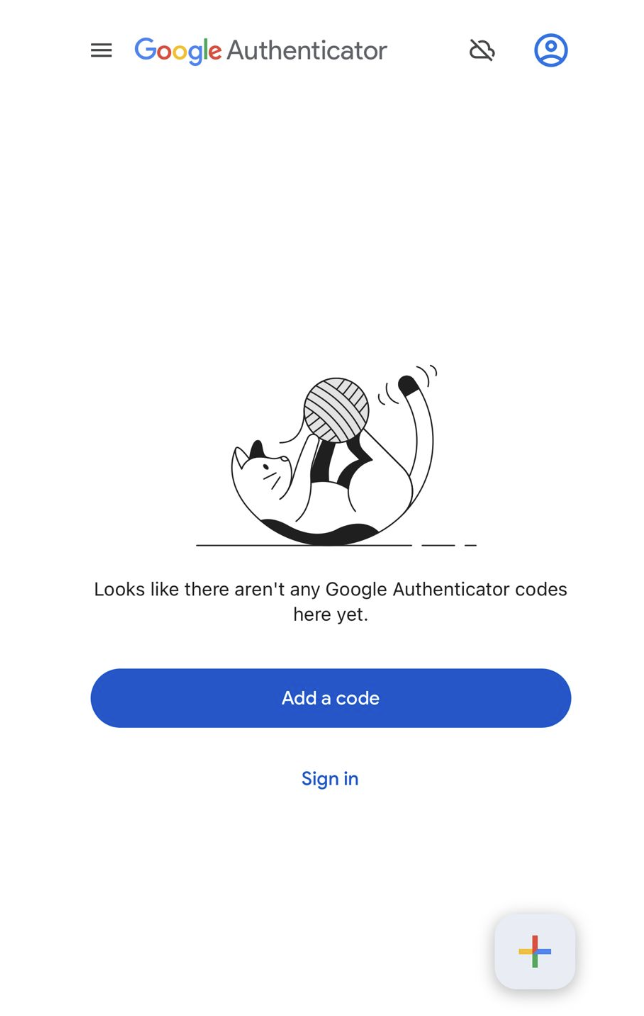
Step 7: Open Google Authenticator App
On your device (cellphone) open your Authenticator app to retrieve the authentication code. On the lower right side a plus sign button is there that you must click. Then, choose the option "Scan QR Code". Scan the QR code showing on your DataHub login screen using your Authenticator app.
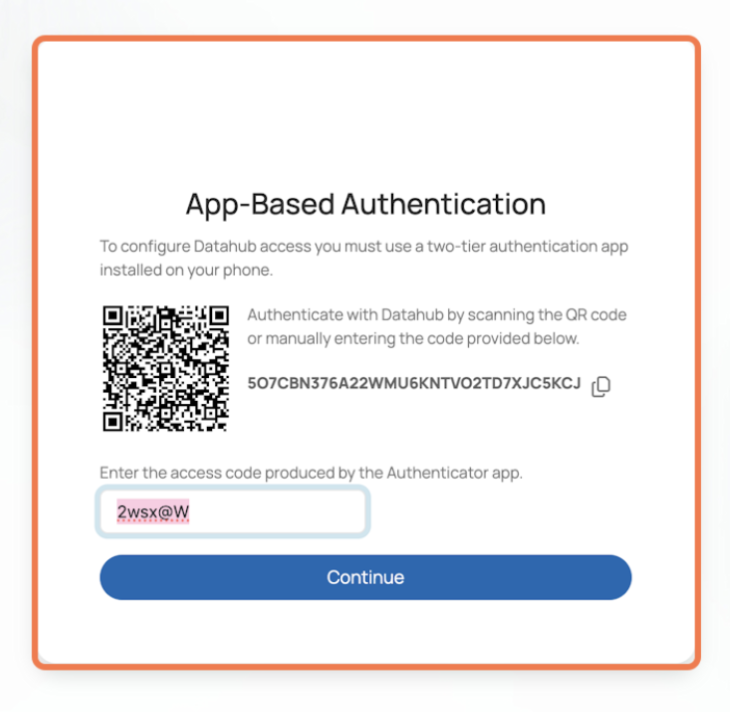
Step 8: Enter the Authentication Code
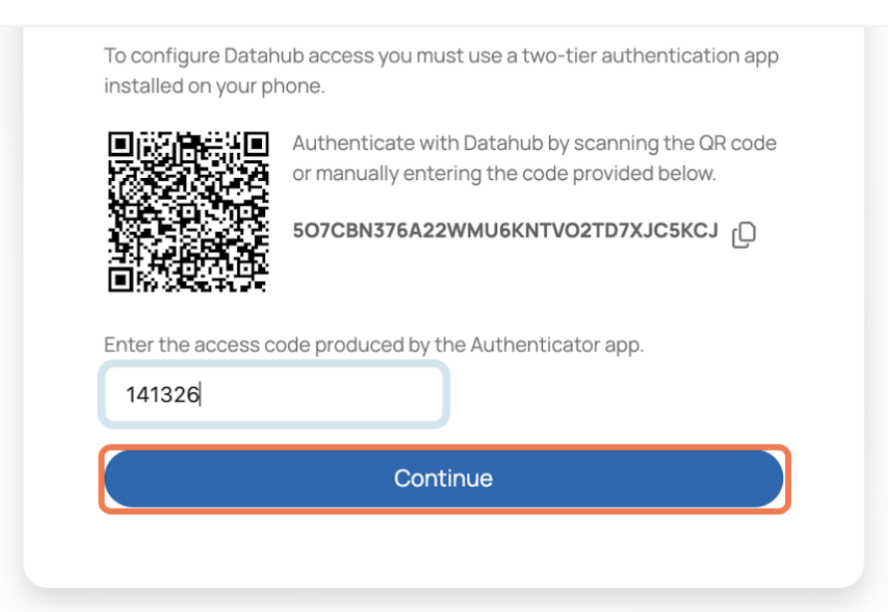
Enter the code shown in the Google Authenticator app (e.g., 141326) into the provided field.
After entering the code, click the Continue button to complete your login.
You have successfully logged into DataHub!
Troubleshooting Login Errors:
If you experience issues logging in, ensure that the email and password entered are correct. If the problem persists, click on Reset and follow the instructions to recover or reset your login details.
For app-based authentication errors, ensure that your Authenticator app is properly set up and synced. If necessary, reset the app or check the QR code again for authentication.
Was this article helpful?
That’s Great!
Thank you for your feedback
Sorry! We couldn't be helpful
Thank you for your feedback
Feedback sent
We appreciate your effort and will try to fix the article